Focus breaks
A 2022 Harvard Business Review study of 137 users at three Fortune 500 companies found nearly 1,200 app switches a day. Workers spent almost four hours a week refocusing.
Save 30% On All ExactFlow Annual Plans
Take control of your team's productivity with an employee time tracking app that brings project management, task planning, and time tracking together. Assign tasks, monitor progress, track work hours, and compare estimated time with actual results, all in one workspace. Keep your team organized, accountable, and on schedule with TimerClick.
Part of ExactFlow: 8 products, 6 AI agents, 790+ integrations
An employee time tracking app records the hours each person works and files them on an employee timesheet. Employee time tracking software that also holds tasks lets managers see planned and actual effort side by side, with no retyping from a separate timer. This setup replaces the spreadsheet or second tool that teams otherwise use to reconcile the two.
Teams feel the gap when their planning tool and their time tracker drift apart over a busy month. Timers get forgotten, entries lose their project, and nobody can say whether a task took two hours or eight. A combined tool ties every logged minute to a task, a project, and a person, which keeps the numbers usable.
| Capability | Project management side | Time tracking side |
|---|---|---|
| Planning | Projects, tasks, subtasks, deadlines | Estimated hours per task |
| Ownership | Assignees, priorities, dependencies | Hours logged per person |
| Progress | Status, boards, timelines | Actual hours against estimates |
| Reporting | Dashboards | Timesheets, daily and weekly totals |
Separate tools force double entry, and double entry is the first thing people skip when work gets busy. Teams retype hours into the task tool each evening, forget to start timers, and log vague entries nobody can match to a project later. The cost shows up in three ways, and each one has a number behind it.
A 2022 Harvard Business Review study of 137 users at three Fortune 500 companies found nearly 1,200 app switches a day. Workers spent almost four hours a week refocusing.
Asana’s 2022 survey of 10,624 knowledge workers found 58% of the day goes to work coordination, also called work about work.
Adobe’s 2021 study found 56% of enterprise workers and 65% of small-business leaders say forms, timesheets, and expense reports get in the way.
The fix
A combined workspace puts status and hours on the same task, so managers have fewer updates to chase. TimerClick keeps tasks, timers, and employee timesheets in one workspace, so nobody retypes hours between tools. Employees see their own activity data, and managers compare estimates with actual hours on each task. An employee time tracking app ends the double entry by logging hours on the same task the work lives on.
TimerClick organizes the whole workspace into four sections: Work, Insights, People, and Workflow. Work holds tasks, Insights holds time and activity data, People holds the team, and Workflow holds your project setup. The sections below cover each one, so you can see where planning ends and time tracking begins. Together, they make TimerClick an employee time tracking app that also handles planning.
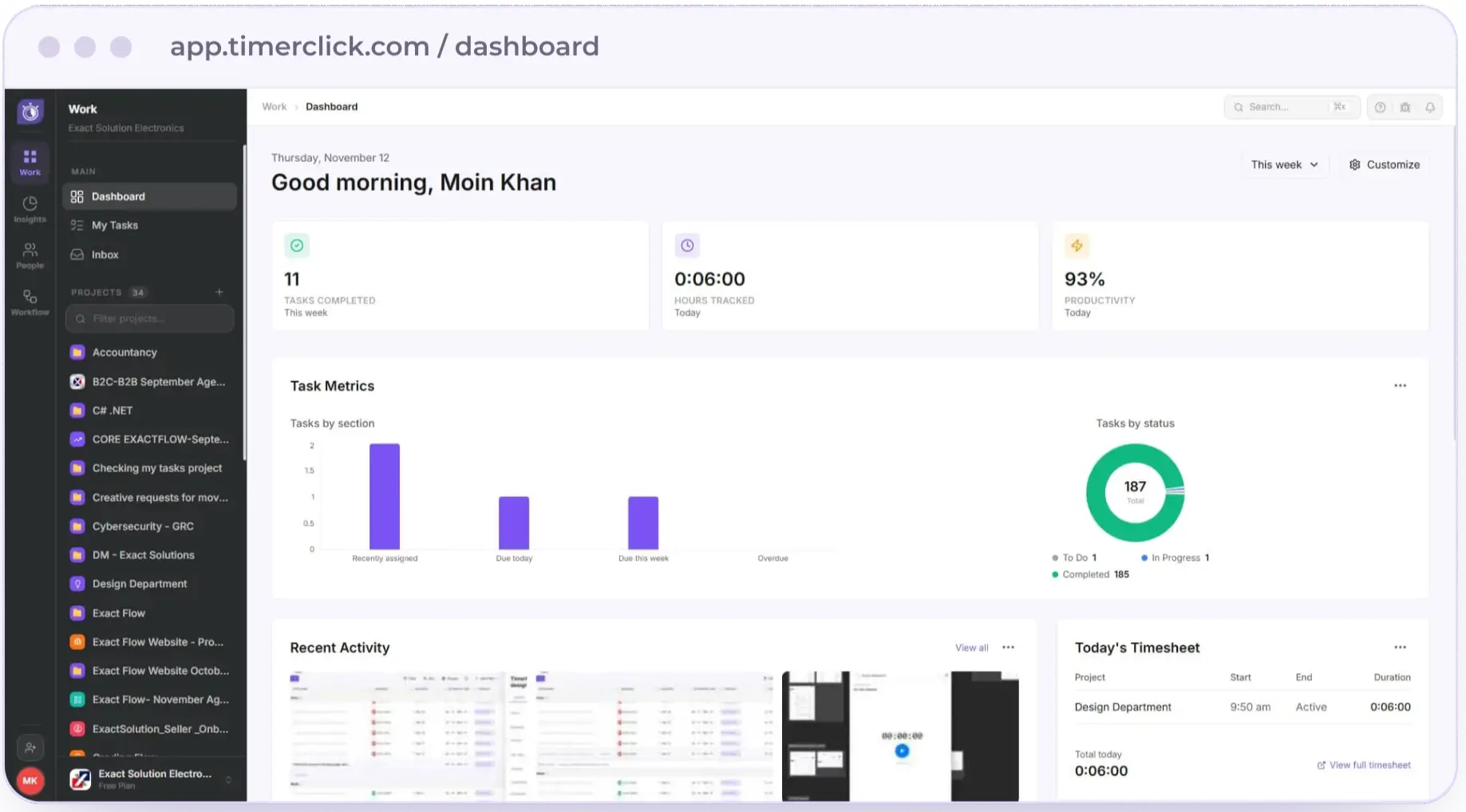
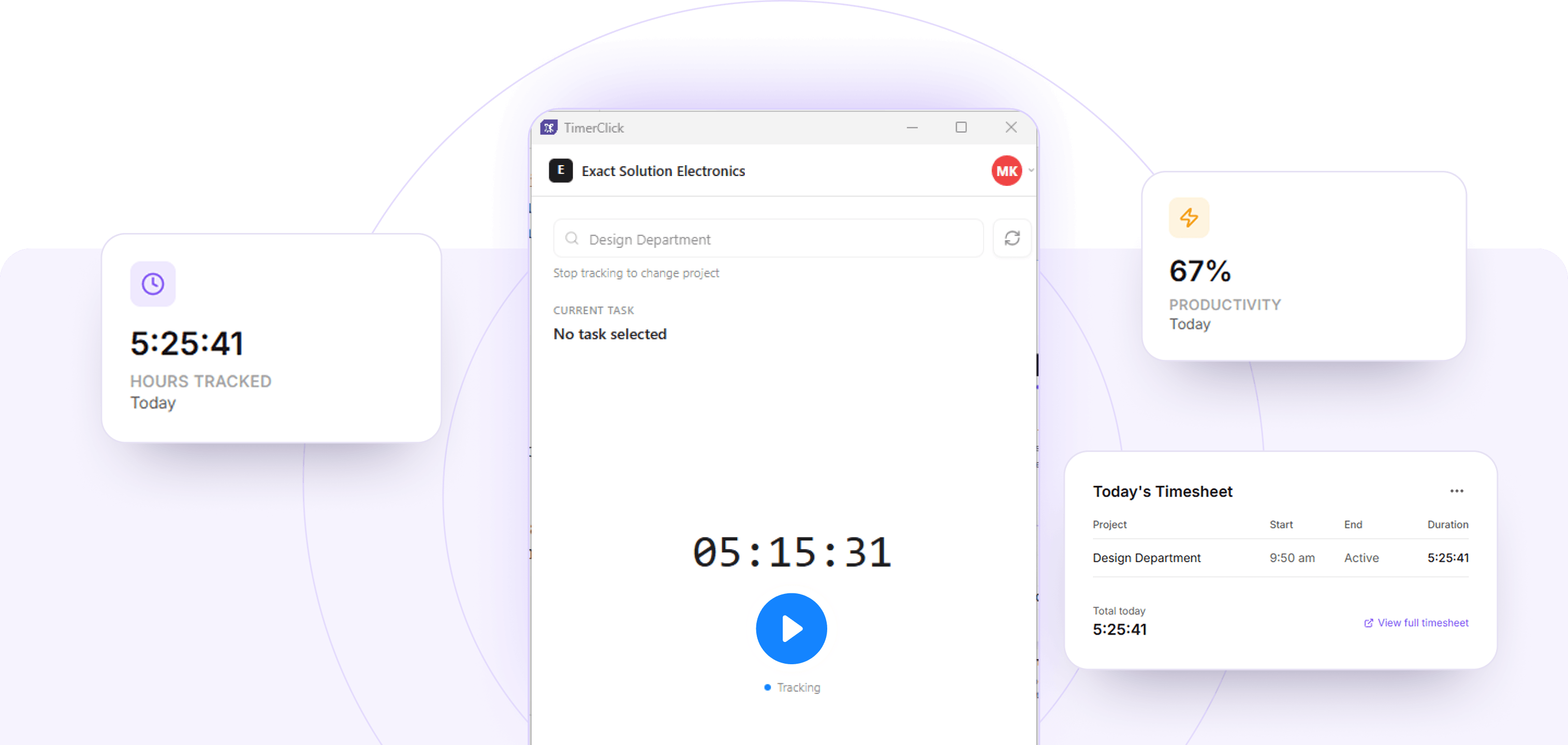
Work is where every project starts, because teams handle project planning and team task management in one place. Each person opens a personal dashboard with tasks completed this week, hours tracked today, and a productivity percentage, which is calculated from average activity, as in Capture Center.
One personal list of every assigned task, shown as List, Board, Calendar, Timeline, or Files.
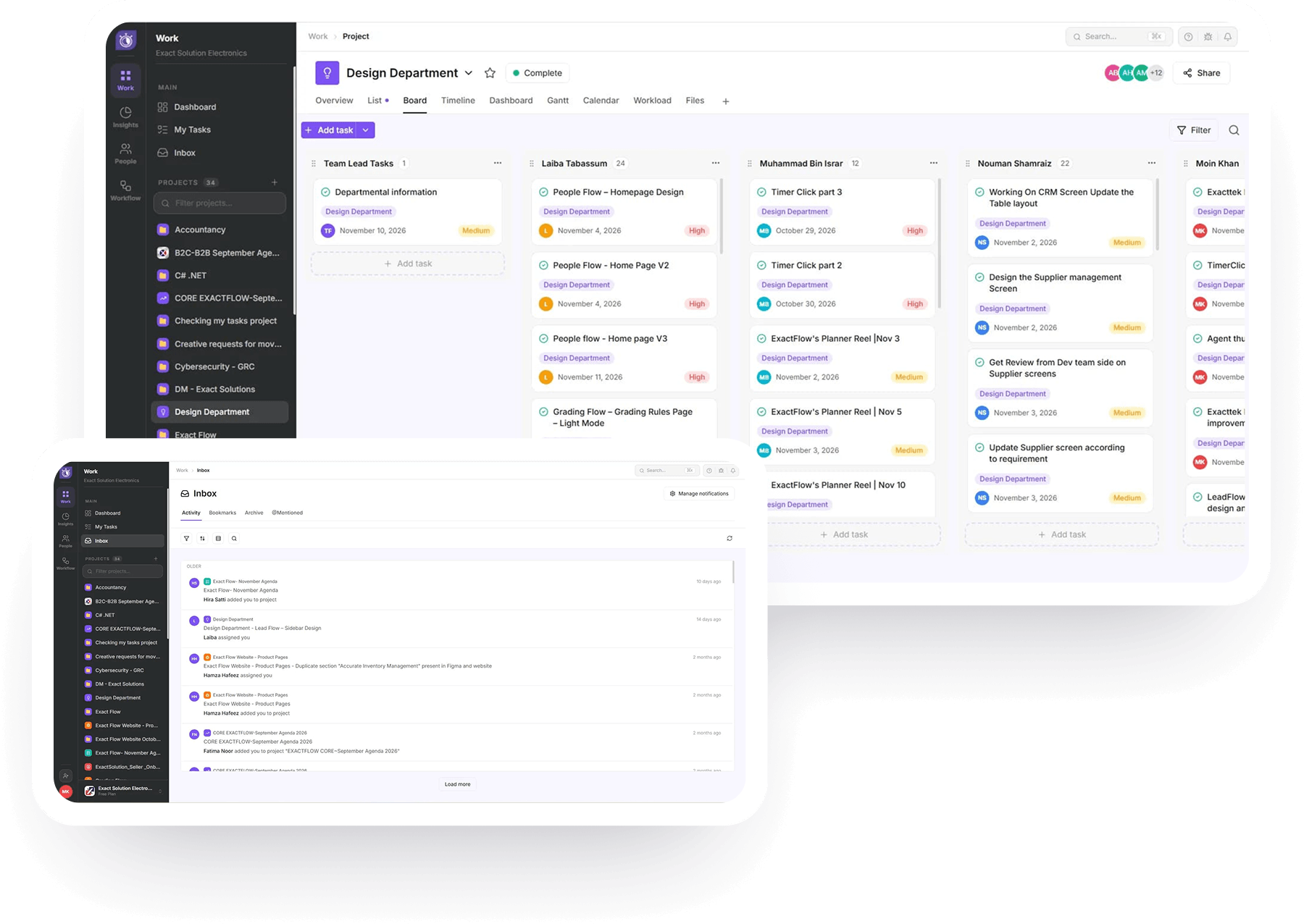
Overview, List, Board, Timeline, Dashboard, and Files, with filtering, sorting, and grouping.
Assignees, due dates, priorities, descriptions, subtasks, comments, attachments, custom fields, and dependencies.
Assignments, mentions, and project activity in Activity, Bookmarks, Archive, and @Mentioned tabs.
A recurring task comes back on its own, on the schedule you choose, so nobody has to re-create it. Click the task’s due date in List view, then pick a schedule from the Repeat dropdown. Teams use it for daily standups, weekly reports, and regression checks.
Daily (weekends included), Every weekday (Mon-Fri), Weekly, Monthly, and Custom for your own schedule.
A toggle below the dropdown, off by default. When it is on, TimerClick also creates tasks for the dates that were missed.
Click the date again to pick a new schedule, or click Clear all at the bottom right to remove the repeat.
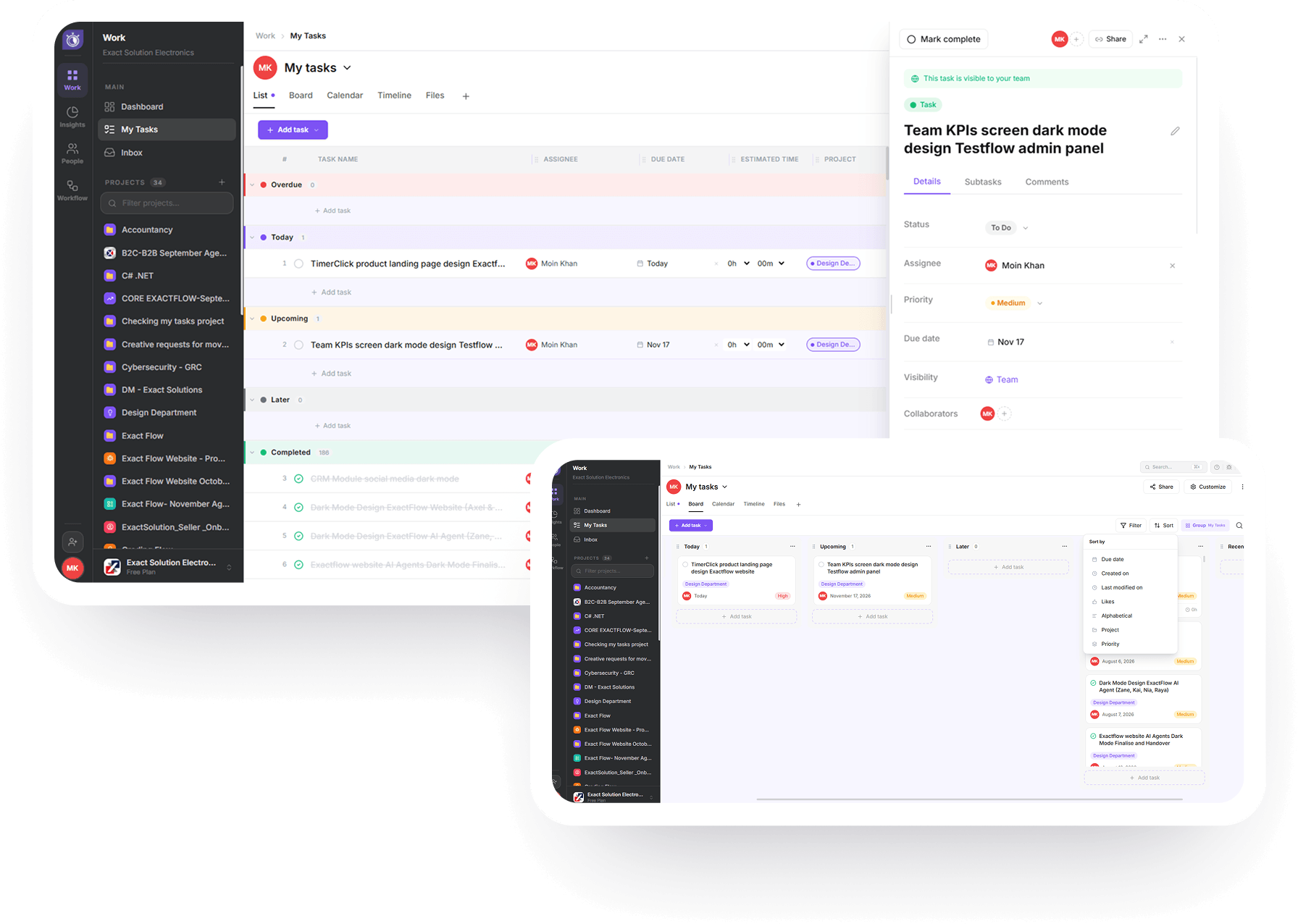
TimerClick works as employee time tracking software that records time directly against tasks and projects, so every logged hour has context. Teams set an estimate on a task, run a timer while they work, and compare the result with the estimate. Employees can also add time manually when they forget to start a timer, which keeps the record complete.
Daily, Weekly, and Monthly views, plus Calendar and Time Entries views.
Each entry shows the project, the duration, and whether the timer is still running.
Hours per day, shown across the week, which managers use to plan workload and estimate deadlines.
Part of attendance management, used to manage employee attendance and time off.
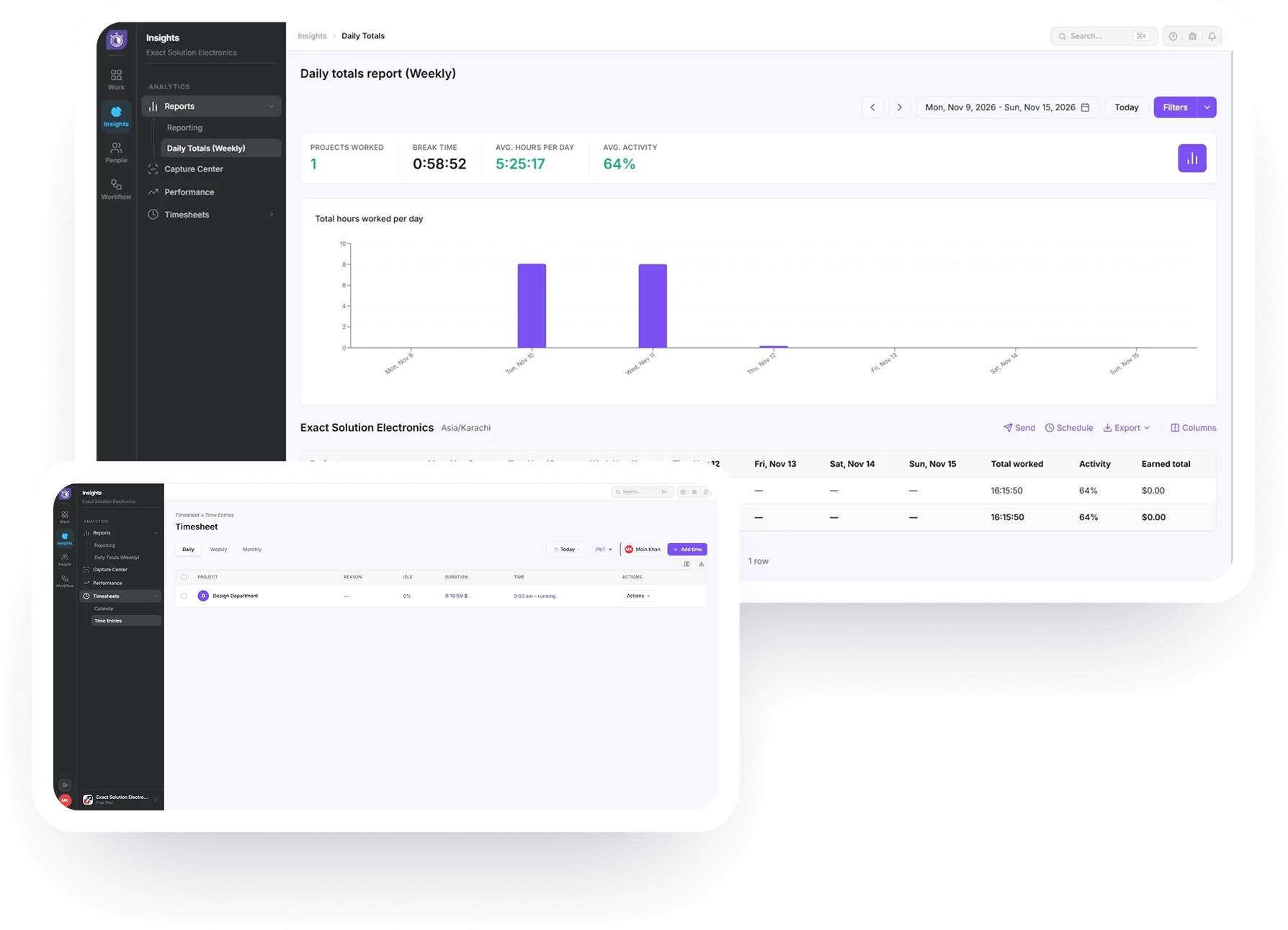
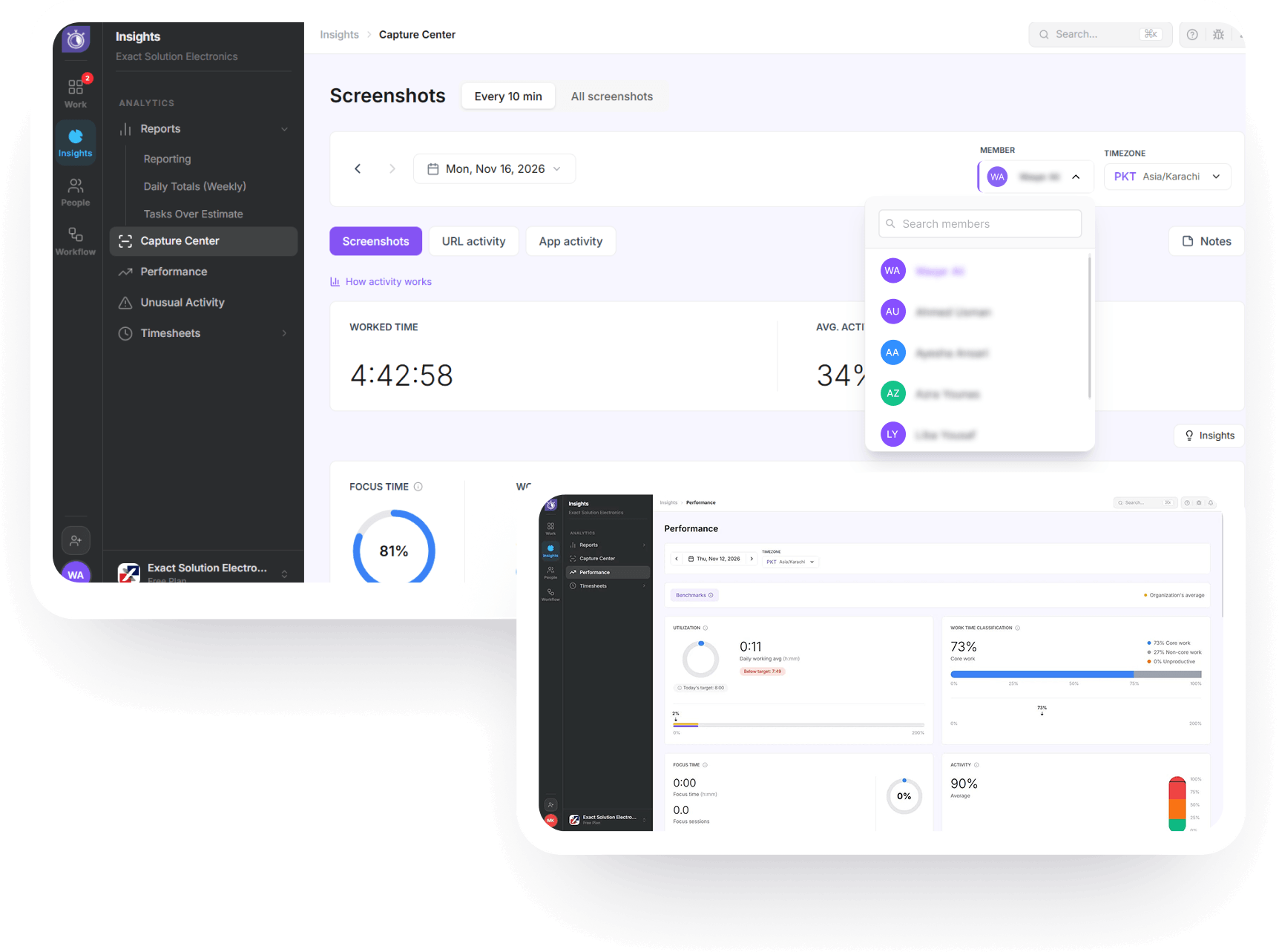
Insights turns tracked time and activity into reports your team can act on. In this employee time tracking app, every report draws on the hours employees already log on tasks. Reporting builds custom dashboards for the metrics you care about, alongside the Daily Totals view. TimerClick tells employees when a screenshot is captured, so they can view their own screenshots.
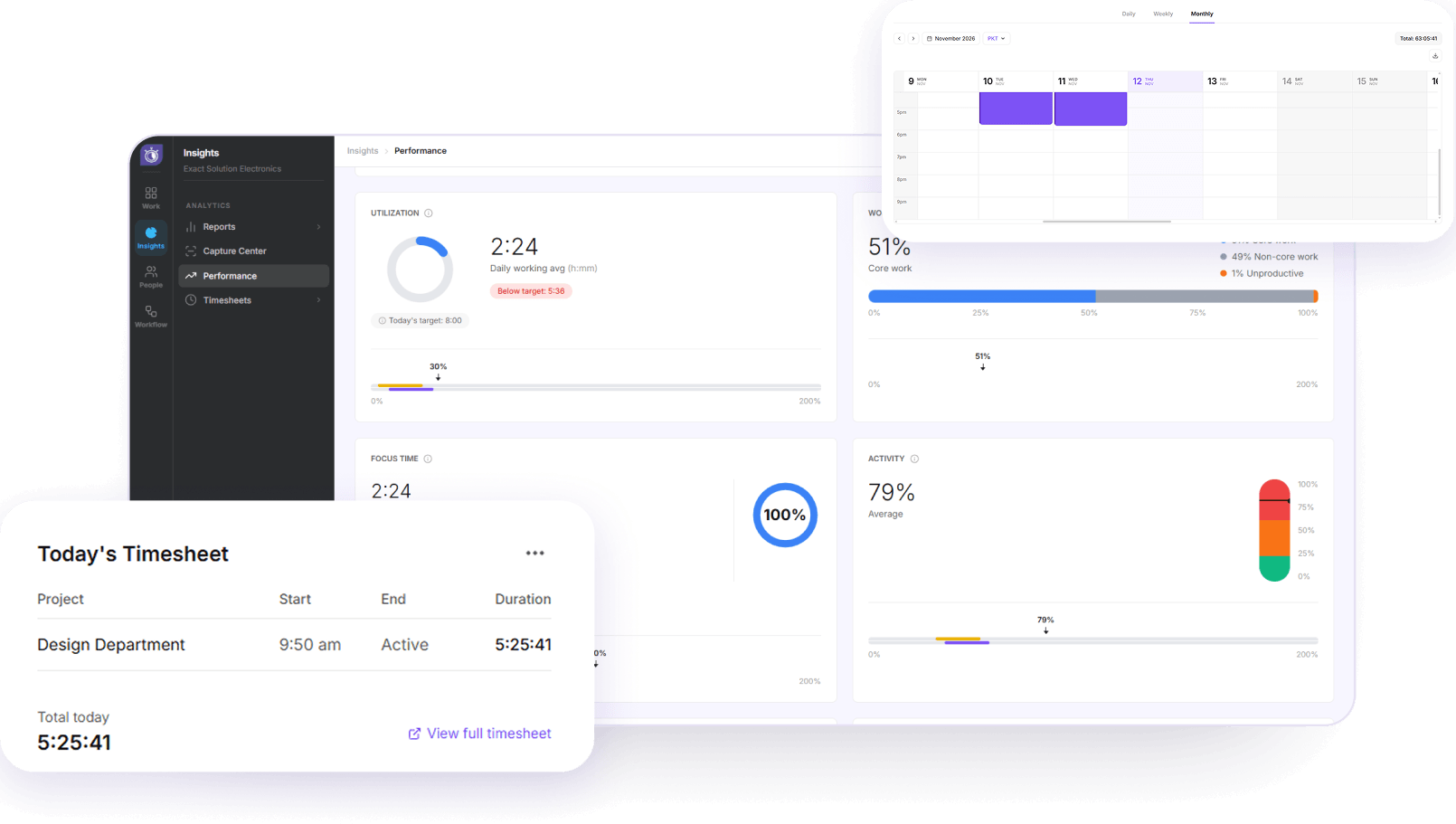
Compares utilization, focus time, and activity with a daily target and the organization’s average, with a breakdown by category, app, and website.
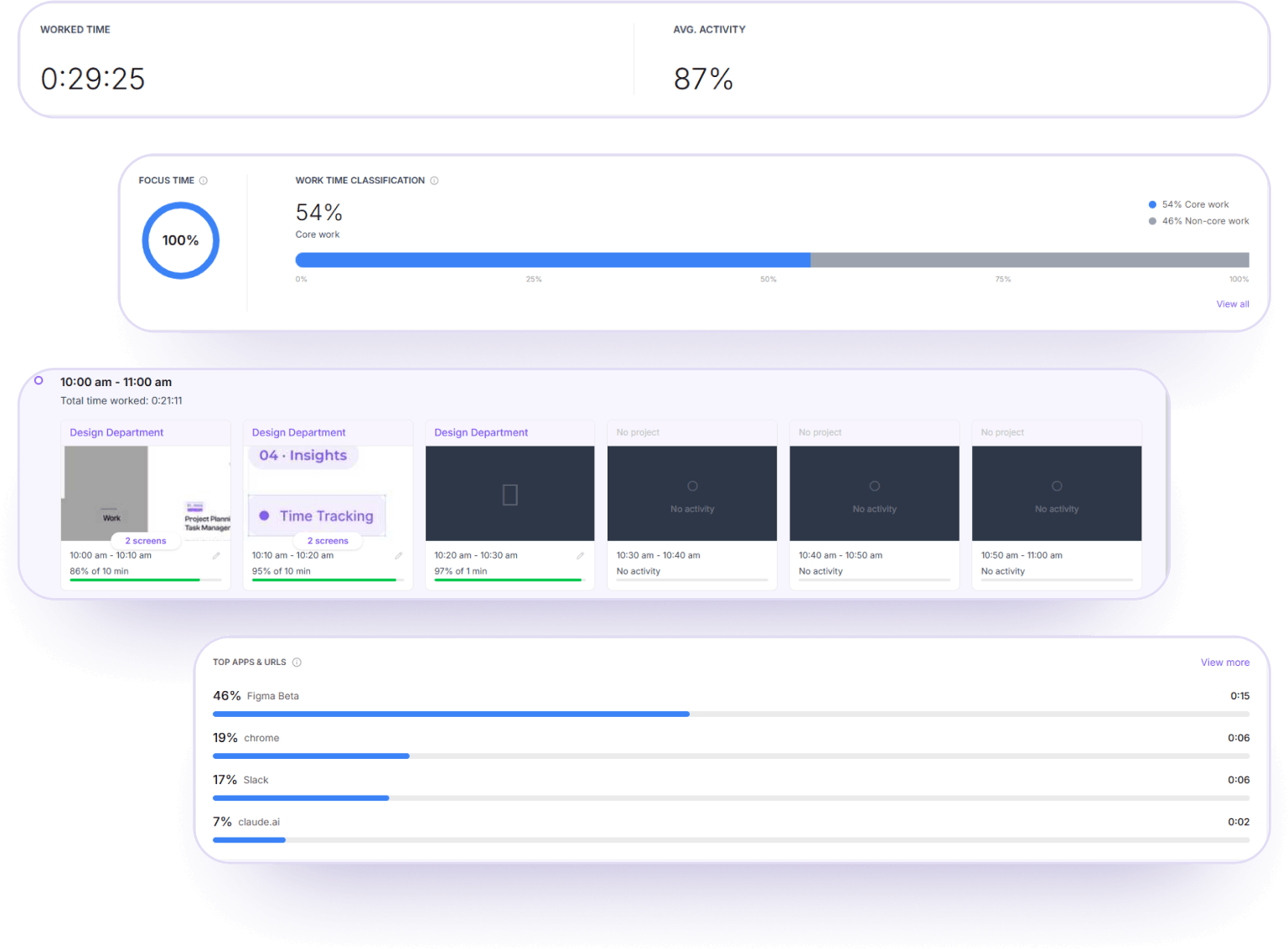
Periodic screenshots, worked time, average activity, and focus time for any selected day, plus an hour-by-hour timeline and a core versus non-core split.
Separate tabs for the same selected day.
Employees see their own data, and managers and team leads see the same view for people who report to them.
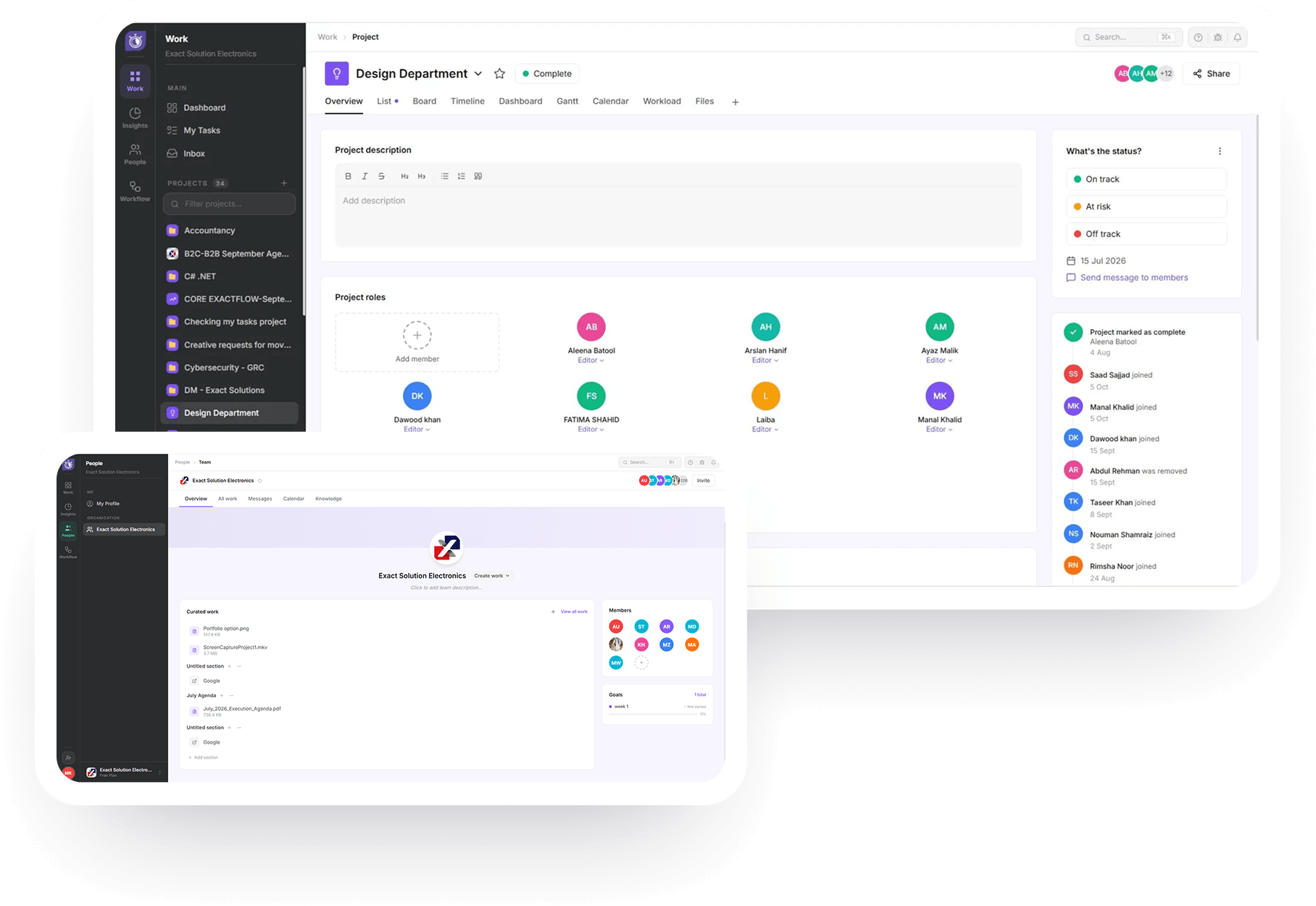
People holds each person’s profile and the organization’s team page. The team page shows curated work, shared files, goals, and a member list, with tabs for messages, calendar, and knowledge, plus an Invite button. Role-based access then gives each person the visibility their role needs.
Create teams, assign team leads, and keep organization-wide visibility.
View Insights data for the members of the teams they lead.
Oversee the projects they run and see data for people who report to them.
View their assigned tasks and the information required to complete their work.
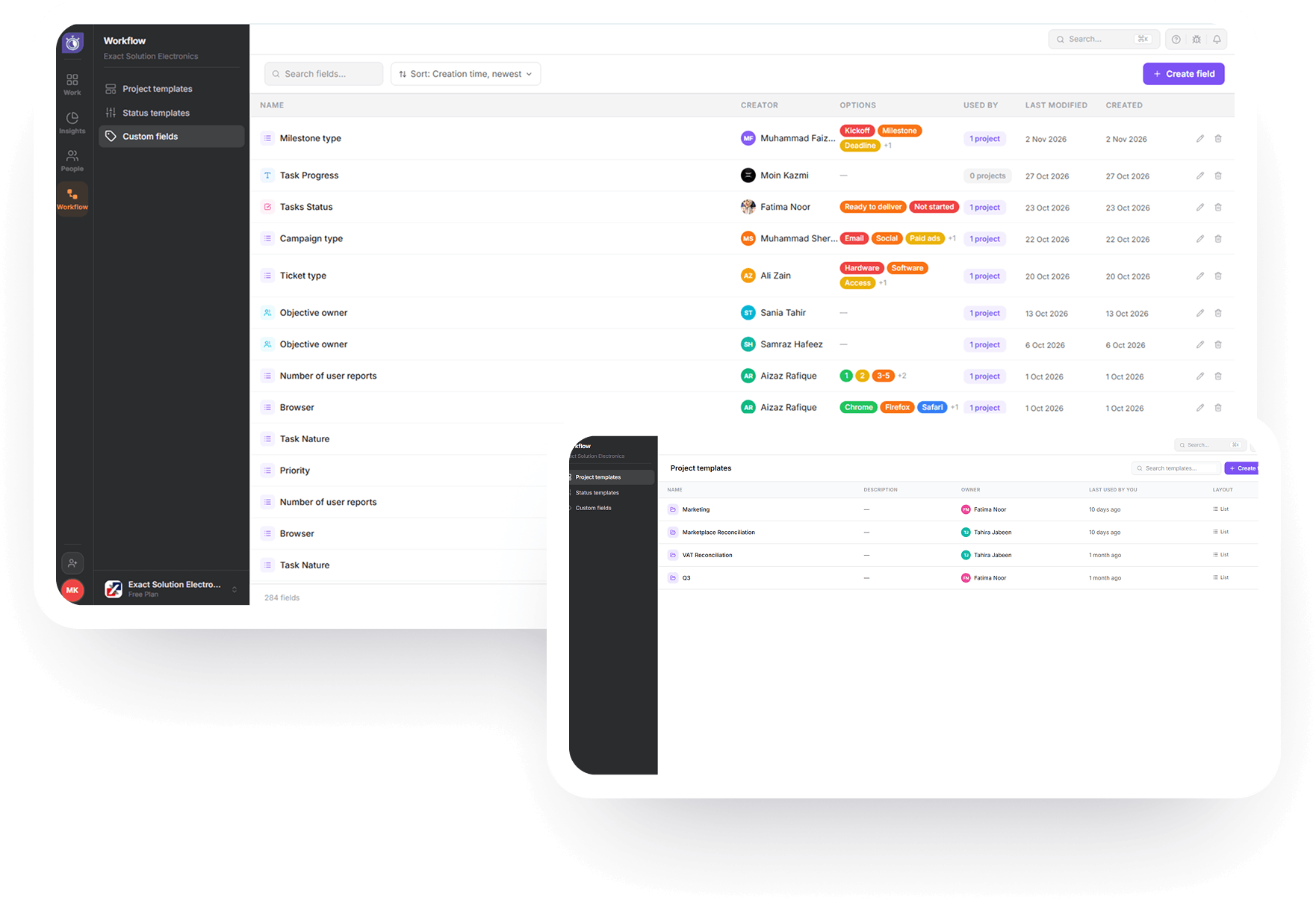
Workflow stores the building blocks that make new projects faster to set up and easier to keep consistent. Teams set these up once and reuse them on every project.
Give every new project a pre-set structure, so nobody rebuilds it from scratch.
Define the stages a task moves through, such as To Do, In Progress, and Done, so every team reads progress the same way.
Add the extra columns your team needs, like client name, priority tier, or budget.
Employee time tracking in TimerClick follows the task, so every hour connects to the same record and nothing gets retyped. The flow takes four steps, from creating the task to reviewing the hours. Here is the sequence for a typical project.
Add the task inside a project, assign it to a team member, and set a due date.
Enter an estimated time so the task has a target from the start.
Start the timer while you work, or add the time manually afterward. A running timer shows as running in Time Entries until someone stops it.
Check logged hours in Timesheets, Daily Totals, and Performance. The dashboard shows hours tracked today next to tasks completed, and managers compare final hours with the estimate when they plan the next project.
 TimerClick Desktop App
TimerClick runs on Windows, macOS, and Linux. Choose your operating system below, then download and install the desktop employee time tracking app to start tracking time on your tasks.
No, not when the people being measured can see the data. TimerClick tells employees before capture starts and lets them view their own screenshots. That openness is the difference between a planning tool and a surveillance tool.
Time tracking raises real questions about monitoring, and public forums show why. Employees commonly report screenshot monitoring that breaks deep focus. Others say managers use time logs against them when projects run over budgets set by people who didn’t understand the work.
Focus time and the split between core and non-core work show where the day goes. Performance compares utilization with a daily target and the organization’s average, so managers see patterns instead of single hours. Managers use those patterns to spot overload and rebalance tasks before deadlines slip.
Write down what you track, who sees it, and how managers will use it. Explaining the purpose up front builds trust and gives you cleaner data. This applies to whatever tool you choose.
TimerClick keeps captured data for three months. Controls to turn screenshots off, blur them, or limit them by role are in development. TimerClick is not currently GDPR compliant and does not yet offer a DPA.
An all-in-one tool fits teams that need hours tied to tasks, while a standalone tracker fits teams that only need timesheet software. The deciding factor is whether you want hours to feed planning and reporting. If you do, employee time tracking software with task management in one workspace removes the retyping that separate tools create.
| Factor | Separate tools | One workspace (TimerClick) |
|---|---|---|
| Hour entry | Track in one tool, retype totals in another | Log time on the task itself |
| Estimates vs actuals | Compared manually | Estimate and logged hours sit on one task |
| Context | Entries often lack a project | Every entry links to a project and task |
| Visibility | Managers check several tools | One workspace for tasks, hours, and activity |
| Learning curve | Several tools to learn and maintain | One workspace to learn |
Some teams worry that all-in-one tools grow overwhelming, with too many settings and a crowded interface. TimerClick uses four sections and the same view layout in every project, so people learn the structure once. Teams add fields, templates, and statuses only when they need them.
Teams that plan or report on hours get the most from employee time tracking. That includes small businesses, remote teams, and professional services firms. Each group uses the same workspace in a different way, as the list below shows.

Owners learn one tool for tasks and hours instead of several.

Comments, mentions, files, and timesheets show who worked on what.

Teams compare estimated and actual hours per task to show which work runs over.

ExactFlow also offers the ExactFlow Order Management System and ExactFlow WMS, so teams can plan projects in TimerClick and run orders and warehouses on the same platform.
Look for employee time tracking software that records time on the task itself, compares estimates with actuals, and shows employees their own data. These checks separate a tool that teams keep using from one they drop within weeks. Use the list below to test any option, including TimerClick.
A good employee time tracking app meets every point on this list. TimerClick covers each point on this list, from time logged on tasks to templates and custom fields. Test any tool against your own workflow before you commit to it. Pay attention to whether people actually use the timers once the novelty wears off.
TimerClick charges a $19 monthly base fee per workspace plus $3.50 per user. A team of 7 pays $43.50 a month: $19 for the base and $24.50 for 7 seats. A team of 25 pays $106.50 a month: $19 for the base and $87.50 for 25 seats. That works out to about $6.20 per user at 7 users and about $4.30 per user at 25. The plan includes every TimerClick feature: projects, tasks, time tracking, timesheets, and attendance.
 Team size12 Users$19 base + $3.50 per user
Team of 7
$43.50/ month
$19 for the base and $24.50 for 7 seats
About $6.20 per user
$19 base + $3.50 per user
 ProjectsTasksTime trackingTimesheetsAttendance
12 Users
$61.00/ month
$19 for the base and $42.00 for 12 seats
About $5.10 per user
Every TimerClick feature
 ProjectsTasksTime trackingTimesheetsAttendance
Team of 25
$106.50/ month
$19 for the base and $87.50 for 25 seats
About $4.30 per user
$19 base + $3.50 per user
ProjectsTasksTime trackingTimesheetsAttendanceCheck the Pricing page for every current plan and what each one includes.

Managing several projects at once used to get confusing, especially when tasks had different deadlines. TimerClick helps us keep everything organised with task lists, deadlines, and calendar views. Now it’s easier to see what needs to be done and make sure nothing gets missed.
Sophie Martin
Project Manager
Before, we had trouble knowing how much time different tasks were taking. TimerClick lets us track the hours spent on tasks and compare them with our estimates. This helps us plan our work better and understand where our time is going.
Daniel Weber
Team Lead
Our team works across different projects, so keeping track of updates was not always easy. With TimerClick, we can assign tasks, share updates through comments, and see progress on the dashboard. It’s much easier to stay organised and know what the team is working on.
Marta Kowalska
Operations Manager
TimerClick is an employee time tracking app with built-in project management for teams that want tasks and hours in one place. Teams use it to plan projects, assign tasks, track hours against tasks, and review progress in dashboards. It runs as one workspace with Work, Insights, People, and Workflow sections.
Employee time tracking is the practice of recording the hours each person works, usually on tasks or projects. A time tracking app or timesheet software stores those hours and totals them by day, week, or month. Managers use the totals to plan workload and check estimates.
Time keeping software records when and how long people work. TimerClick does this with timers and manual entries on tasks, and it totals the hours on each employee timesheet.
Project management software plans the work, with tasks, owners, deadlines, and status. Time tracking software records the hours spent on that work. A tool that combines both, like TimerClick, ties each logged hour to a task, so planning and reporting use the same data.
Yes, employees run a timer on a task or add time manually afterward. Managers review the logged hours on each employee timesheet by day, week, or month. They can also compare estimated and actual hours for each task.
Yes, Capture Center records periodic screenshots along with URL activity, app activity, worked time, and focus time. TimerClick notifies employees when a screenshot is captured, and they can view their own screenshots. Managers and team leads see the same view for the people who report to them.
For teams that want tasks and hours in one tool at a low per-user cost, TimerClick is built for that. If you only need timesheet software, a standalone tracker may be enough, and if you mainly need client invoicing, a billing-first tool fits better. Look for time logged on tasks, estimates compared with actual hours, and employee visibility into their own data.
Yes, you can set any task to repeat from its due date. The Repeat dropdown offers daily, every weekday, weekly, monthly, and custom schedules, and TimerClick adds a fresh copy each time the task is due. A Catch up missed dates toggle can fill in past days, and Clear all stops the repeat.
Yes, role-based access covers administrators, managers, and employees. Each role sees the projects, tasks, and information tied to its responsibilities. Administrators keep organization-wide visibility while managers oversee their own teams.
No. TimerClick captures screenshots only while the timer is running, so nothing is captured when the timer is off. TimerClick tells employees when a screenshot is captured, and they can view their own screenshots.
Yes, TimerClick supports billable hours. Hours are logged on the task, so estimated and actual hours sit on one record.
TimerClick currently runs on desktop platforms only. You can download and install it for Windows, macOS, or Linux from the download section on this page.
TimerClick has no third-party integrations yet. ExactFlow integrates with TimerClick to get performance KPI data. Tasks, timers, and timesheets all live in the TimerClick workspace, so teams log hours where the work is planned.
TimerClick uses a timer instead of clock-in and clock-out. Employees start the timer when they begin work and stop it when they finish, and the hours land on the task and the employee timesheet.
Prices vary widely by tool, plan, and number of users. TimerClick charges a $19 monthly base fee per workspace plus $3.50 per user. The pricing page lists current plans and what each one includes.
TimerClick is an employee time tracking app that keeps tasks and hours together. Stop retyping hours between tools. Put your tasks, timers, and timesheets in one TimerClick workspace. Then see estimated and actual hours side by side on a real project.
Want to try it yourself?
Run one real project with your own team.
Want a walkthrough first?
See Work, Insights, People, and Workflow with someone who knows the product.