ExactFlow Login Page User Guide
The first screen you see when you launch the ExactFlow platform is the login page. You can safely log in to your account on this page to begin running your eCommerce business.
- Left Side: ExactFlow branding on a visual background.
- Right Side: Account actions and the login form.
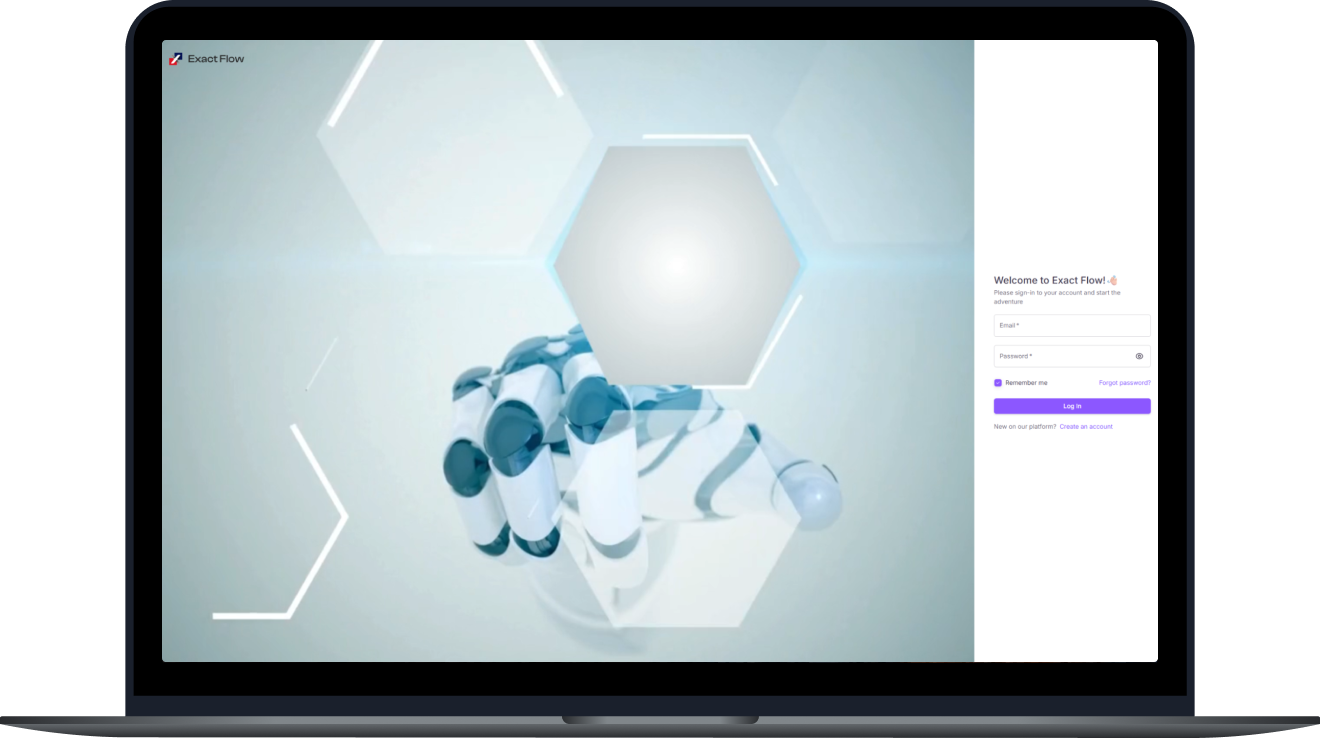
A detailed explanation of each component is provided below.
-
Welcome Message (Right Side)
-
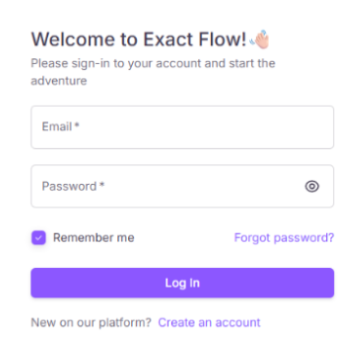
“Welcome to ExactFlow!” is the welcome message on the right side.
A brief message asking you to log in: "To begin the adventure, please log in to your account."
You are guided to enter your login credentials by this message."
-
-
Email Input Field
-
The email address associated with your ExactFlow account is entered in this text box.
-
This field and password are always required, as indicated by the star (*).
-
-
Password Input Field
-
Enter your password in the password entry field that is secure.
-
This box has a tiny eye icon inside of it. Click it to show or hide your password.
-
-
“Remember Me” Checkbox
-
Under the password field, a tiny checkbox.
-
ExactFlow will keep you logged in on the same device if it is enabled.
-
It is helpful if you don't want to enter your password and email address again.
-
-
“Forgot Password?” Link
-
Located to the right of the “Remember me” checkbox.
-
Click this if you cannot remember your password.
-
You will be taken to the password recovery process.
-
-
Reset Password (Password Recovery)
-
Reset your password in a few simple steps.
-
Enter your registered email address, and we’ll send you a secure link to reset your password.
-
Please make sure the email is linked to your ExactFlow account.
-
Then, click on the Send reset link button.
-
Micro Error/Success States occur:
-
If email is invalid: “Please enter a valid email address.”
-
If email is not found: “No account found with this email.”
-
If sent successfully: “Password reset instructions sent successfully.”
-
-
If an email is sent successfully, you'll receive an email within a few moments.
-
If you want to go back to the login page, click the Back arrow button.
-
-
“Create an Account” (Sign Up)
-
Text: “New on our platform? Create an account.”
-
Click this if you don’t have an ExactFlow account yet.
-
It will take you to the registration page to create a new account.
-