


ExactFlow Sign Up Page User Guide
This guide will help you create your ExactFlow account in a few easy steps. The sign-up process has two steps:
- Account Details
- Company Information
Follow each step carefully to complete your registration.
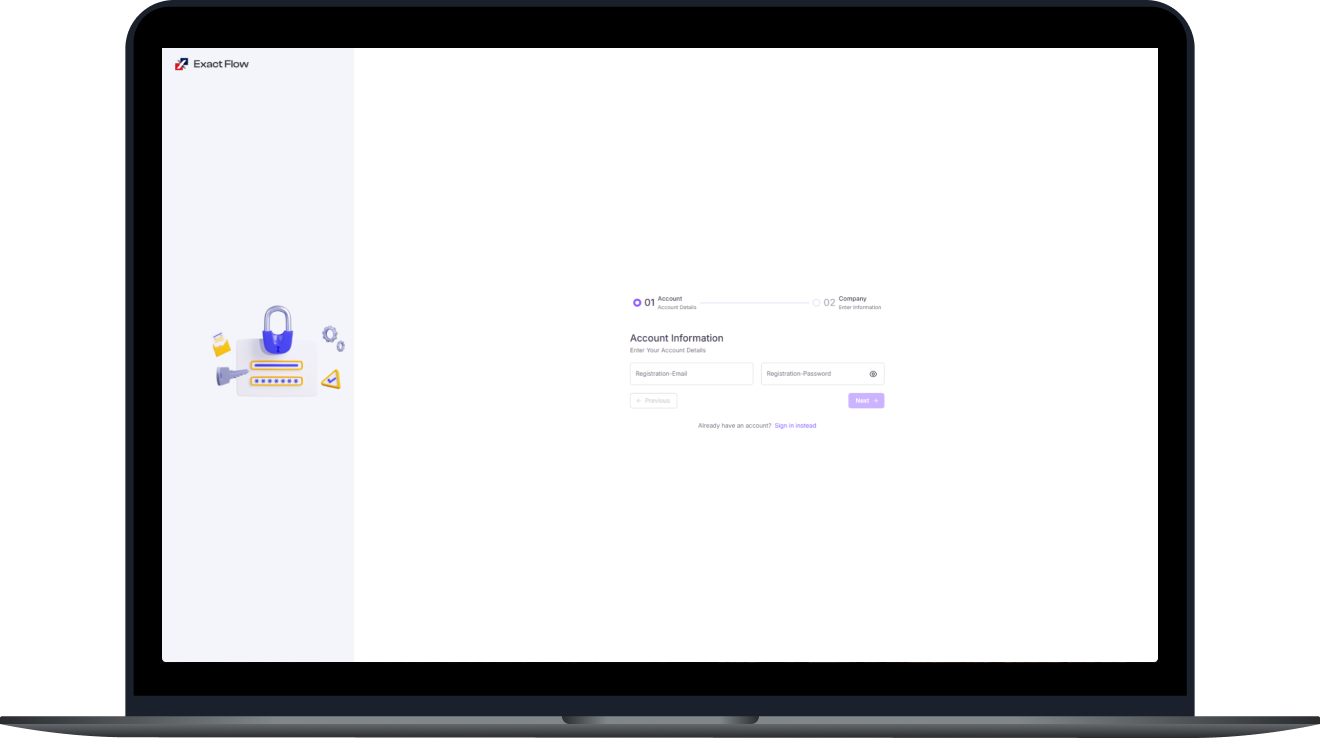
Step 1: Enter Your Account Details
This is the first screen you will see after clicking “Sign Up.”
-
Progress Bar
-
At the top, you’ll see a line showing your progress.
-
“01 Account” is highlighted because you are on the first step.
-
“02 Company” will come next.
-
-
Registration Email
-
Type your email address that you want to use as your login.
-
Make sure this is an email you can access easily.
-
-
Registration Password
-
Create a password for your account.
-
You can click the eye icon to show or hide your password while typing.
-
-
Already Have an Account?
-
If you already signed up before, click Sign in instead.
-
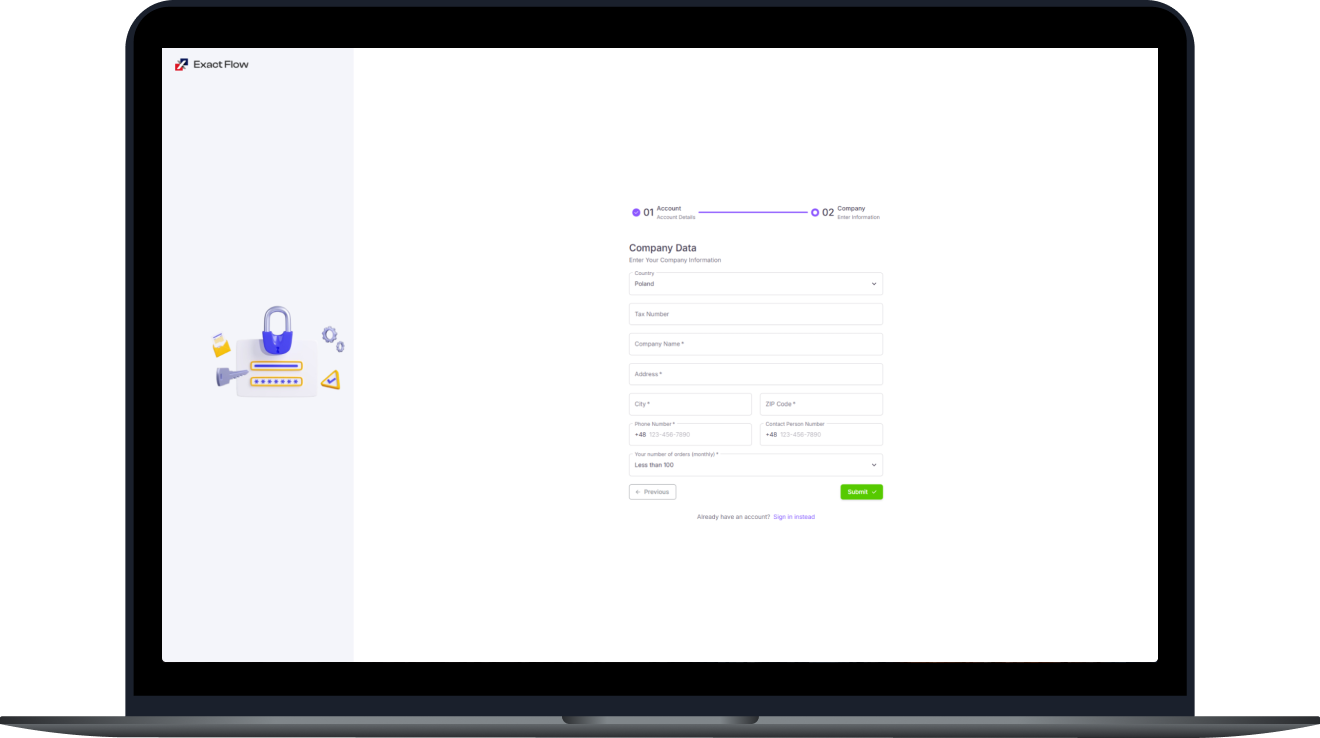
Step 2: Enter Your Company Information
This is the second and final step.
-
Progress Bar
-
Now “02 Company” will be highlighted.
-
This shows you are on the last step.
-
-
Country
-
Select your company’s country from the dropdown menu.
-
-
Tax Number
-
Enter your tax number (if you have one). (Some businesses might not have this.)
-
-
Company Name
-
Type the official name of your company. (This field is required.)
-
-
Address
-
Enter the full business address.
-
-
City
-
Type the city your business is located in.
-
-
ZIP Code
-
Enter your postal code.
-
-
Phone Number
-
Type your company’s main phone number.
-
-
Contact Person Number
-
Enter the phone number of the main person who will use ExactFlow.(This could be you or another teammate.)
-
-
Number of Orders per Month
-
Select how many orders your business handles every month.
-
Choose from options like:
-
Less than 100
-
100–500
-
More than 500
-
-
Buttons on This Page
Previous
-
Click ← Previous to go back to Step 1 if you need to change anything.
Submit
-
Once all fields are filled in, click Submit ✓.
-
This will complete your signup.
Already Have an Account?
-
You can click Sign in instead to log in if you have already registered.
Error Messages You Might See
Here are some messages that may appear if something needs fixing:
-
“This field is required.” You missed a required field.
-
“Please enter a valid email address.” Your email format is incorrect.
-
“Password does not meet security requirements.” Your password needs to be stronger. To create a strong password, use a combination of Lowercase letters (a–z), Uppercase letters (A–Z), Numbers (0–9), and Special characters (e.g., !, @, #, $).
-
“Please enter a valid phone number.” Your phone number format is incorrect.
After You Submit
-
Once you click Submit, your account will be created, and you will be ready to start using ExactFlow!
On this page
1.
Step 1: Enter Your Account Details
2.
Progress Bar
3.
Registration Email
4.
Registration Password
5.
Next Button
6.
Already Have an Account?
7.
Step 2: Enter Your Company Information
8.
Progress Bar
9.
Country
10.
Tax Number
11.
Company Name
12.
Address
13.
City
14.
ZIP Code
15.
Phone Number
16.
Contact Person Number
17.
Number of Orders per Month
18.
Buttons on This Page
19.
Previous
20.
Submit
21.
Already Have an Account?
22.
Error Messages You Might See
23.
After You Submit