ExactFlow Chat Page User Guide
The Financial Agent Chat Page is where users interact with the AI assistant to manage financial information. This page helps you quickly check financial insights without searching through reports.
You can either click ready-made questions or type your own message to get answers instantly.
How to Open the Financial Agent Chat Page
Log in to your Exact Flow account.
Look at the left sidebar menu.
Click Financial Agent
Click Chat.
The Financial Agent Chat Page will open.
You are now ready to chat with the AI assistant.
Page Overview
The Chat Page is divided into two main sections:
-
Chat List Panel
-
Chat & Assistant Area
Chat List Panel
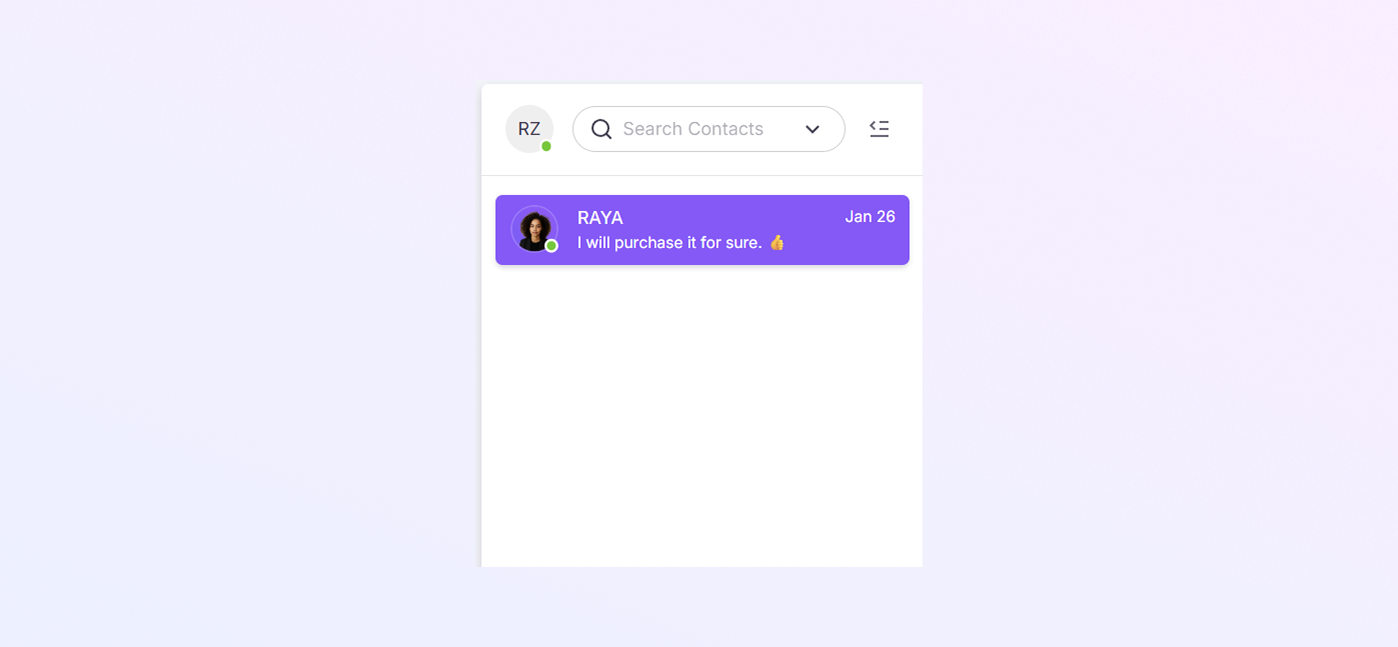
This panel shows your existing chats.
-
A search bar at the top to find chats easily.
-
A list of previous chat conversations.
-
Each chat shows:
-
Agent name (example: RAYA)
-
Last messages preview
-
Date of last activity
-
Chat & Assistant Area
This is the main working area where you talk to the Financial Agent.
Chat Header
At the top of the chat screen, you will see:
-
Bot name (example: RAYA – BOT)
-
Search icon (to find messages inside the chat)
-
Three-dot menu (to view contact)
This helps you know which agent you are talking to.

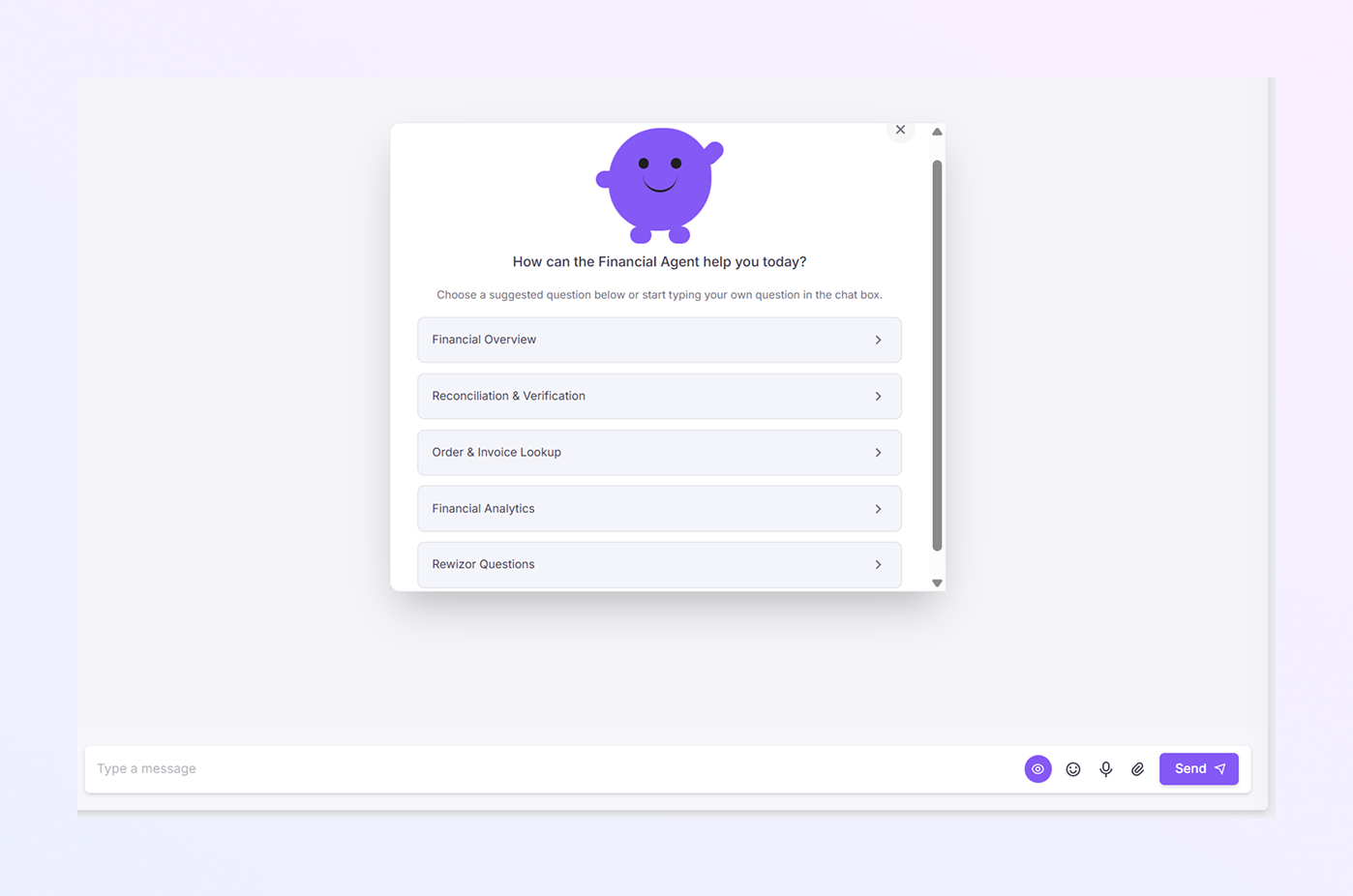
Welcome Assistant Screen
When you open a new or empty chat, you will see:
-
A friendly assistant icon
-
A welcome message like:
“How can the Financial Agent help you today?”
This screen guides you to start the conversation easily.
Quick Question Options
Below the welcome message, you’ll see clickable buttons.
-
Financial Overview
-
Reconciliation & Verification
-
Order & Invoice Lookup
-
Financial Analytics
-
Rewizor Questions
How These Buttons Work
-
Click any option to ask that question instantly.
-
No typing needed.
-
The assistant will respond with details right away.
-
Based on your choice, more related options may appear.
This is perfect for beginners who are not sure what to ask.
Chat Conversation Area
Once you select a question or send a message:
-
The conversation appears in the center of the screen.
-
Messages are shown clearly, one after another.
-
You can scroll to read older replies.
This area keeps your entire conversation organized.
Sending Your Own Message
You can also type your own questions.
-
Click inside the Type a message box at the bottom.
-
Write your question in simple words.
-
Click Send or press Enter on your keyboard.
Your message is sent instantly to the agent.
Example Messages You Can Type
Here are some simple examples you can use:
-
Show my purchase summary
-
Find the invoice for order number 10234
-
Check reconciliation status
-
Show unpaid invoices
-
Give me last month’s purchase report
-
Verify supplier payment
The AI assistant understands normal language, so no special format is needed.
Chat Tools at the Bottom
At the bottom right of the chat box, you may see:
-
Emoji icon
-
Attachment icon
-
Send button
These tools make chatting easier and faster.