


ExactFlow OSS Marketplace VAT Report Page User Guide
The OSS Marketplace VAT Report page helps you calculate, organize, and review VAT data for marketplace sales across different countries. It automatically processes your sales data, converts currencies, and generates a country-wise VAT summary in euros.
This page is especially useful for finance and accounting teams who need accurate OSS VAT reporting with minimal manual work.
How to Open the OSS Marketplace VAT Report Page
Log in to your Exact Flow account.
From the left sidebar, click Financial Agent.
Click OSS Marketplace VAT Report.
You will now see the OSS Marketplace VAT Report page.
Page Tabs Overview
The page contains two tabs:
-
Data Processing
-
VAT Report
You must always start with Data Processing before moving to the VAT Report tab.
Data Processing Tab
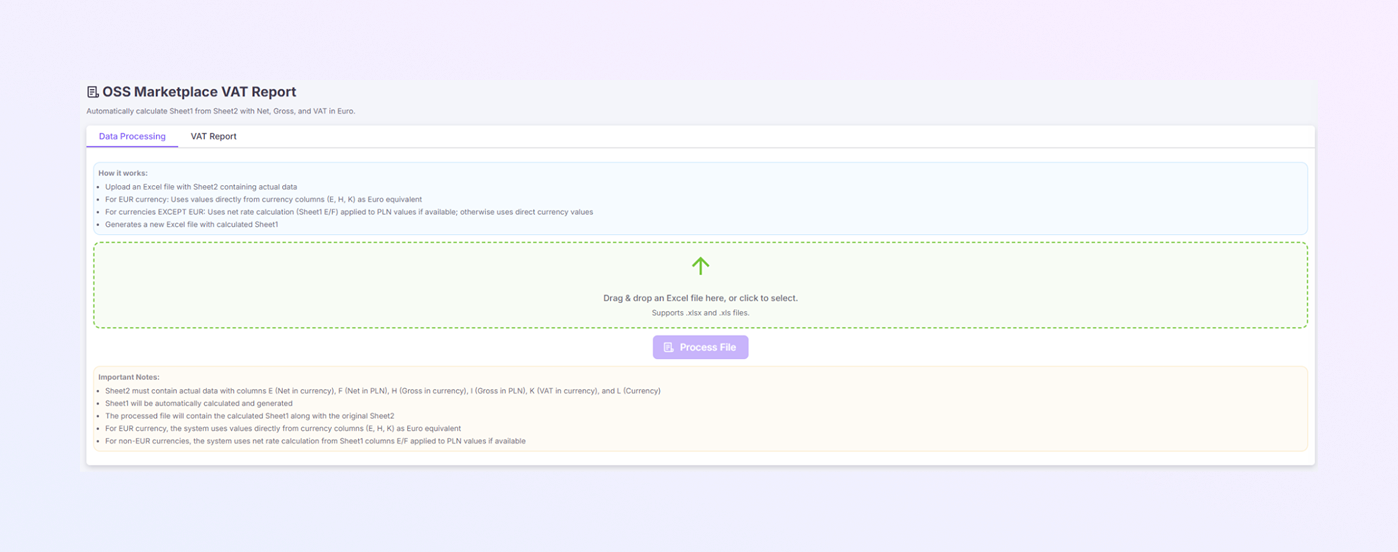
The Data Processing tab is where you upload your raw sales data and generate a processed file for VAT reporting.
How It Works Section
At the top of the tab, you will see a short explanation of the process. This section explains that:
-
You upload an Excel file containing actual sales data
-
The system reads data from Sheet2
-
Currency conversion rules are applied automatically
-
A new calculated Sheet1 is generated
-
The processed file is prepared for VAT reporting
This helps you understand what happens behind the scenes.
Excel File Requirements
Your uploaded Excel file must follow these rules.
Required Sheet
-
The file must contain Sheet2
-
Sheet2 must include the actual marketplace sales data
Required Columns in Sheet2
Column |
Meaning |
|---|---|
|
E |
Net amount (in original currency) |
|
F |
Net amount (in PLN) |
| H |
Gross amount (in original currency) |
I |
Gross amount (in PLN) |
K |
VAT amount (in original currency) |
L |
Currency code (for example: EUR, PLN, CZK) |
If any required column is missing, the system may not calculate VAT correctly.
Currency Handling Rules
EUR Currency
-
Values are taken directly from:
-
Net (Column E)
-
Gross (Column H)
-
VAT (Column K)
-
-
No conversion is applied
Non-EUR Currency
-
The system checks for PLN values
-
Exchange rates from Sheet1 (columns E/F) are applied
-
If PLN values are not available, original currency values are used
All currency calculations happen automatically.
Uploading and Processing the File
-
In the Data Processing tab, find the upload area
-
Drag and drop your Excel file or click the area to select a file.
-
Supported file formats:
-
.xlsx
-
.xls
-
-
Click the Process File button
-
Your original Sheet2 stays unchanged
-
A new calculated Sheet1 is added
-
Sheet1 contains:
-
Net values in Euro
-
Gross values in Euro
-
VAT values in Euro
-
-
The file is now ready to be used in the VAT Report tab.
After processing is complete:
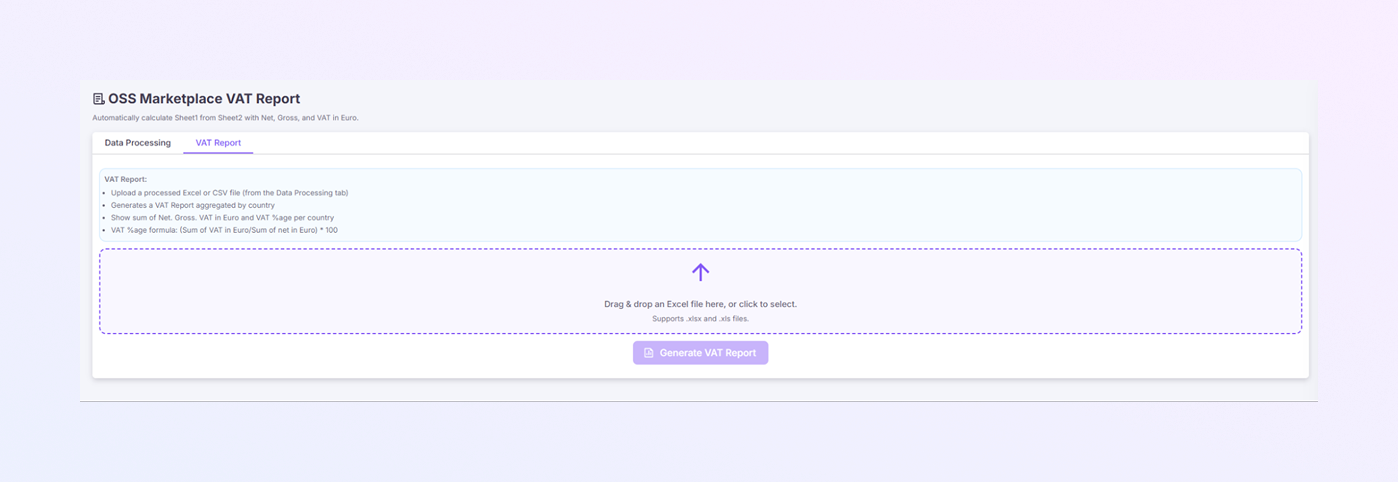
VAT Report Tab
The VAT Report tab is used to generate a summarized VAT report based on the processed file.
Purpose of the VAT Report Tab
This tab allows you to:
-
Upload a processed Excel or CSV file
-
Generate a VAT report aggregated by country
-
View VAT totals in Euro
-
Automatically calculate VAT percentage per country
This makes OSS VAT filing easier and more reliable.
Uploading a File to the VAT Report Tab
-
Click on the VAT Report tab
-
Upload the processed file created in the Data Processing tab
-
You can drag and drop the file or click to select the file.
-
Supported file formats: .xlsx & .xls
VAT Report Output Details
Once the file is uploaded, the system generates a VAT report that shows, per country:
-
Sum of Net amount (in Euro)
-
Sum of Gross amount (in Euro)
-
Sum of VAT amount (in Euro)
-
VAT percentage (%)
VAT Percentage Calculation
The VAT percentage is calculated automatically using the formula:
VAT % = (Sum of VAT in Euro ÷ Sum of Net in Euro) × 100
You do not need to calculate this manually.
Common Issues to Avoid
-
Uploading an unprocessed file directly to the VAT Report tab
-
Missing required columns in Sheet2
-
Incorrect currency codes
-
Using unsupported file formats
Always process your file first in the Data Processing tab.
Summary
With the ExactFlow OSS Marketplace VAT Report page, you can:
-
Upload and process marketplace sales data
-
Automatically handle multiple currencies
-
Generate calculated VAT values in Euro
-
View VAT reports aggregated by country
-
See Net, Gross, VAT totals, and VAT percentages clearly
This page provides a simple and reliable way to prepare OSS VAT reports with confidence.