


ExactFlow Saved Sessions Page User Guide
The Saved Sessions page helps you view and review previously saved reconciliation results. Instead of running the same reconciliation again, you can quickly open past sessions, check matching results, and continue your financial analysis.
This page is especially useful for finance and accounting teams who want fast access to completed reconciliation data.
How to Open the Saved Sessions Page
Log in to your Exact Flow account.
Look at the left sidebar menu.
Click Financial Agent
Click Saved Sessions.
The Saved Reconciliation Sessions page will open.
You are now viewing all saved reconciliation sessions.
Page Header
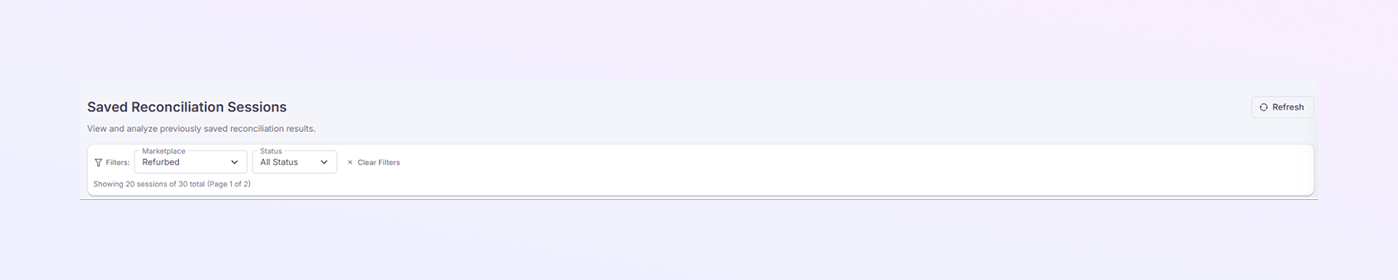
At the top of the page, you will:
-
View and analyze previously saved reconciliation results.
-
The refresh button reloads the page to show the latest saved sessions.
Filter Section
Just below the header, you will find filter options.
Marketplace Filter
-
Allows you to select a marketplace.
-
Only sessions related to the selected marketplace are displayed.
Status Filter
-
Allows you to filter by session status.
-
Select from All Status, completed, or initialized.
-
You can view completed or other status sessions if available.
Clear Filters Option
-
Resets all applied filters.
-
Shows all saved sessions again.
Session Count Information
-
Displays how many sessions are shown.
-
Example:
“Showing 20 sessions of 30 total (Page 1 of 2).”
This helps you understand how much data is available.
Saved Session Cards
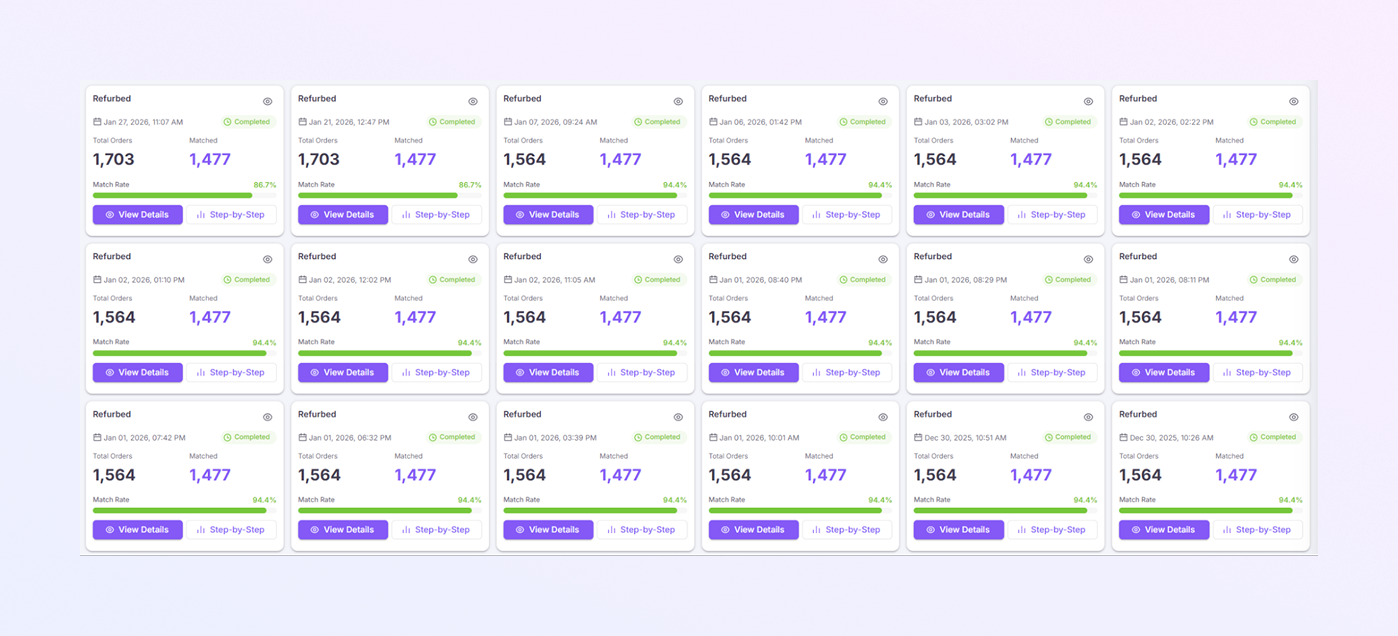
Each reconciliation session is shown as a card. These cards are arranged in a grid layout for easy viewing.
-
Marketplace Name: Displayed at the top (example: Refurbed). Helps you identify the source of the reconciliation.
-
Date and Time: Shows when the session was created. This helps track historical activity.
-
Status Badge: Usually shown as Completed (green label). Confirms that reconciliation finished successfully.
-
Order Details Section: Each card displays key numbers clearly:
-
Total Orders: Shows the total number of orders processed.
-
Matched Orders: Shows how many orders matched successfully.
-
Match Rate: Displays the match percentage. A green progress bar gives a quick visual indicator. Higher match rates mean better reconciliation accuracy.
-
Action Buttons on Each Card
-
-
At the bottom of every card, you will see two buttons:
-
View Details
-
Opens the full reconciliation report.
-
Lets you inspect matched and unmatched records.
-
-
Step-by-Step
-
Shows a guided breakdown of how reconciliation was performed.
-
Helpful for audits, reviews, and troubleshooting.
-
-
-
These buttons allow you to go deeper without re-running the process.
Why the Saved Sessions Page Is Useful
With this page, you can:
-
Quickly reopen old reconciliation results
-
Avoid repeating the same reconciliation work
-
Track historical financial accuracy
-
Review match rates over time
-
Support audits and financial reviews
Everything is stored neatly and easily accessible.
Summary
The Exact Flow Saved Sessions page gives you:
-
A complete history of reconciliation sessions
-
Simple filters to find the right data
-
Clear match statistics at a glance
-
Easy access to detailed and step-by-step views
-
Time savings for finance and accounting teams