


ExactFlow Recruitment Page User Guide
The Recruitment page in the ExactFlow HR Agent helps you manage job postings, track applications, monitor hiring progress, and stay updated on interviews, all from one screen. This page is designed for HR teams to easily follow the hiring journey from job posting to final hire.
How to Open the Recruitment Page
Log in to your ExactFlow account.
From the left sidebar, click HR Agent.
Under HR Agent, click Recruitment.
The Recruitment Dashboard will open.
You will now see an overview of your hiring activity.
Recruitment Dashboard Overview
At the top of the page, you will see several summary cards. These cards give you a quick snapshot of your recruitment status.
Top Statistics Cards
-
Active Jobs
Shows the total number of job openings currently live.
Example: If it shows 10, that means 10 job posts are active and accepting applications.
-
Total Applications
Displays the total number of applications received for all active jobs.
Example: 57 applications means candidates have applied 57 times across all jobs.
-
Available Slots
Shows how many interview slots are open.
If this shows 0, no interview slots are currently available.
-
Booked Slots
Displays how many interview slots are already booked.
Helps you track interview scheduling activity.
Use this to quickly check how many roles are open.
This helps you understand hiring interest.
Useful for interview planning.

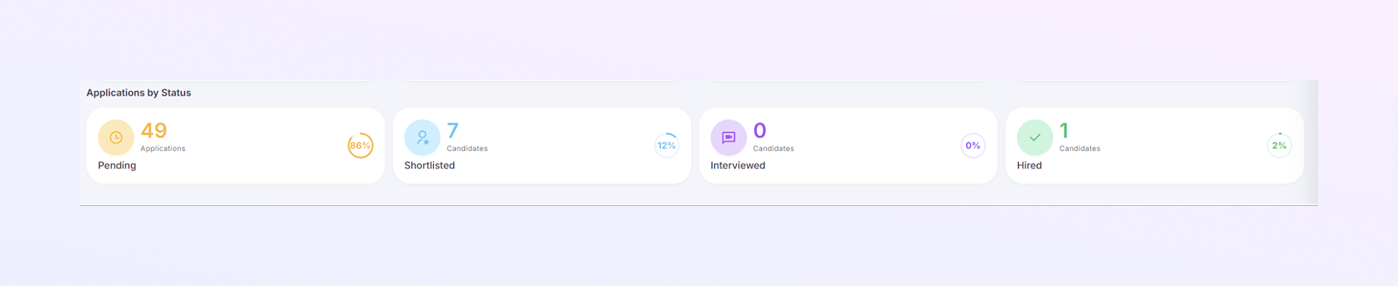
Applications by Status Section
This section breaks down applications by their current stage.
-
Pending Applications
Shows applications that are not yet reviewed.
Example: 49 Pending indicates that 49 candidates are awaiting screening.
-
Shortlisted Candidates
Displays candidates who passed initial screening.
Example: 7 Shortlisted means 7 candidates are selected for the next steps.
-
Interviewed Candidates
Shows how many candidates have completed interviews.
If this shows 0, interviews haven’t started yet.
-
Hired Candidates
Displays how many candidates are successfully hired.
Example: 1 Hired confirms one position has been filled.
This is your review backlog.
These candidates are ready for interviews.
This helps measure hiring success.
Upcoming Interviews Section
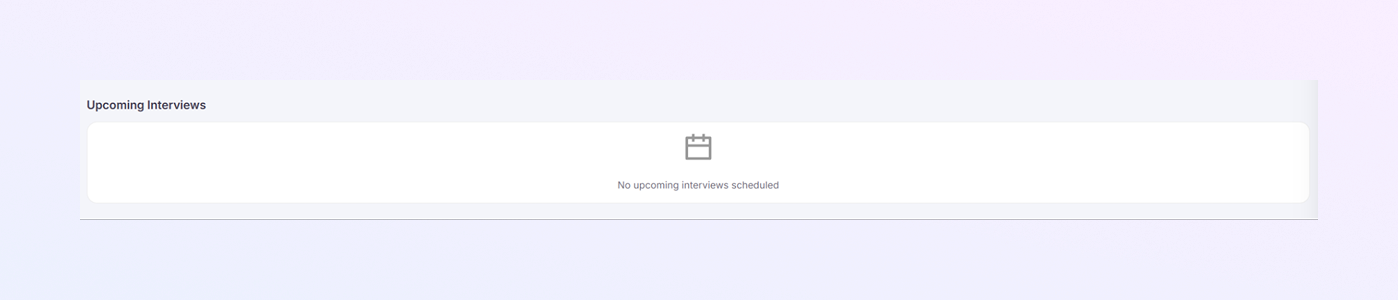
This section shows scheduled interviews.
If no interviews are planned, you will see: “No upcoming interviews scheduled.”
Once interviews are scheduled, they will appear here with the date and time.
This keeps HR teams organized and prepared.
Job Postings Breakdown Table
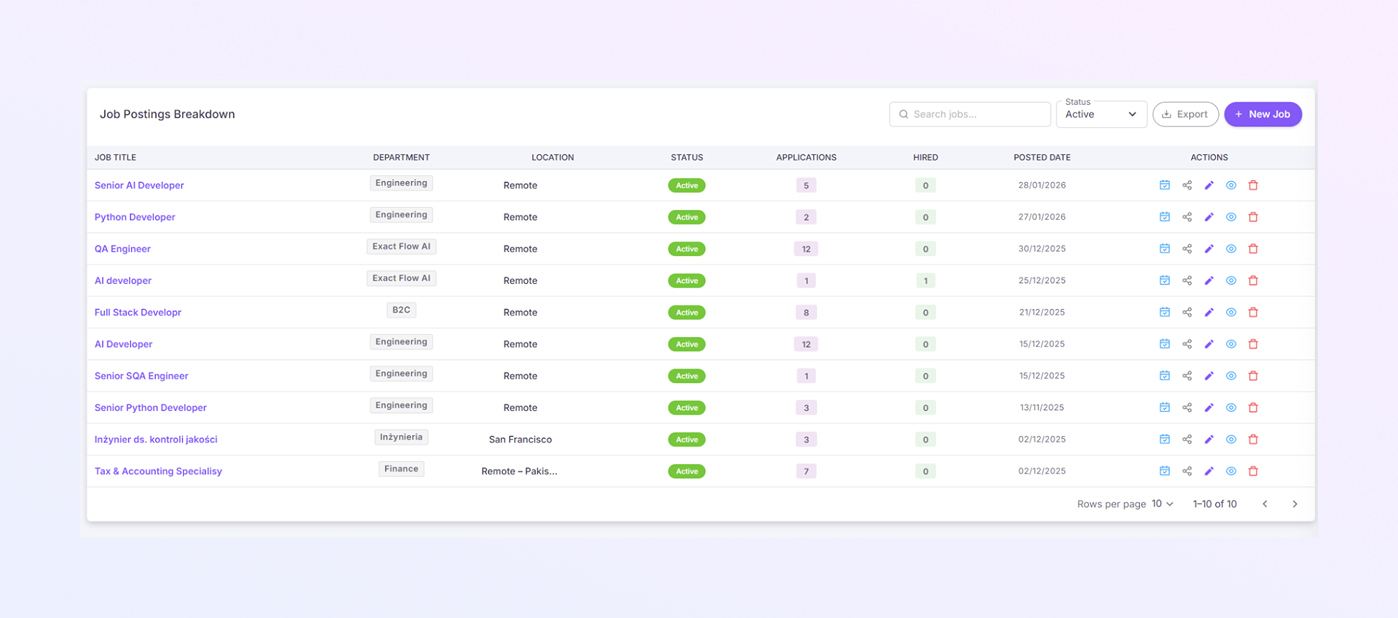
This is the main working area of the Recruitment page. It lists all job openings and their hiring status.
-
Job Title
Name of the role (example: Senior AI Developer, Python Developer).
Click the job title to view more details.
-
Department
Shows which department the job belongs to.
Examples:
Engineering
Finance
Quality Assurance
-
Location
Displays the job location.
Can be Remote, On-site, or a city name.
-
Status
Shows if the job is currently Active.
Active jobs are visible to candidates and accepting applications.
-
Applications
Displays how many applications were received for that job.
Helps you identify high-demand roles.
-
Hired
Shows how many candidates have been hired for that job.
Example: If it shows 1, one candidate has already joined.
-
Posted Date
Displays the date when the job was published.
Useful for tracking how long a job has been open.
-
Actions
Each job row has action icons:
Calendar icon: Schedule interviews
Share icon: Share job link
Edit icon: Update job details
Delete icon: Remove job posting
These actions allow quick job management.
Search and Filters
Search Bar
Located above the table.
Type a job title to quickly find a specific role.
Status Filter
Allows filtering jobs by status (e.g., Active).
Helps focus only on relevant job postings.
Export Button
Let's you download job data for reports or records.
New Job Button
Click New Job to create a new job posting.
This is used when hiring for a new role.
Summary
The ExactFlow Recruitment Page helps you:
Track all job openings in one place
Monitor applications at every stage
See shortlisted, interviewed, and hired candidates
Manage interviews and schedules
Review hiring progress quickly
Control job postings with simple actions
This page gives HR teams clear visibility, better control, and faster hiring decisions without confusion.