


ExactFlow Integrations Page User Guide
The Integrations module in ExactFlow allows you to connect your online stores, marketplaces, courier services, accounting systems, and other tools in one place. Once connected, ExactFlow can automatically sync orders, products, shipments, invoices, and notifications.
How to Open the Integrations Page
Log in to your ExactFlow account.
Look at the left sidebar menu.
Scroll down and click Integrations
You will now see the Integrations List page, where all connected services are displayed.
Integrations List Page Overview
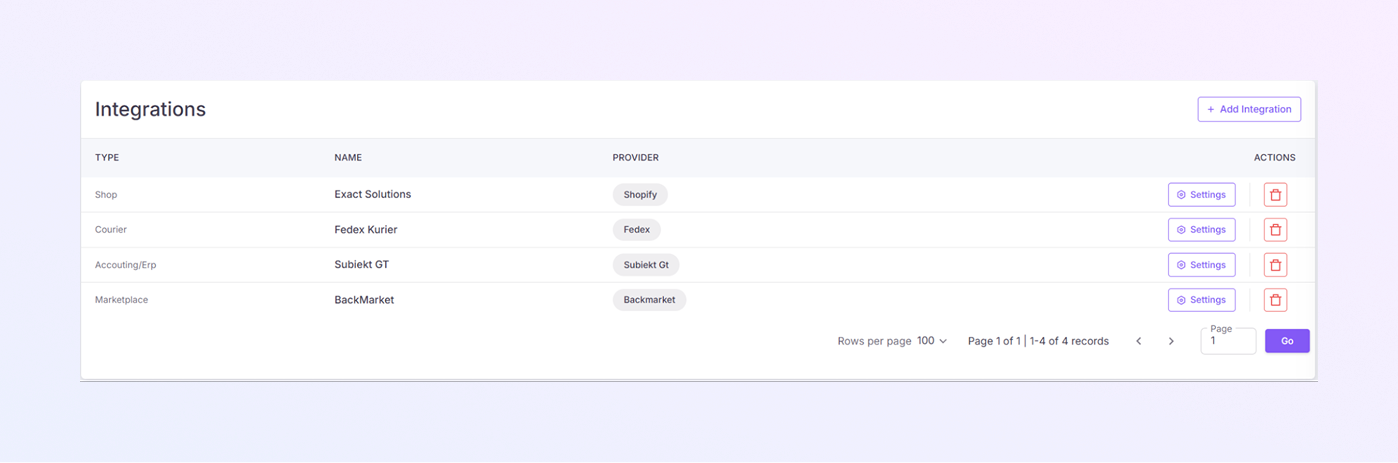
This page shows a table with all integrations currently active in your ExactFlow account.
At the top of the page, you will see:
A short information message explaining that this page contains all active integrations.
A “+ Add Integration” button on the right side.
Use this page to monitor, configure, or remove integrations.
Integrations Table
The table contains several columns. Each column provides important details.
-
Type Column
This shows the category of the integration, such as:
Shop
Courier
Accounting / ERP
Marketplace
This helps you quickly understand what role each integration plays.
-
Name Column
This shows the custom name of the integration. Examples:
Exact Solutions
Fedex Kurier
Subiekt GT
BackMarket
You can recognize each integration easily by its name.
-
Provider Column
This shows the actual service provider connected to ExactFlow. Examples:
Exact Solutions
Fedex Kurier
Subiekt GT
BackMarket
Provider labels make it easy to confirm which external system is linked.
-
Actions Column
This column allows you to manage each integration. You will see two buttons:
Settings Button
Opens the configuration page for the integration
Used to:
Update credentials
Change sync settings
Adjust integration rules
Delete Button
Removes the integration from ExactFlow
Use with caution
Once deleted, syncing will stop
How to Add a New Integration
To connect a new service, follow these steps:
Click the “+ Add Integration” button at the top-right of the page.
A new Add Integration window will open.
Add Integration Page Overview
This page displays all available integrations that ExactFlow supports.
At the top, you will see:
A search bar to quickly find an integration
A Close button to exit the window
Integrations are grouped into clear categories for easy browsing.
Search for an Integration
At the top of the page:
Click inside the Search for integration field
Type the name of the service (example: Shopify, DHL, Amazon)
The list will automatically filter based on your search.

Integration Categories
Event Name
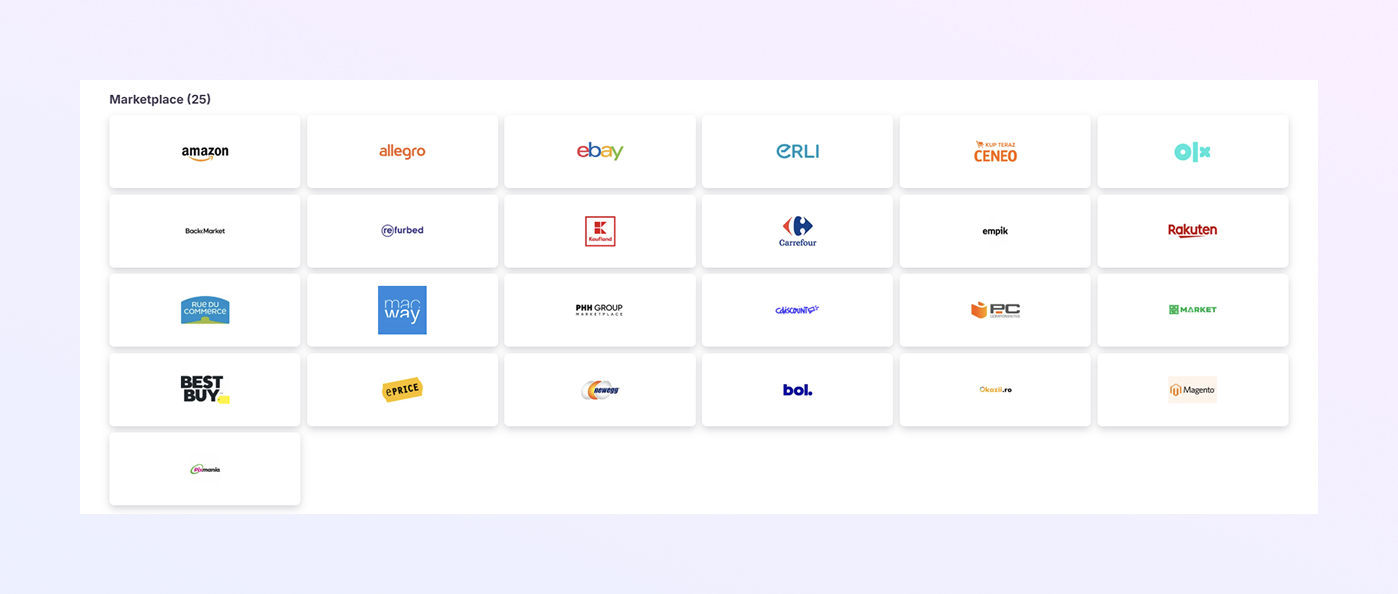
Marketplace
This section includes online marketplaces where products are sold. Examples:
Amazon
Allegro
eBay
ERLI
Ceneo
OLX
BackMarket
Refurbed
Carrefour
Empik
Rakuten
Listings
Orders
Prices
Stock levels
Use these integrations to sync:
Shop
This section includes online store platforms. Examples:
Shopify
WooCommerce
PrestaShop
Wix
Sell Assist
Products
Orders
Inventory
Customer data
These integrations help manage:
Courier
This section includes shipping and delivery services. Examples:
InPost
DHL
UPS
GLS
FedEx
Poczta Polska
DPD
Orlen Paczka
Amazon Shipping
Create shipments
Generate labels
Track delivery status
Use courier integrations to:
Accounting / ERP
This section connects accounting and ERP systems. Examples:
Subiekt GT
QuickBooks
inFakt
iFirma
Invoice syncing
Financial records
Accounting automation
These integrations support:

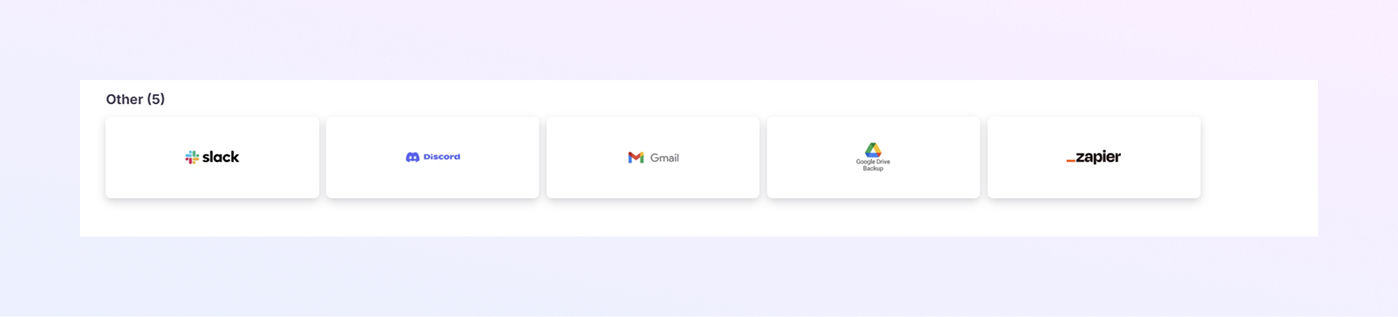
Other
This section includes additional tools and automation services. Examples:
Slack
Discord
Gmail
Google Drive Backup
Zapier
Notifications
File storage
Workflow automation
These are useful for:
How to Connect an Integration
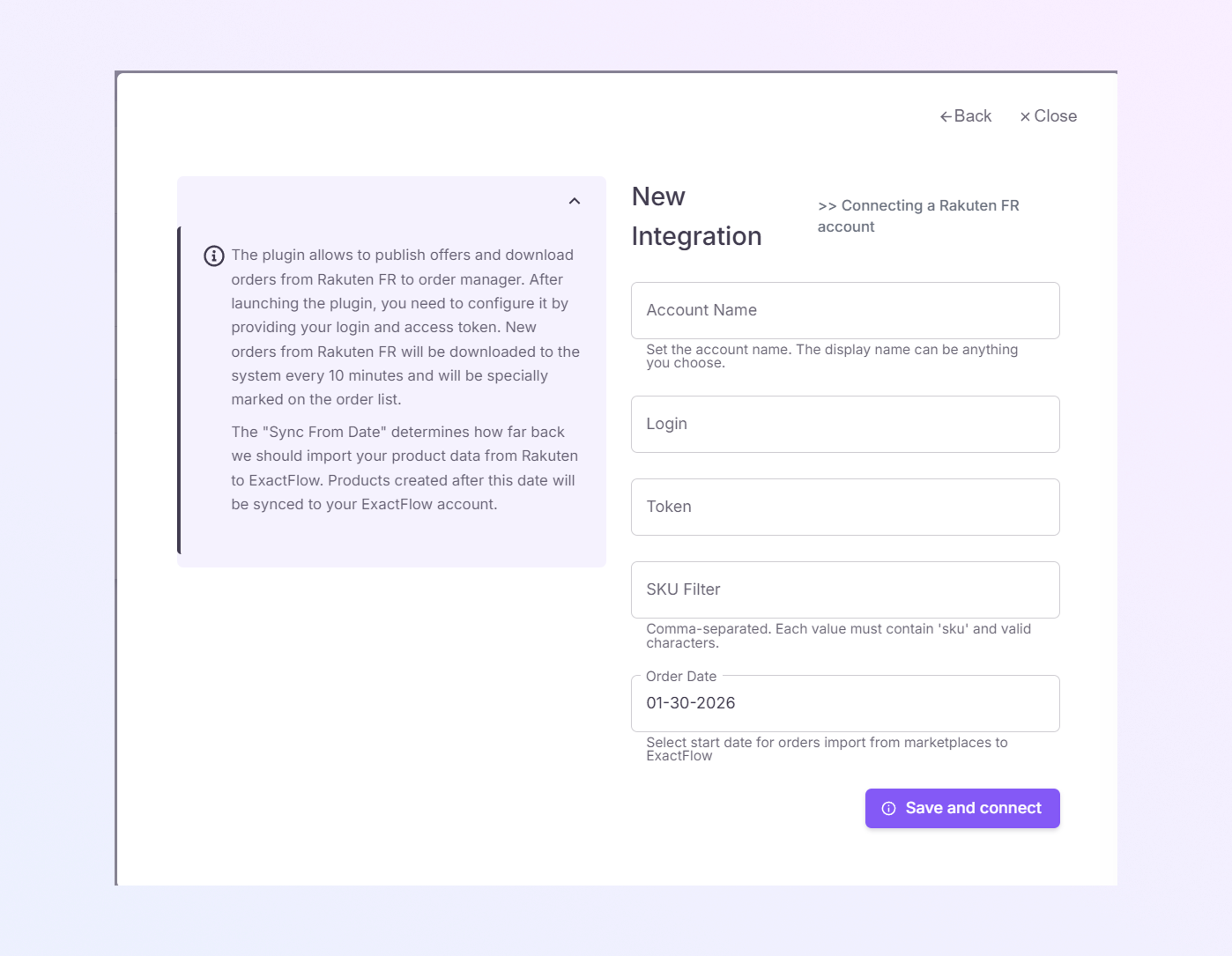
Click on the integration logo you want to add.
Follow the on-screen setup instructions.
Enter required credentials or permissions.
Save the configuration.
Once completed, the integration will appear in the Integrations List page.
Summary
With the ExactFlow Integrations module, you can:
View all connected services in one place
Easily add new integrations
Configure or remove existing connections
Sync shops, marketplaces, couriers, and accounting tools
Reduce manual work and avoid errors
Keep your business systems fully connected
This module ensures everything works together smoothly, saving time and improving operational efficiency.