


ExactFlow System Logs Page User Guide
The System Logs page helps you track what is happening inside the ExactFlow system. It provides a detailed record of actions, including updates, creations, and changes made by users. This page is useful for monitoring activity, checking history, and troubleshooting issues.
How to Open the System Logs Page
Log in to your ExactFlow account.
Look at the left sidebar menu.
Scroll down and click on System Logs.
You will now see the System Logs dashboard.
System Logs Page Overview
At the top of the page, you will see a short information message:
Every important system action is recorded here.
You can review who did what, when it happened, and from which device.

Date Filter Section
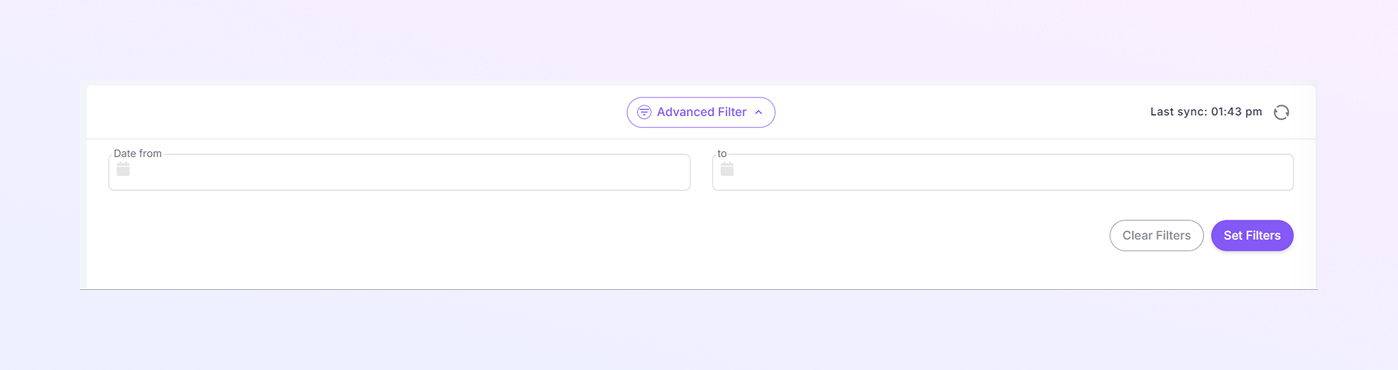
At the top of the page, you will see date filter fields:
Select a start date in Date From
Select an end date in Date To
This helps you view logs from a specific time period.
Use this when you want to:
Investigate an issue
Check activity from a certain day
Review past system actions
Set Filters
Applies the selected filters
Updates the log list based on your choices
Clear Filters
Removes all applied filters
Shows the full system log list again
Last Sync Information
At the top-right corner, you will see the last sync time.
This shows:
The last time system logs were updated
Confirms that the data is current
System Logs Table
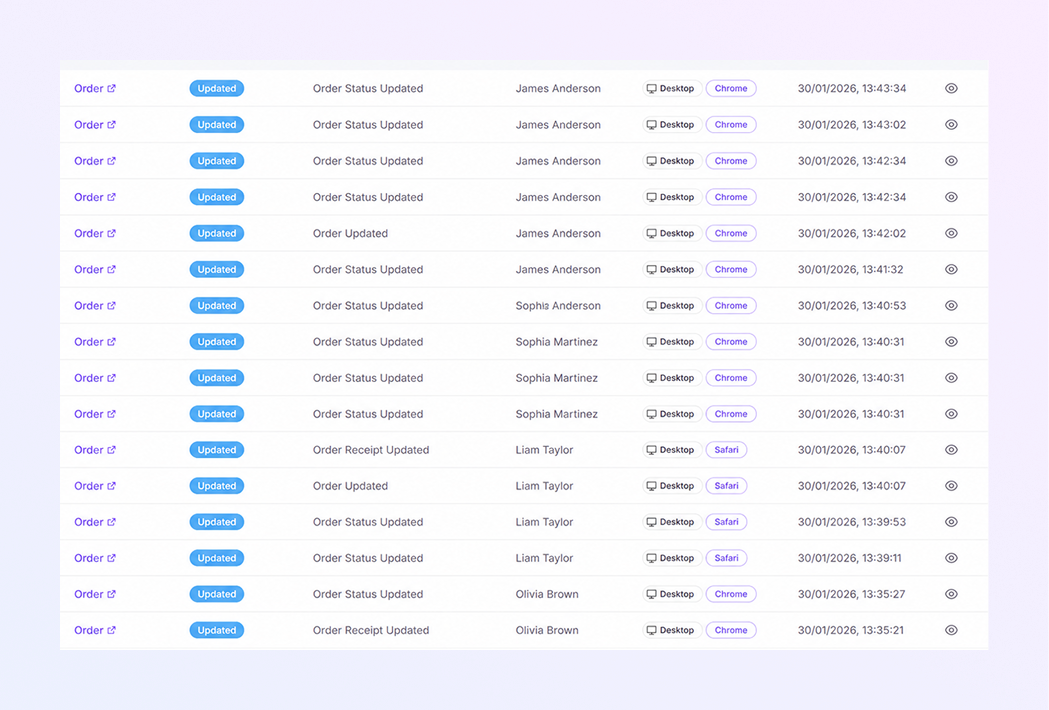
Below the filters, you will see a detailed table showing system activity. Each row represents one system action.
-
Entity
This column shows the object involved in the action.
Example: Order
Clicking the entity link opens related details in a new view.
-
Action
This indicates the type of action that occurred.
Common actions include:
Updated: An existing record was changed
Created: A new record was added
These labels are color-coded for easy identification.
-
Description
This explains what exactly was done.
Examples:
Order Status Updated
Order Receipt Updated
Order Shipment Created
This helps you quickly understand the activity without opening details.
-
User
This column shows the name of the user who acted.
This is useful for:
Accountability
Auditing user activity
Tracking changes
-
Device / Browser
This shows:
The device used (e.g., Desktop)d
The browser used (e.g., Chrome, Safari)
This information helps:
Identify login environments
Troubleshoot technical issues
-
Date
This column shows the exact date and time of the action
Format: DD/MM/YYYY, HH:MM:SS
This helps you trace when changes occurred.
-
Actions (View Icon)
At the far right, you will see an eye icon.
Allows you to view more details about the log entry
Useful for deeper investigation
Why Use System Logs?
The System Logs page helps you:
Monitor system activity
Track changes and updates
Identify who made specific actions
Troubleshoot errors or unexpected behavior
Maintain transparency and control
Summary
With the ExactFlow System Logs module, you can:
View complete system activity history
Filter logs by date and criteria
Track user actions and system changes
Identify issues quickly
Maintain system accountability
This page is essential for admins, managers, and support teams who need visibility into system operations.