


ExactFlowAI Report Page User Guide
The AI Report page in ExactFlow helps authorized users create clear, detailed performance reports using AI. These reports are useful for monthly reviews, management meetings, audits, and performance analysis.
This page is restricted. Only authorized users (such as managers, admins, or approved team leads) can view and use this feature. If you do not have permission, this page will not be visible to you.
How to Open the AI Report Page
Log in to your ExactFlow account.
From the left sidebar, click Operational Agent.
Expand Performance Management.
Click AI Reports
You will now see the AI-Powered Report Generation page.
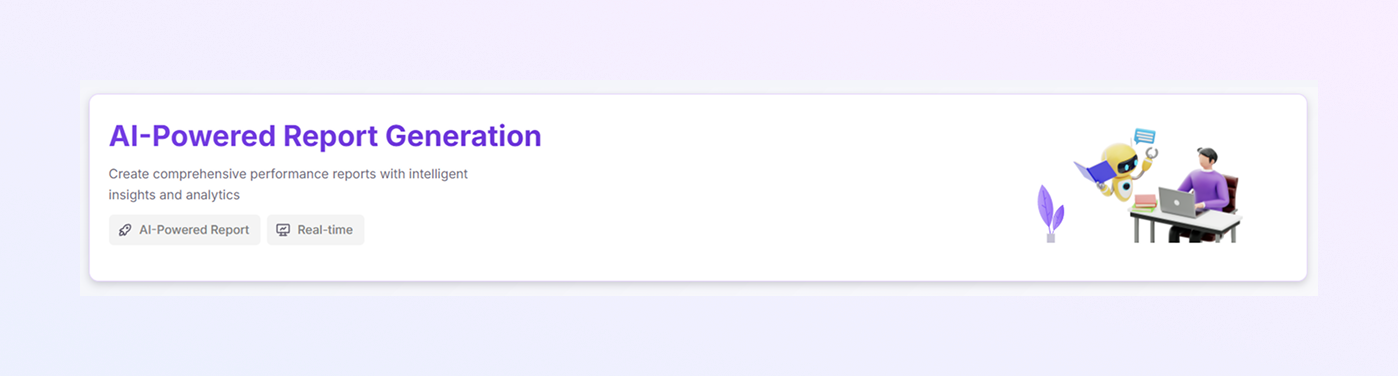
Page Header
At the top of the page, you will see:
The title AI-Powered Report Generation
A short description explaining that AI is used to create performance reports
Labels such as:
AI-Powered Report
Real-time
This confirms that the reports are generated using live data and AI analysis.
Report Type Tabs
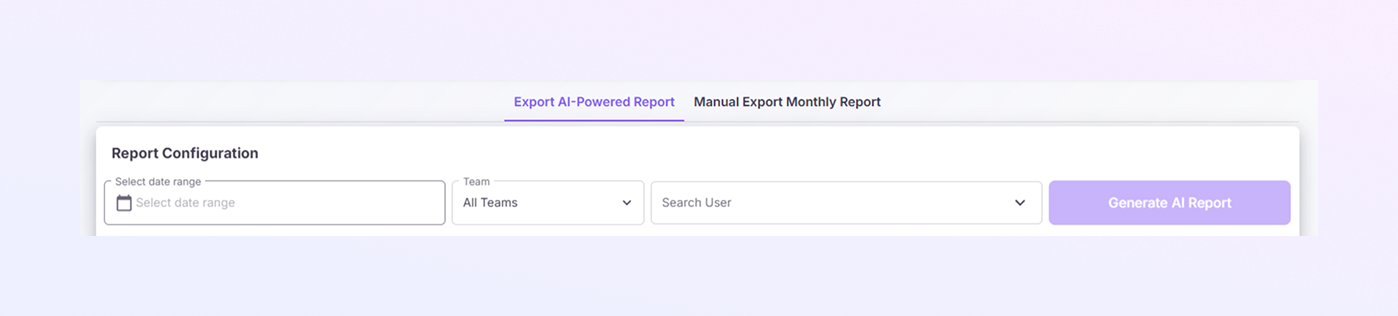
Below the header, you will see two tabs.
Export AI-Powered Report
This option lets the system automatically generate a report using AI.
Best for quick insights and summaries.
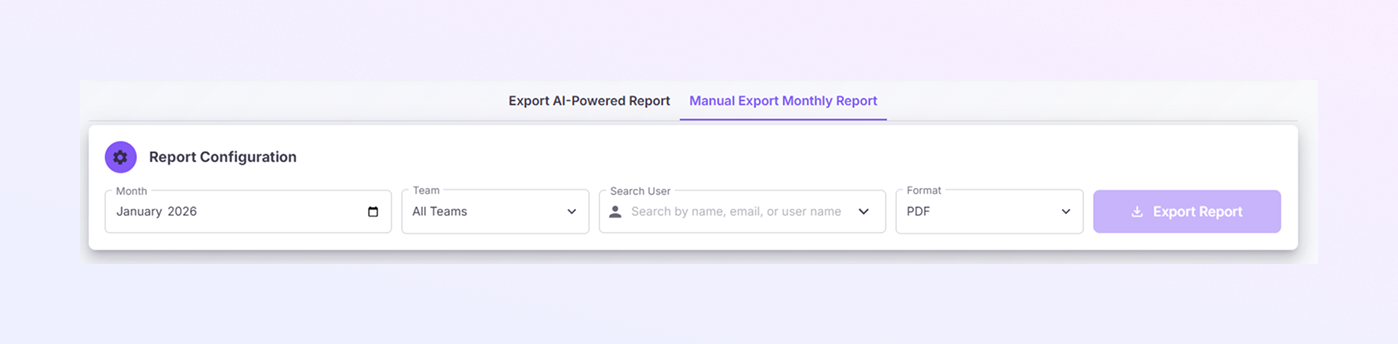
Manual Export Monthly Report
This option lets you manually choose a month and export a report.
Useful when you need a fixed monthly document.
Click on a tab to switch between these two report types.
Report Configuration Section
This is where you set up your report before generating or exporting it.
Date Range / Month
Choose a date range or a specific month (for example, January 2026).
The report will only include data from this period.
Team Selector
The default option is All Teams.
You can select a specific team if needed.
This helps focus the report on one department or group.
Search User
You can search for a specific employee by:
Name
Email
Username
Leave this empty if you want data for everyone.
Generate AI Report
Click Generate AI Report.
The system analyzes the data and creates a smart performance report.
This may take a few seconds.
Manual Export Monthly Report
Select the month and the team.
Search User
Choose the file format for the report.
Common option: PDF
This makes the report easy to download and share.
Export Report
Click Export Report in manual mode.
The report will be downloaded in the selected format.
Report History Section
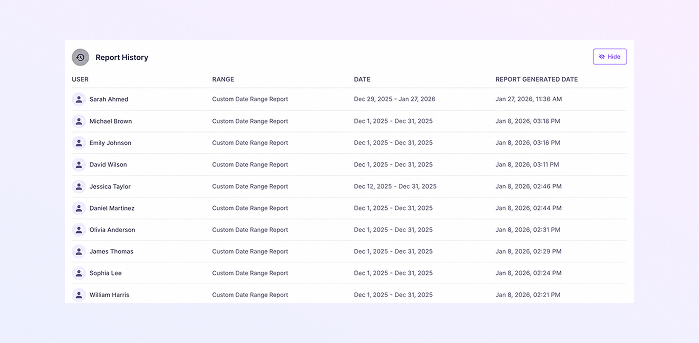
This section shows a list of reports that were generated earlier.
For each report, you can see:
User: Who generated the report
Range: selected date or month
Date: data period covered
Report Generated Date: when the report was created
This helps you:
Track report activity
Avoid generating duplicate reports
Reconfirm past exports
You can also hide or show this section if you want a cleaner screen.
When Data Is Not Visible
If you see empty fields or no reports, it usually means:
No data exists for the selected period
Filters are too specific
You do not have permission for certain data
This is normal and not an error.
Summary
The ExactFlow AI Report Page allows authorized users to:
Create smart, AI-driven performance reports
Export monthly performance data
Filter reports by team and user
Review report history in one place
This page saves time, reduces manual work, and helps decision-makers clearly understand performance data.