ExactFlow Chat Page User Guide
The Chat Page in the ExactFlow Operational Agent allows you to interact with the Operational Bot (Kai) and quickly get answers related to workforce data, productivity, attendance, and time tracking.
This page is designed to be simple, friendly, and easy for first-time users.
How to Open the Chat Page
Log in to your ExactFlow account.
From the left sidebar, click Operational Agent.
Under Operational Agent, select Chat.
You will now land on the Chat page.
Chat Page Layout Overview
The Chat page is divided into three main sections:
-
Chat History Panel (left side)
-
Chat Conversation Area (center)
-
Message Input Bar (bottom)
Each section plays a specific role.
-
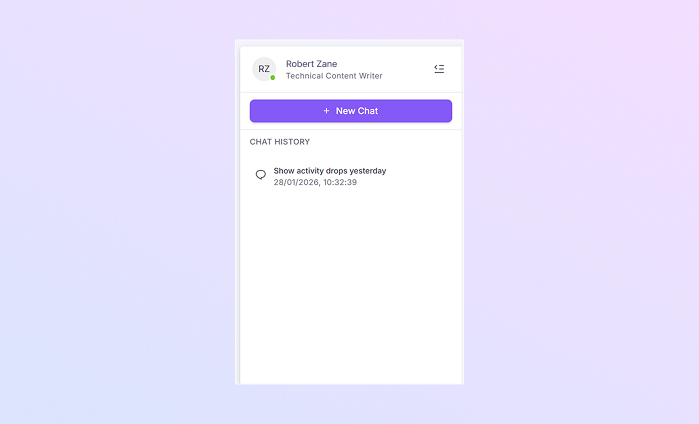
Chat History Panel
This panel helps you manage your conversations.
User Profile Information
At the top of the panel, you can see:
-
Your profile icon
-
Your name
-
Your role
-
A green dot showing you are online
This confirms who is currently logged in.
New Chat Button
Below your profile, you will see a “+ New Chat” button.
Use this button to:
-
Start a fresh conversation
-
Ask a new question
-
Clear the current discussion and begin again
This is useful when switching topics.
Chat History Section
Under Chat History, you can view:
-
Previous chat topics
-
Short descriptions of past questions
-
Date and time of each conversation
This helps you:
-
Reopen earlier conversations
-
Track what was discussed before
-
Avoid asking the same question again
-
-
Chat Conversation Area
This is the main working area where you interact with the Operational Bot (Kai).
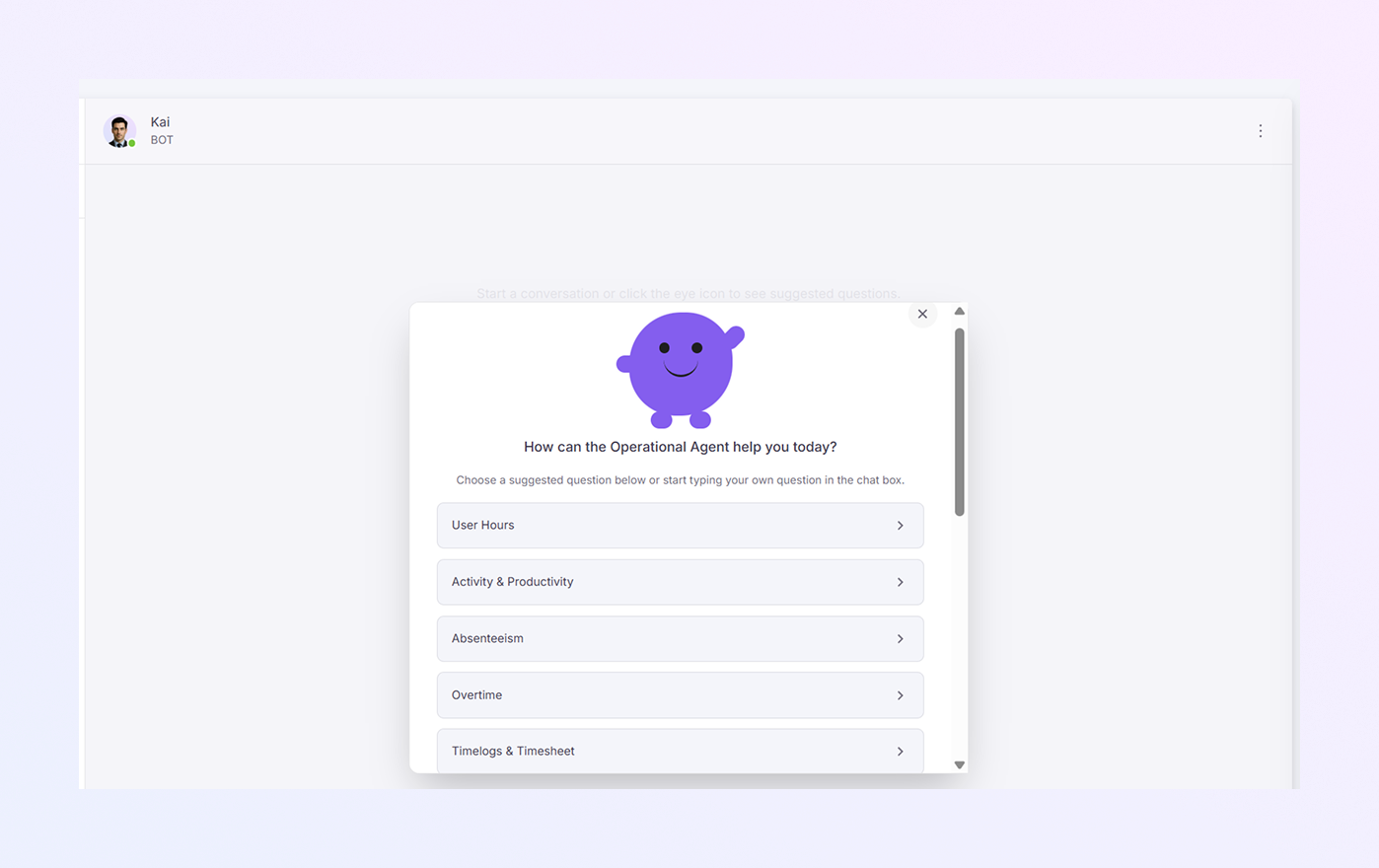
Bot Header Information
At the top of the chat window, you will see:
-
Bot avatar
-
Bot name: Kai
-
Label: BOT
-
Online status indicator
This confirms that you are chatting with the system-powered Operational Agent.
Welcome Message Panel
When you open a chat, a friendly welcome card appears with:
-
A smiling bot illustration
-
A greeting message: “How can the Operational Agent help you today?”
Below this, a short instruction explains:
-
You can choose a suggested question
-
Or type your own question in the chat box
This makes it easy for beginners to get started.
Suggested Question Options
The system provides ready-made question categories to save time.
You may see options such as:
-
User Hours
Use this option to ask about:
-
Employee working hours
-
Logged-in time
-
Daily or weekly hour summaries
-
-
Activity & Productivity
This option helps you:
-
Check productivity levels
-
Review activity trends
-
Identify performance drops or improvements
-
-
Absenteeism
Use this to:
-
Track employee absences
-
Review attendance issues
-
Understand absence patterns
-
-
Overtime
This option allows you to:
-
View overtime hours
-
Monitor extra working time
-
Control overtime costs
-
-
Timelogs & Timesheet
Select this to:
-
Review time logs
-
Check submitted timesheets
-
Verify recorded work hours
Each option is clickable and opens related insights instantly.
-
-
A vertical scrollbar appears on the right side
-
You can scroll down to see additional suggested questions
Scrollable Suggestions Panel
More options are available:
This keeps the interface clean and organized.
-
-
Message Input Bar
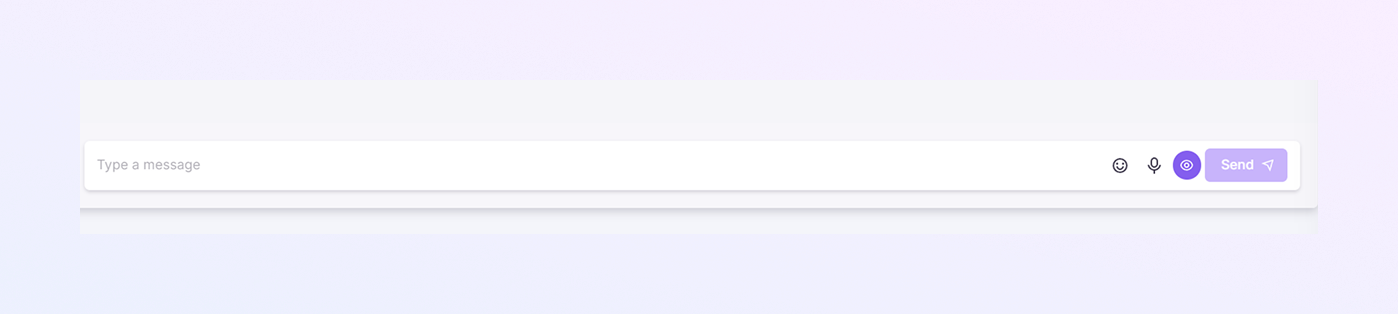
At the bottom of the screen, you will find the message input area.
Message Text Box
-
Displays the placeholder: “Type a message.”
-
Click inside the box to start typing your question
You can ask questions in natural language.
Additional Controls
Next to the input box, you may see:
-
Emoji icon (for expressive messages)
-
Microphone icon (if voice input is enabled)
-
Send button
Click Send to submit your message to the bot.
How This Chat Page Helps You
The Operational Agent Chat Page allows you to:
-
Get quick answers without searching reports
-
Monitor workforce data easily
-
Reduce manual analysis
-
Make faster operational decisions
-
Save time with smart suggestions
-