ExactFlow Daily Activities Page User Guide
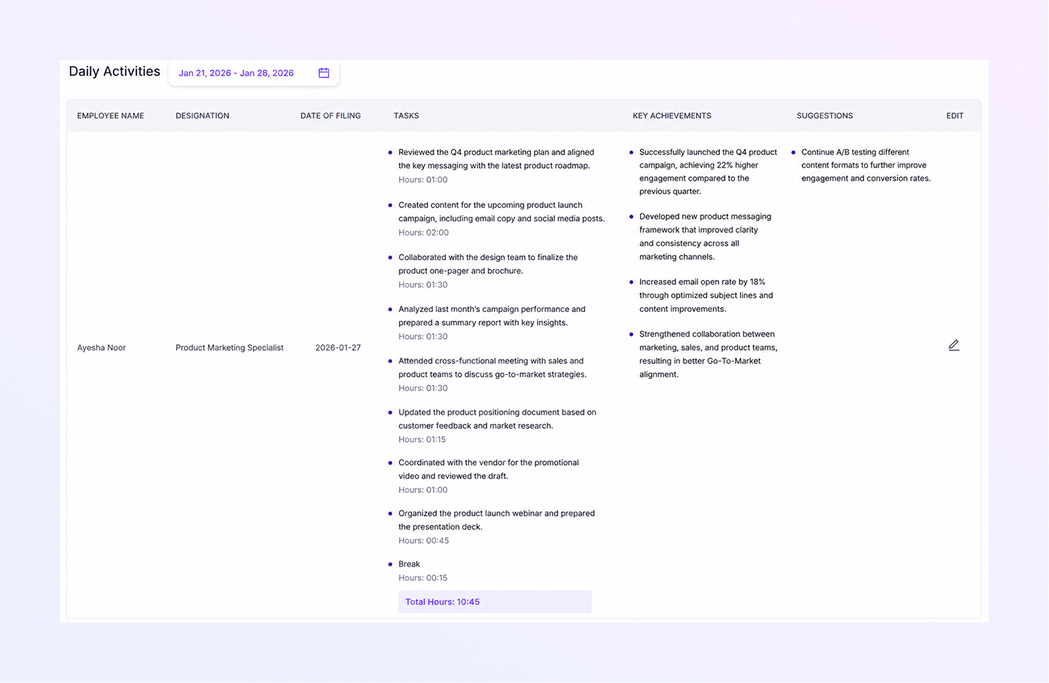
The Daily Activities page helps you track what employees worked on each day. It shows tasks, time spent, achievements, and suggestions in one clear view. Managers and team leads can use this page to review productivity, follow progress, and keep records organized.
How to Open the Daily Activities Page
Log in to your ExactFlow account.
From the left sidebar, click Operational Agent.
Click Performance Management.
Select Daily Activities.
You will now see the Daily Activities dashboard.
Daily Activities Page Overview
This page displays a table where each row represents an employee’s daily work record. You can see:
Employee details
Work date
Tasks performed
Time spent on each task
Achievements and suggestions
Everything is arranged to make the daily performance review easy and quick.
Date Range Filter
At the top of the page, you will see a date range selector.
Allows you to select a specific date range
Shows daily activity records only for the selected dates
Use this to:
Review weekly performance
Check past work records
Prepare reports for a specific period
Table Columns
The Daily Activities table contains several columns. Each column provides specific information about the employee’s work.
-
Employee Name
This column shows the name of the employee who submitted the daily activity report.
This helps you quickly identify who performed the tasks.
-
Designation
This column shows the employee’s job role or designation.
It helps managers understand the type of work assigned to the employee.
-
Date of Filing
This column shows the date when the activity was logged.
Use this to confirm timely reporting and Track daily submissions.
-
Tasks
This is the most detailed section of the page.
It shows:
A list of tasks completed by the employee
A short description of each task
Time spent on each task (in hours)
-
Each task is listed separately so you can clearly understand the employee’s daily workload.
-
Below each task, you will see Hours, such as: Hours: 02:30
-
This tells you how much time was spent on each task and the total effort applied during the day.
-
Key Achievements
This column highlights important accomplishments for the day.
If there are no achievements added, you may see:
A dash (–)
-
Suggestions
This column is used for Improvement ideas, Process suggestions, and Feedback from the employee.
This encourages continuous improvement and open communication.
-
Edit Option
On the far right side, you will see an edit icon (pencil).
You can:
Update tasks
Correct hours
Edit achievements or suggestions (if permitted)