


ExactFlow Daily Activity Report Page User Guide
The Daily Activity Report page is used by employees to record their daily work in ExactFlow. It helps managers understand how time is spent, what tasks are completed, and where improvements are needed.
How to Open the Daily Activity Report Page
Log in to your ExactFlow account.
From the left sidebar, click Operational Agent.
Expand Performance Management.
Click Daily Activity Report.
You will now see the Daily Activity Report form.
Page Overview
The Daily Activity Report page is a form where you enter:
Your basic information
Tasks you worked on
Time spent on each task
Achievements
Suggestions or improvement notes
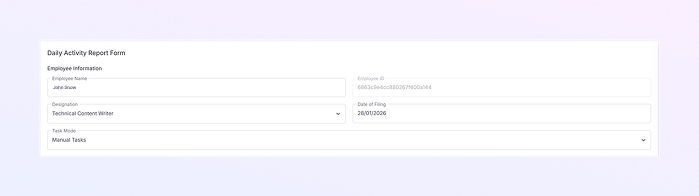
Employee Information Section
This section appears at the top of the page. Most fields are auto-filled.
Employee Name: Displays the logged-in employee’s name. This field is not editable.
Employee ID: Shows your unique employee ID. Used for internal tracking and records.
Designation: Displays your job role. Helps managers understand task responsibilities.
Date of Filing: Shows the date the report is being submitted. Usually auto-selected as the current date.
Task Mode
Task Mode Dropdown: Shows how tasks are recorded.
Example: Manual Tasks
Manual mode means you enter task details yourself.
You can select On Leave or Public Holiday.
This keeps reporting flexible for different roles.
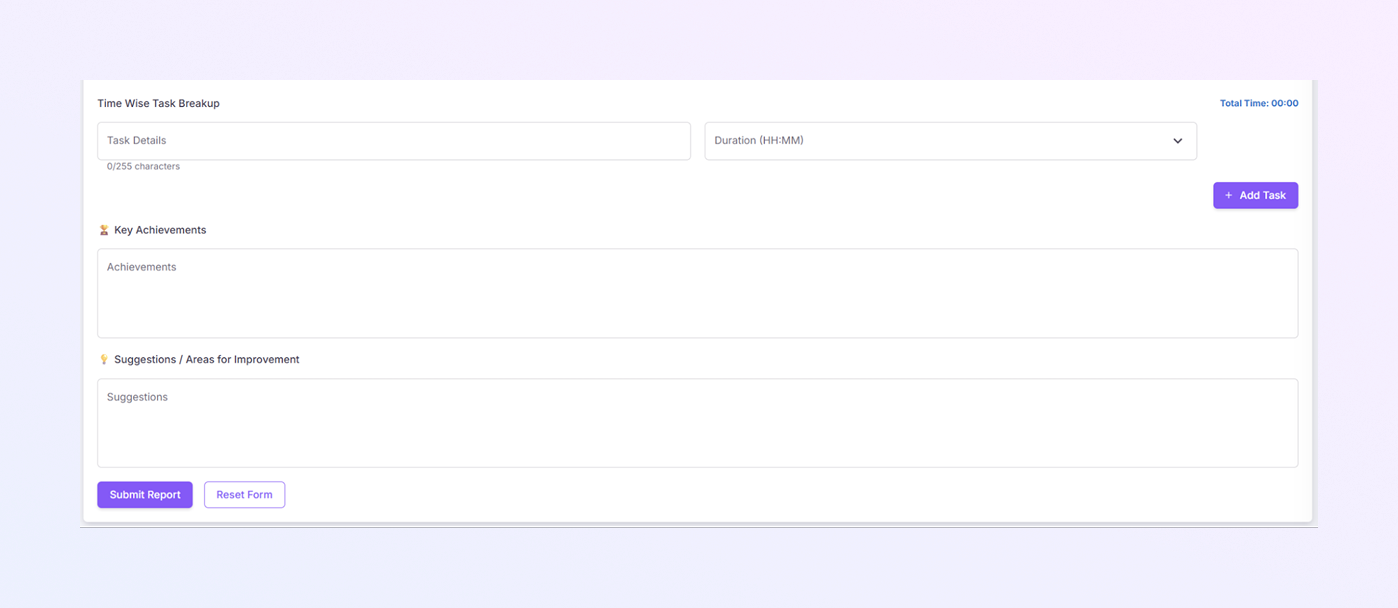
Time Wise Task Breakup Section
This is the most important section of the page. Here, you record what you worked on and how long it took.
Task Details: Write a short description of the task. Character limit helps keep entries clear and concise.
Duration (HH: MM): Select how much time you spent on the task. Format is Hours: Minutes.
Add Task Button: Click + Add Task to add another task entry. You can add multiple tasks for the same day. Total time updates automatically.
Total Time: Displays the total working time for all added tasks. Helps ensure accurate daily reporting.
Key Achievements Section
This section highlights what you accomplished during the day.
Write your major achievements or completed work.
This helps managers recognize progress and results.
Suggestions / Areas for Improvement Section
This section is optional but very useful.
Share ideas, issues, or improvement suggestions.
You can mention:
Process improvements
Tool issues
Work challenges
Training needs
This encourages open communication and continuous improvement.
Submit and Reset Buttons
Submit Report
Click Submit Report after completing all details.
Your daily activity is saved and sent for review.
Reset Form
Clears all entered data.
Useful if you want to start over before submitting.
Summary
With the ExactFlow Daily Activity Report page, you can:
Record daily tasks and time spent
Highlight key achievements
Share improvement suggestions
Maintain accurate performance records
This page plays a key role in performance management and team growth.