


ExactFlow Daily Report Page User Guide
The All Daily Reports page allows authorized users to view, review, and monitor daily work reports submitted by employees. This page helps managers and team leads understand how time is spent, what tasks are completed, and what progress is being made each day.
This page is restricted. Only authorized users such as managers, admins, or approved team leads can access and use this feature.
How to Open the All Daily Reports Page
Log in to your ExactFlow account.
From the left sidebar, click Operational Agent.
Scroll down and click Performance Management.
Select All Daily Reports.
You will now see the All Daily Reports dashboard.
Page Overview
This page displays:
A filter bar at the top
A detailed table of employee daily reports
Task details, hours worked, achievements, and suggestions
Everything is shown in a clean, easy-to-read layout for quick review.
Top Filter Section
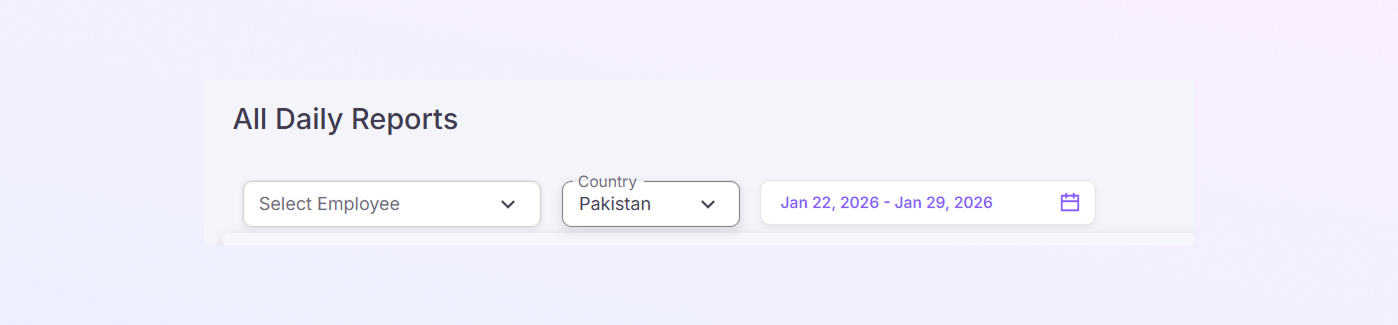
At the top of the page, you will find several filters. These help you narrow down the reports you want to see.
-
Select Employee Dropdown
Use this dropdown to view reports for a specific employee.
If no employee is selected, reports for all employees are shown.
-
Data Source
This usually shows Asana Tasks and Non-Asana Tasks.
It tells you where the task data is coming from.
-
If more tools are connected in the future, you may be able to switch sources here.
-
Country Filter
Shows the country of employees.
Example: Pakistan
Useful for teams working across different regions.
-
Date Range Picker
Allows you to select a start and end date.
Example: Jan 22, 2026 – Jan 29, 2026
-
Only reports submitted within this date range will appear.
This is helpful when reviewing one person’s performance.
This helps when reviewing reports for a specific time period.
Daily Reports Table
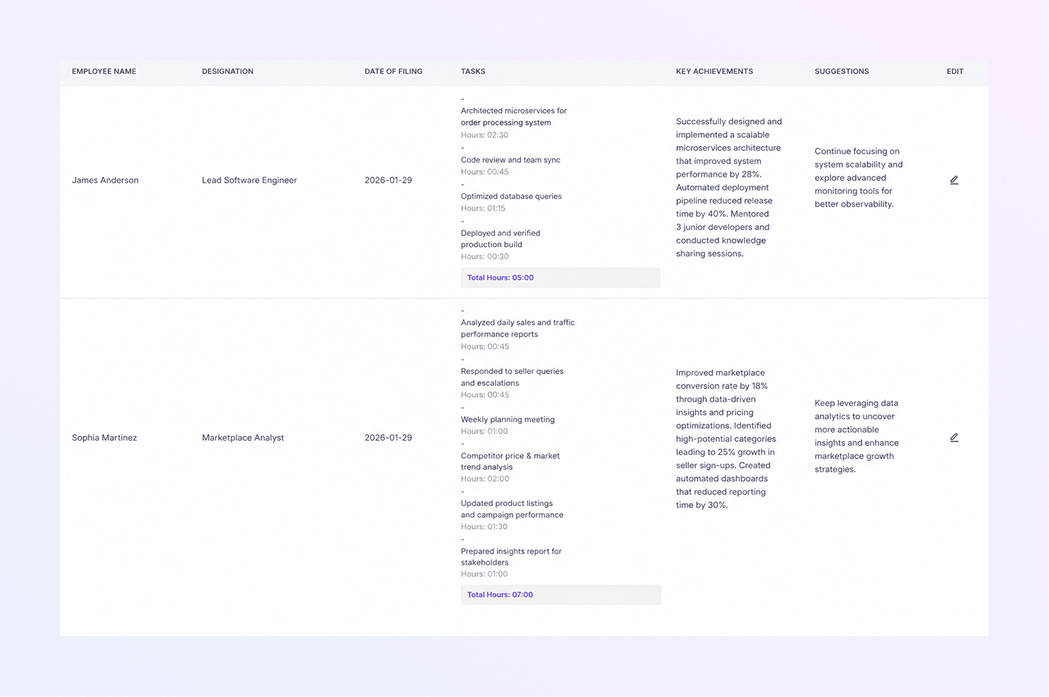
Below the filters, you will see a table showing daily reports from employees. Each row represents one employee’s report for a specific day.
-
Employee Name
Displays the full name of the employee who submitted the report.
-
Designation
Shows the employee’s role or job title.
Examples:
Senior AI & Python Developer
Marketplace Specialist
Business Development Executive
-
Date of Filing
Displays the date when the daily report was submitted.
Helps track daily activity accurately.
-
Tasks
This column contains:
A list of tasks performed during the day.
Time spent on each task (hours and minutes)
Break time, if included
At the bottom of each task list, Total Hours are shown.
This is the sum of all working hours for that day.
-
Key Achievements
Highlights important accomplishments from the day.
Examples:
System improvements
Process enhancements
Completed milestones
Problem-solving actions
-
Suggestions
Displays employee feedback or improvement suggestions.
If no suggestions were added, this field may appear empty or show a dash (–).
-
Edit
Shown as a pencil icon.
Authorized users can click this to edit or update a report if needed.
This helps you understand the type of work being reported.
Tasks are listed clearly so managers can see how the workday was used.
Total Hours
This makes time tracking easy and transparent.
This section helps managers understand impact, not just time spent.
This section encourages open communication.
This is useful for corrections or adjustments.
Understanding Multiple Entries
-
Each employee may have multiple daily reports for different dates.
-
Reports are displayed in chronological order based on the selected filters.
-
You can scroll down to review older entries.
Access Control Reminder
Because this page contains sensitive employee data:
-
Only approved users can access it
-
Regular employees cannot view other team members’ reports
-
Access is managed by system permissions
This ensures data privacy and accountability.
Summary
With the ExactFlow All Daily Reports page, authorized users can:
View employee daily work reports
Filter reports by employee, country, and date
Review tasks, hours, and achievements
Edit reports when required
Maintain transparency and performance tracking
This page gives managers a clear daily view of team activity, helping them make better decisions and support their teams effectively.