ExactFlow Create To-Do Task Page User Guide
The Create To-Do Task page in Exact Flow helps you plan, organize, and track your daily work. You can create tasks, set priorities, add reminders, and manage recurring work in one place.
How to Open the Create To-Do Task Page
Log in to your Exact Flow account.
From the left sidebar, click Operational Agent.
Click Task Management.
You will see two tabs.
Click Create To-Do Task.
You are now on the Create To-Do Task page.
Viewing Created Tasks
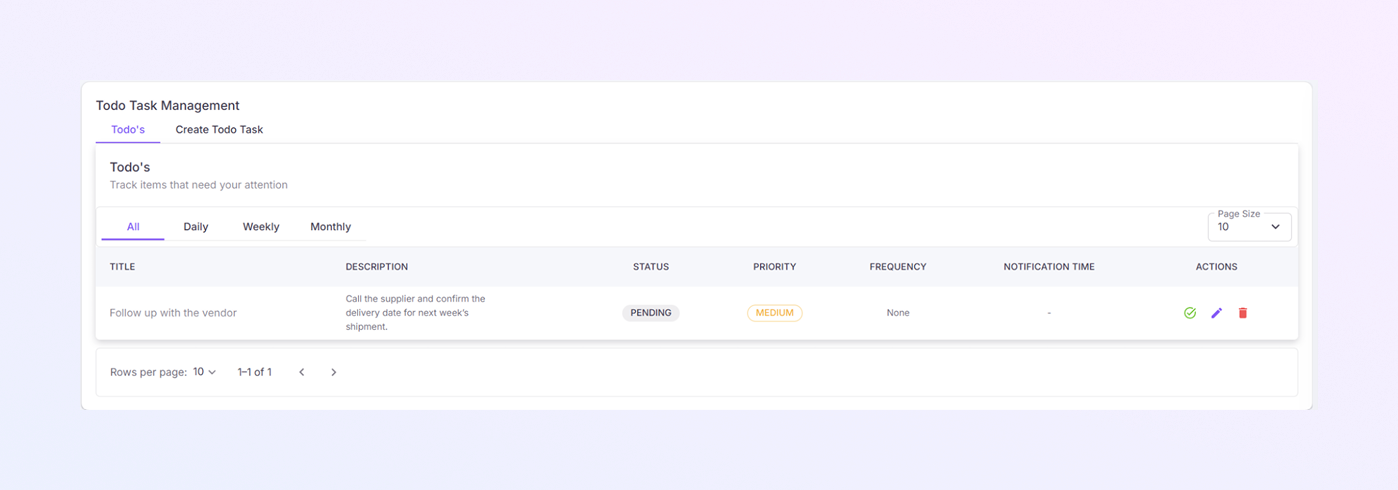
After you create a task, you can view and manage it from the To-Do’s tab. This page helps you track what needs attention and what is already completed.
To-Do Tabs
At the top of the page, you will see four tabs:
-
All: Shows every task you have created.
-
Daily: Shows only tasks that repeat daily.
-
Weekly: Shows tasks scheduled weekly.
-
Monthly: Shows tasks scheduled monthly.
Click any tab to quickly filter tasks based on frequency.
Task List Table
All tasks are displayed in a table format. Each row represents one task.
-
Title: Shows the task name you entered.
-
Description: Displays additional task details.
-
Status: Shows the current task state. This helps you quickly see which tasks still need action.
-
Priority: Displays the task priority level. Priority labels help you decide what to work on first.
-
Frequency: Shows how often the task repeats.
-
Notification Time: Shows the reminder time for the task. If no reminder is set, this field shows a dash (–).
-
Actions: Action icons allow you to manage tasks easily:
-
Mark as Complete: Marks the task as done.
-
Edit Task: Opens the task so you can update details.
-
Delete Task: Removes the task permanently.
-
How to Create a New To-Do Task
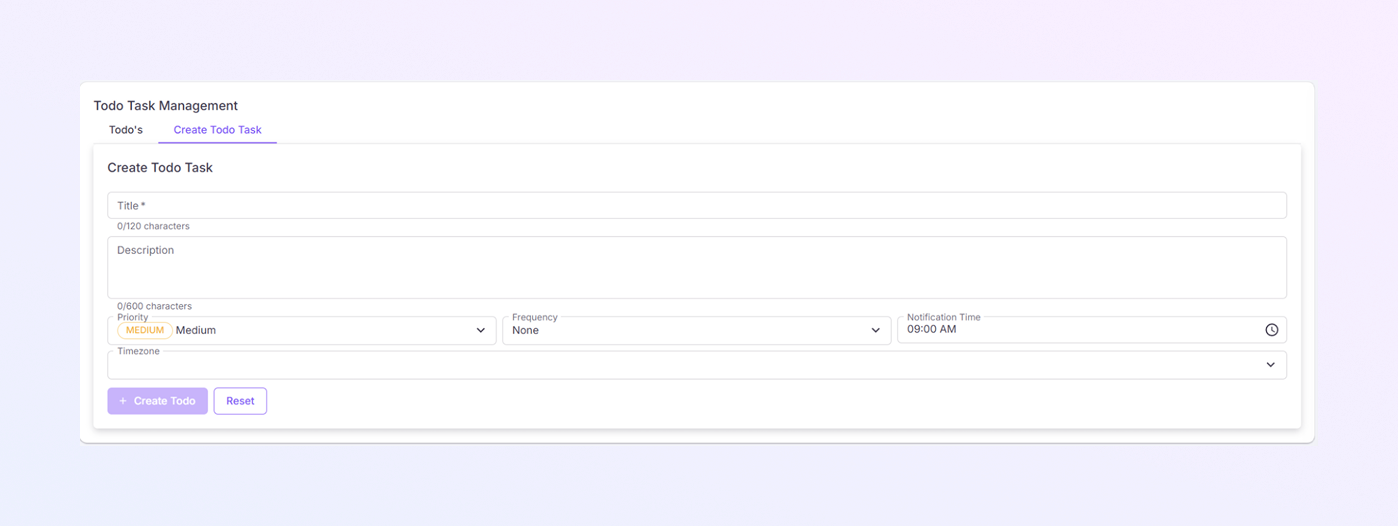
Title (Required)
-
The Title field is mandatory.
-
Enter a short and clear name for your task.
-
You can use up to 120 characters.
-
Follow up with the vendor
-
Review daily reports
-
Update inventory records
Example titles:
This title helps you quickly recognize the task later.
Description (Optional)
-
Use the Description box to add more details.
-
You can write up to 600 characters.
-
This is useful for instructions, notes, or extra context.
Example:
Call the supplier and confirm the delivery date for next week’s shipment.
Priority
-
This field defines how important the task is.
-
Click the Priority dropdown to choose a level.
-
Low/p>
-
Medium/p>
-
High/p>
Common options include:
High-priority tasks should be completed first.
Frequency
-
Use the Frequency dropdown if the task repeats.
-
Available options may include:
-
None (one-time task)
-
Daily
-
Weekly
-
Monthly
-
If you select a frequency, the task will repeat automatically based on that setting.
Notification Time
-
This field lets you set a reminder time.
-
Click the clock icon to choose the time.
-
The default time is usually 09:00 AM./p>
At this time, ExactFlow will notify you so you don’t forget the task.
Timezone
-
Select your Timezone from the dropdown.
-
This ensures reminders are sent at the correct local time.
-
This is especially helpful if you work with global teams./p>
Create To-Do Button
-
After filling in all required fields, click + Create To-Do.
-
Your task will be saved and added to the To-Do list.
-
The task will now appear under the To-Do’s tab./p>
Reset Button
-
Click Reset if you want to clear all fields.
-
This is useful if you want to start over or enter information by mistake.