ExactFlow Holiday Management Page User Guide
The Holiday Management page in ExactFlow helps you manage public holidays for different regions in one place. This page allows teams to add, view, filter, and update holidays so work schedules, attendance, and productivity data remain accurate.
It is especially useful for organizations working across multiple regions or countries.
How to Open the Holiday Management Page
Log in to your ExactFlow account.
From the left sidebar, click Operational Agent.
Under Operational Agent, click Holiday Management.
You will now see the Holiday Management dashboard.
Page Overview
At the top of the page, you will see the title Holiday Management. Below the title, a short description explains the purpose of the page:
-
You can manage public holidays for different regions.
-
You can also use AI-powered extraction to import holidays from documents.
This gives a clear idea of what this page is used for.
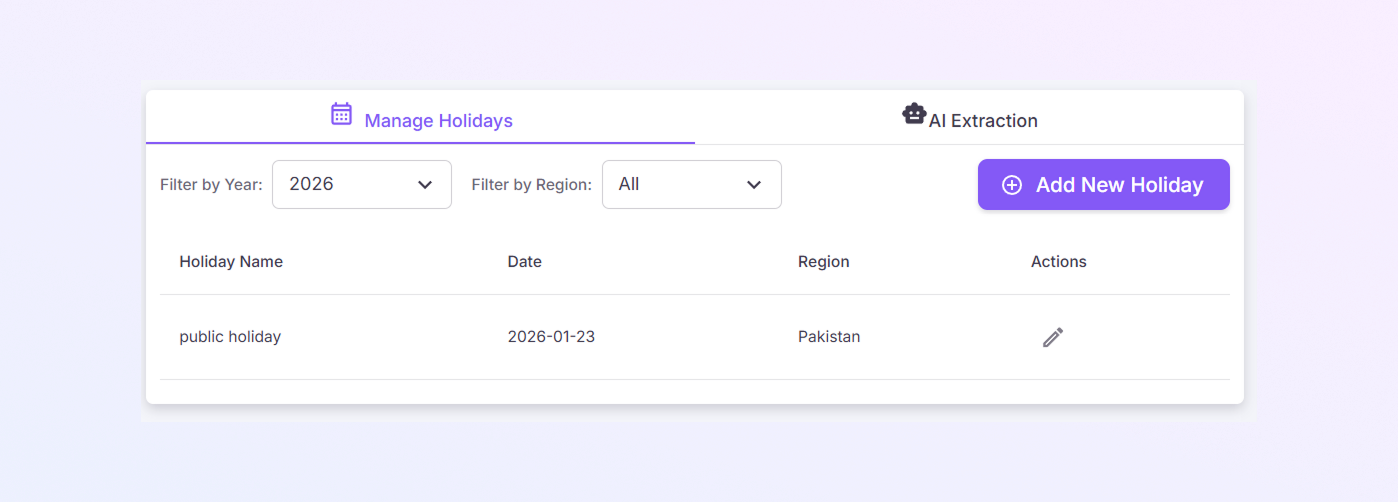
Tabs at the Top
-
Manage Holidays Tab
This is the default active tab.
Use this tab to:
-
View all added holidays
-
Add new holidays
-
Edit existing holidays
-
Filter holidays by year or region
-
-
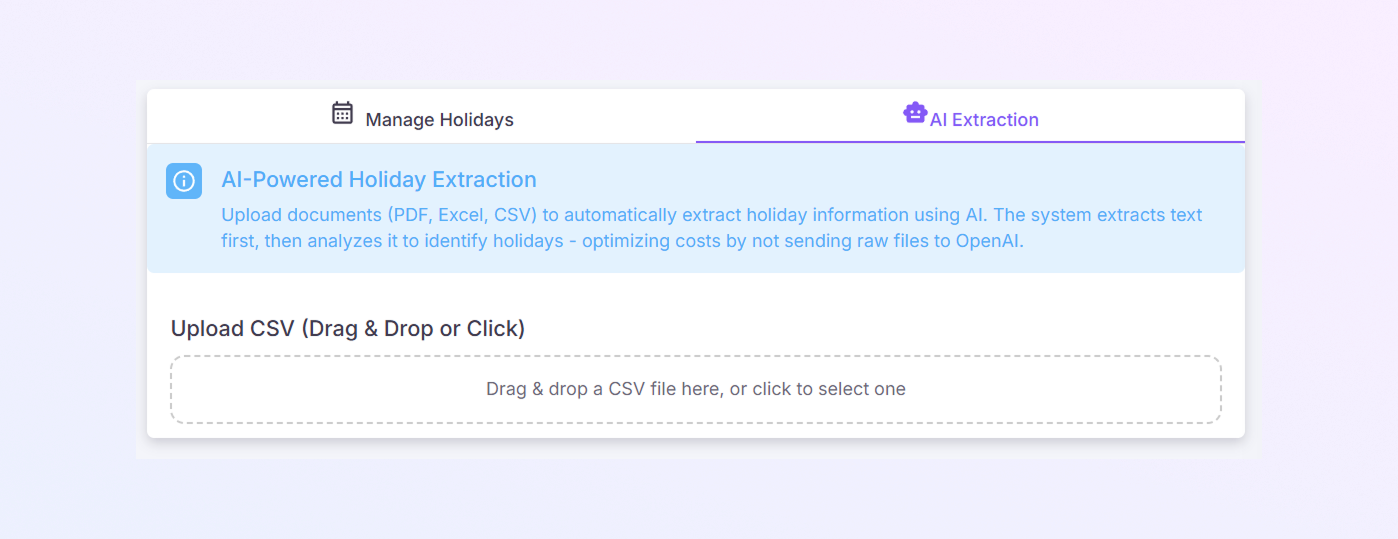
AI Extraction Tab
This option allows you to:
-
Import holidays automatically
-
Upload documents and let the system extract holiday data
This option allows you to:
-
Filters Section
Filters help you control what data appears in the holiday list.
-
Filter by Year
-
This dropdown lets you select a year (example: 2026).
-
Only holidays from the selected year are displayed.
Use this to focus on holidays for a specific calendar year.
-
-
Filter by Region
-
This dropdown allows you to choose a region.
-
Example options may include:
-
All
-
Pakistan
-
Other configured regions
-
When a region is selected, only holidays for that region are shown. This makes regional holiday management easier.
-

Add New Holiday Button
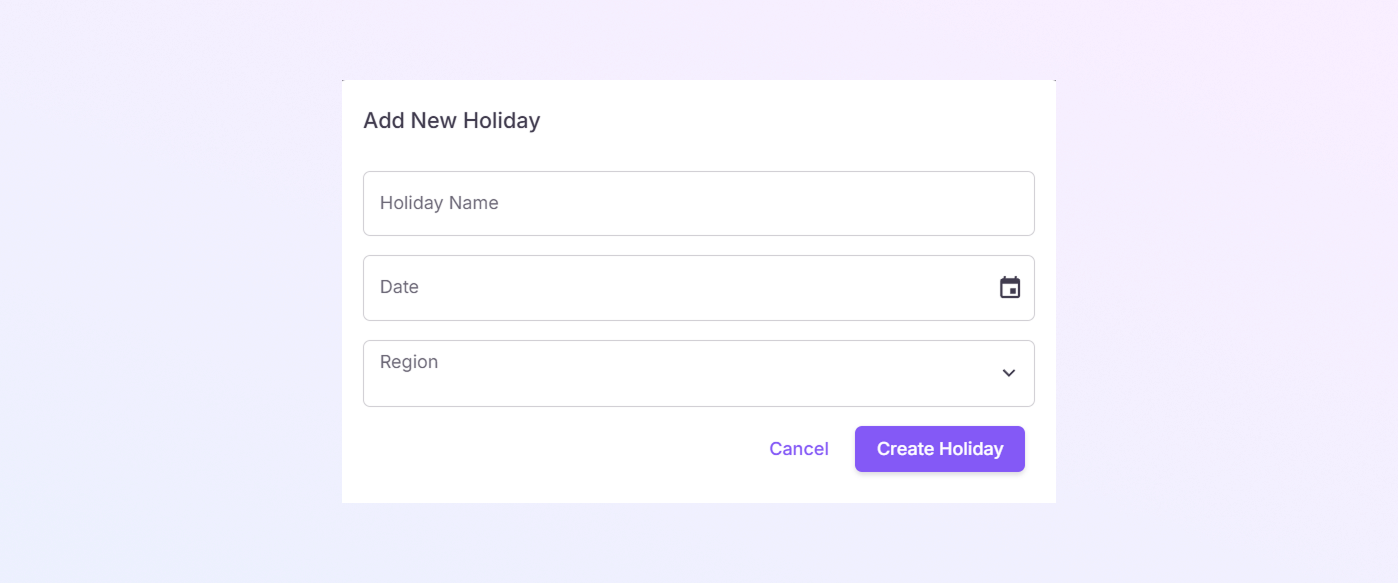
On the right side of the page, you will see the “+ Add New Holiday” button.
Use this button to:
Add a new public holiday manually
Enter holiday name, date, and region
This is useful when a holiday is missing or newly announced.
Holiday List Table
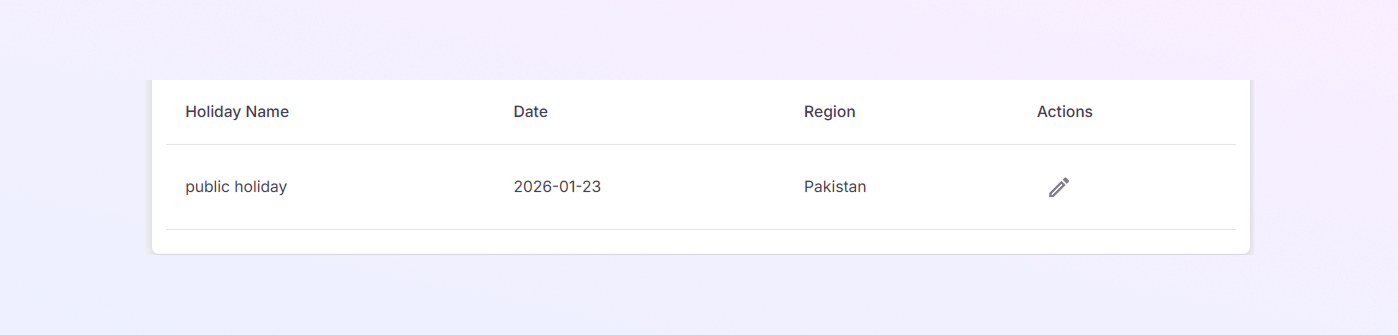
Below the filters, you will see a table displaying all holidays.
Holiday Name: Shows the name of the holiday
Date: Displays the holiday date
Region: Shows the country or region where the holiday applies
Actions: Displays an edit icon (pencil icon). Click this icon to update or modify the holiday details.
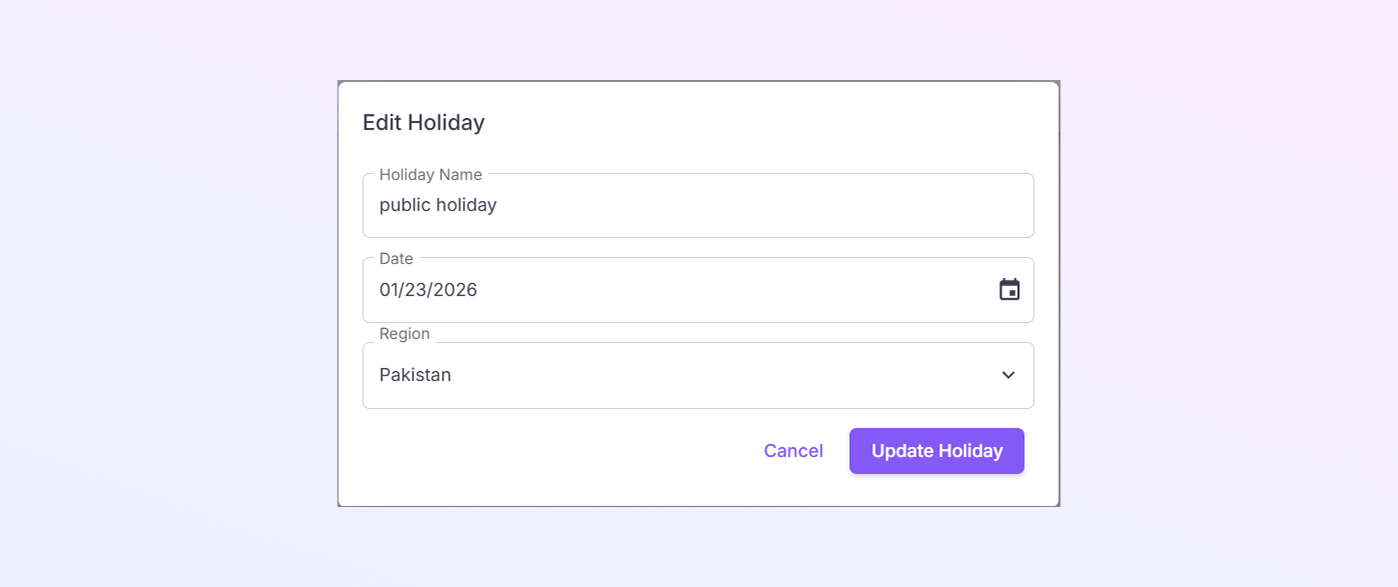
Editing an Existing Holiday
To edit a holiday:
Find the holiday in the list.
Click the edit (pencil) icon under the Actions column.
Update the holiday details as needed.
Save your changes.
This helps keep holiday data accurate and up to date.