ExactFlow Manage Departments Page User Guide
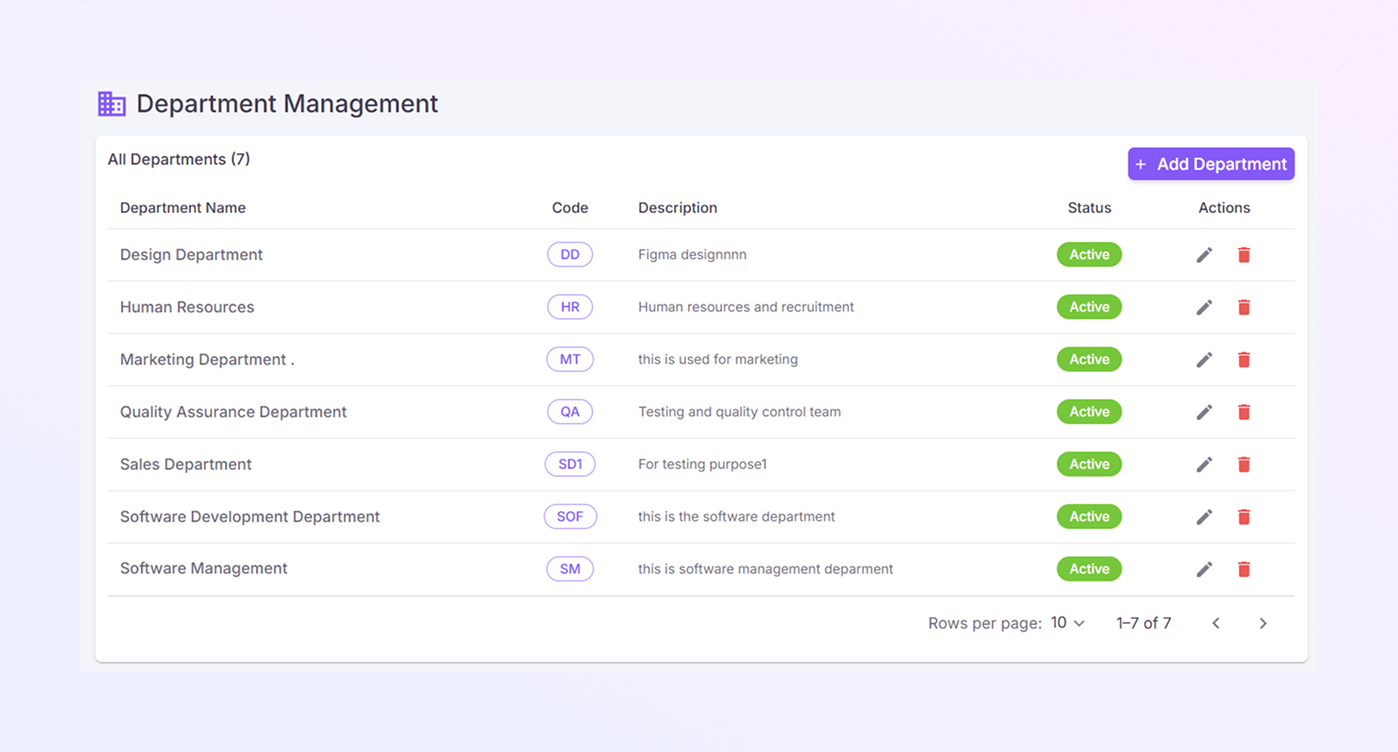
The Department Management page helps you create, view, update, and manage all company departments in one place. This page is mainly used by Operational Agents to organize teams, assign roles correctly, and keep department data clean and updated.
With this page, you can:
View all departments at a glance
Add new departments
Edit department details
Delete departments when no longer needed
Check department status (Active or Inactive)
How to Open the Department Management Page
Log in to your ExactFlow account.
From the left sidebar, click Operational Agent.
Under Operational Agent, click Department Management.
Select Manage Departments.
You will now see the Department Management screen.
Department Management Page Overview
When the page opens, you will see:
-
A list of all departments
-
Department details are shown in a table
-
Action buttons to edit or delete departments
-
An Add Department button on the top right
This page shows all departments in one simple table, making it easy to manage them.
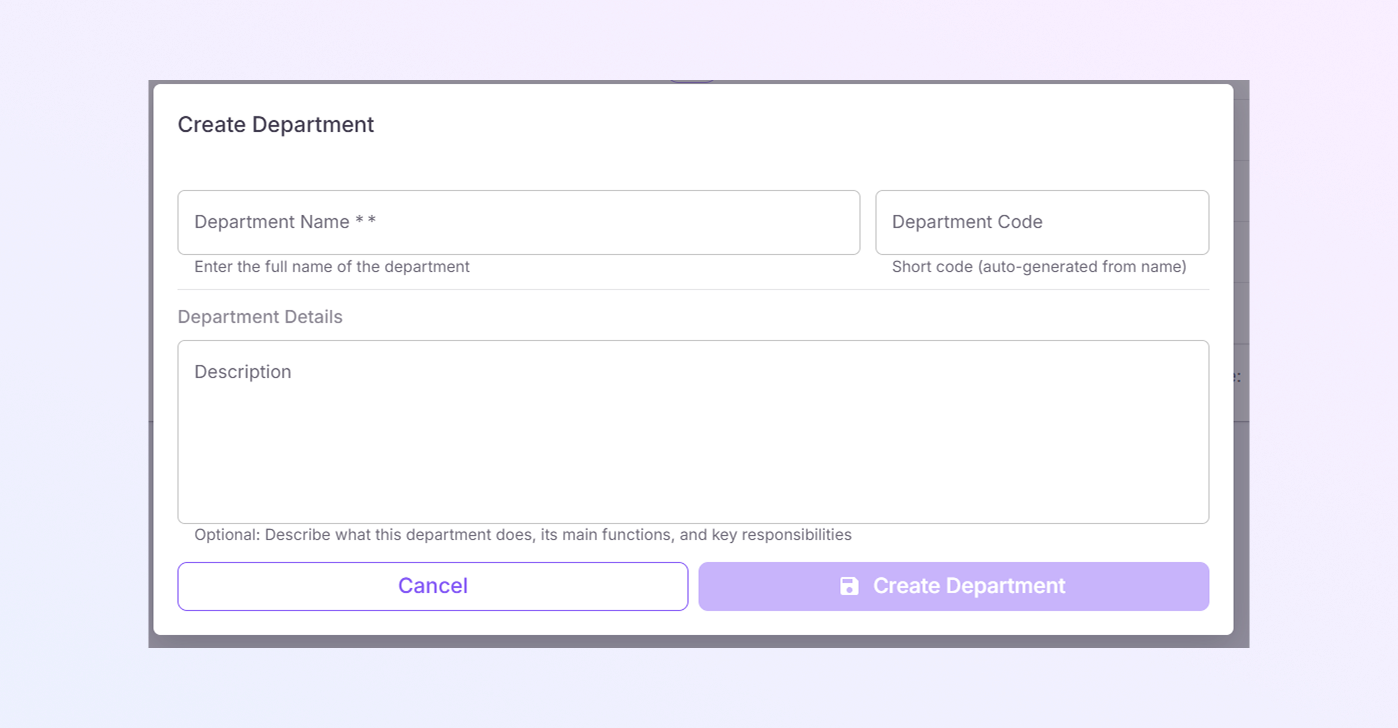
Add Department Button
-
Located at the top-right corner of the page.
-
Allows you to create a new department
-
Opens a form where you enter department details:
-
Department Name
-
Department Code
-
Department Details
-
Department List Table
The table displays all departments created in the system.
-
Department Name
This is the default active tab.
-
Shows the full name of the department
-
Example:
-
Design Department
-
Human Resources
-
Marketing Department
-
This helps users quickly identify each team.
-
-
Code
-
A short code is assigned to each department
-
Example:
-
DD (Design Department)
-
HR (Human Resources)
-
QA (Quality Assurance)
-
Codes are useful for internal references and system mapping.
-
-
Description
-
Brief explanation of what the department does
-
Examples:
-
“Figma designing”
-
“Human resources and recruitment”
-
“Testing and quality control team”
-
This helps new users understand the department’s role.
-
-
Status
-
Shows whether the department is Active.
-
Active status means:
-
The department can be assigned to users
-
The department is currently in use
-
Status is shown with a green label for easy visibility.
-
-
Actions
This column contains two icons:
Edit Icon
-
Used to update department details
-
You can change:
-
Department name
-
Code
-
Description
-
Status
-
Delete Icon
-
Used to remove a department
-
Only use this if the department is no longer needed
-
Before deleting a department, make sure it is not assigned to any active users.
-