


ExactFlow Missing Report Page User Guide
The Missing Reports page helps managers and team leads track employees who have not submitted their daily activity reports. This page makes it easy to follow up, send reminders, and keep daily reporting consistent across teams.
How to Open the Missing Reports Page
Log in to your ExactFlow account.
From the left sidebar, click Operational Agent.
Expand Performance Management.
Click Missing Reports.
You will now see the Missing Daily Summaries page.
Top Filters Section
Located at the top of the page, these filters help you control what data you see.
Date Range Filter
Select a start date and an end date.
The page shows missing reports only for the selected period.
Useful for reviewing a specific week or month.
Search by Username or Name
Type an employee’s name or username.
The table updates instantly.
Helps you find a specific person quickly.

Summary Cards
Below the filters, you will see four summary cards that give a quick overview.
Missing Summaries
Shows how many daily reports are missing.
Helps you understand the size of the issue.
Submitted Summaries
Displays how many reports were successfully submitted.
Useful for tracking overall compliance.
Total Eligible Users
Shows the total number of users expected to submit reports.
Helps compare submissions vs non-submissions.
Target Date
Displays the selected reporting period.
Confirms the date range you are reviewing.

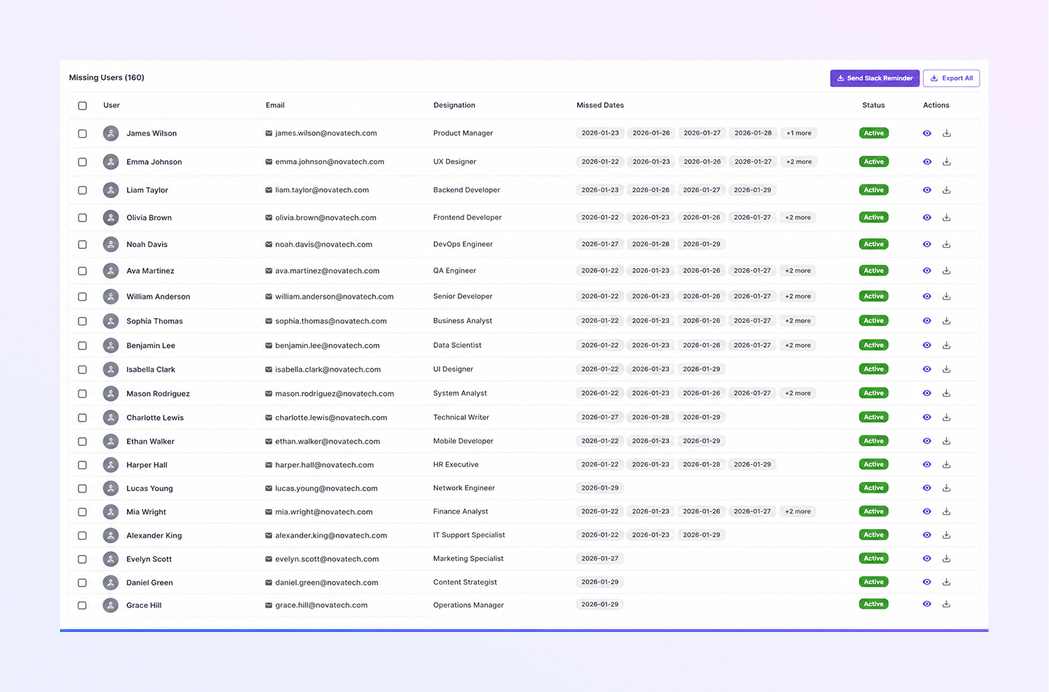
Missing Users Table
This table shows detailed information about employees who missed their reports.
User Column: Displays the employee’s name and profile icon. Each row represents one user.
Email: Shows the employee’s registered email address. Useful for communication or follow-up.
Designation: Displays the employee’s role or job title. Helps identify departments or teams.
Missed Dates: Shows the exact dates when reports were not submitted. If there are many missed days, a “+ more” label appears. Click to view additional missed dates.
Status: Indicates whether the employee is currently active. Active status means the user is still part of the organization.
Actions:
View icon: Check detailed information for that user.
Download icon: Export report-related data if needed.
Selecting Multiple Users
Each row includes a checkbox.
You can select one or multiple users at the same time.
This is helpful when sending reminders to many users at the same time.
Send Slack Reminder
Click Send Slack Reminder to notify selected users.
Reminders are sent directly via Slack.
This reduces manual follow-ups and saves time.
Export All Button
Click Export All to download missing report data.
Useful for:
HR reviews
Performance audits
Monthly reporting
Summary
With the ExactFlow Missing Reports page, you can:
Track employees who missed daily reports
View missed dates clearly
Send quick Slack reminders
Export data for reviews
Maintain accurate performance records
This page is essential for keeping daily activity reporting consistent and reliable.