


ExactFlow User Tasks Page User Guide
The User Tasks page is where you can view, track, and manage all tasks created in the system. This page provides a comprehensive overview of task progress, status, ownership, and workload.
It is useful for:
Managers reviewing teamwork
Users checking assigned tasks
Tracking completed, pending, and overdue tasks
How to Open the User Tasks Page
Log in to your ExactFlow account.
From the left sidebar, click Operational Agent.
Click Task Management.
Select User Tasks.
You will now see the User Tasks dashboard.
Page Overview
The User Tasks page is divided into three main areas:
-
Top Filters
-
Task Summary Cards
-
Task List Table
Each section helps you understand and manage tasks easily.
Top Filters Section
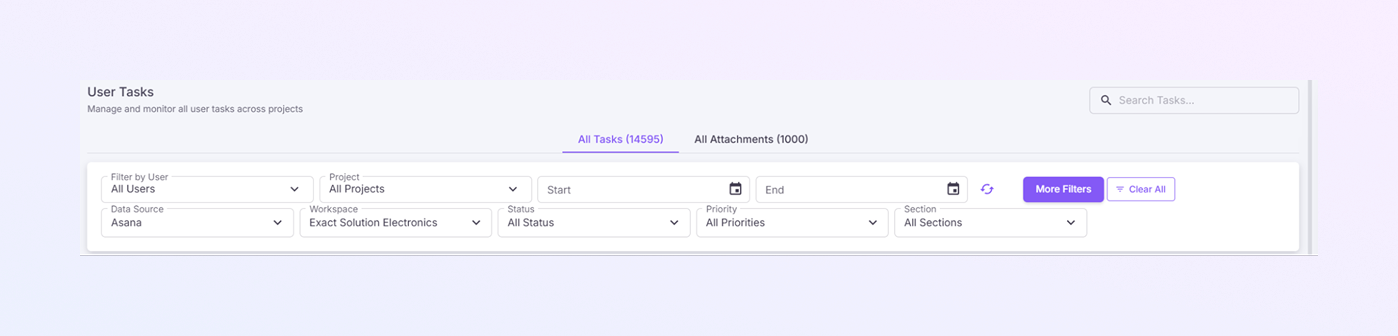
At the top of the page, you will see several filters. These filters help you control what tasks appear in the list.
Assigned User Filter
This dropdown lets you select a specific user.
Use this to:
-
View tasks assigned to one person
-
Review individual workload
If no user is selected, tasks for all users are shown.
Project Filter
This dropdown allows you to filter tasks by project. This helps you focus only on tasks related to a specific project.
Date Range Selector
You can choose a start and end date of task.
Data Source Selector
This filter allows you to choose a data source, such as:
-
Asana
-
Non-Asana
Workspace Selector
You can choose a company.
Status Filter
This filter allows you to choose task status, such as:
-
Completed
-
Pending
-
Overdue
When you select a status, the task list updates instantly.
Priority
This filter allows you to choose task priority, such as:
-
All Priorities
-
High
-
Medium
-
Low
-
Not Set
Section
This filter allows you to choose a task section, such as:
-
All Sections
-
With Section
-
Without Section
Search Bar
The search bar lets you quickly find tasks.
You can search by:
-
Task title
-
Keywords in the task description
This is useful when the task list is long.
Reset Filters Button
This button clears all applied filters and shows the full task list again.
Task Summary Cards
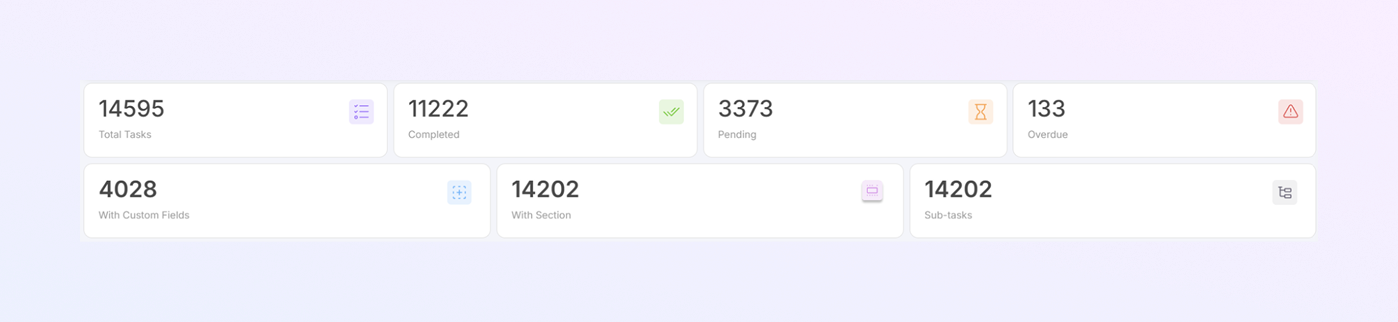
Below the filters, you will see summary cards showing task numbers. These cards give a quick overview of task activity.
Total Tasks: Shows the total number of tasks in the system.
Completed Tasks: Displays how many tasks have been completed successfully.
Pending Tasks: Shows tasks that are still in progress.
Overdue Tasks: Displays tasks that have passed their due date.
Tasks with Custom Fields: Indicates tasks that include custom fields for extended data tracking.
Tasks with Sections: Shows tasks that are organized under specific sections.
Sub-tasks: Displays the number of sub-tasks created under parent tasks.
These cards help you quickly understand task workload and progress.
Task List Table
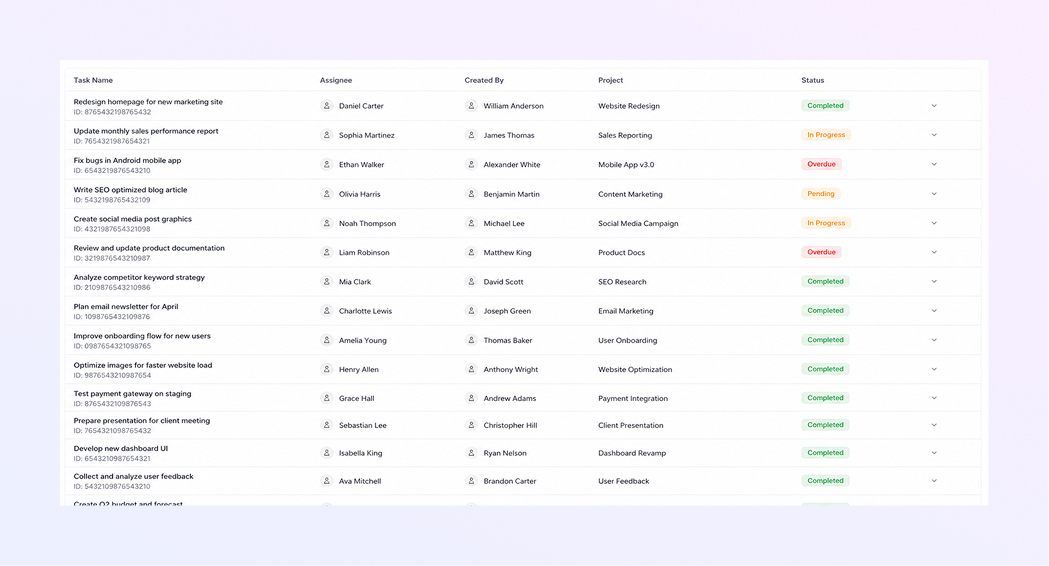
This is the main section of the page. Each row represents one task.
Task Name: Shows the title of the task. This helps users understand what work needs to be done.
Assigned To: Displays the name of the user responsible for the task. This helps identify task ownership.
-
Priority: Shows the task priority. This helps users decide which tasks to work on first. such as:
High
Medium
Low
Created By: Shows who created the task. Useful for communication and clarification.
Project: Displays the project under which the task was created. Helps group tasks by department or module.
Status: Shows the current task status. Status colors make task tracking easier:
Completed (green label)
Pending (orange label)
Overdue (red label)
Actions: This column includes action options such as:
View task details
Edit task (if permitted)
Summary
With the ExactFlow User Tasks page, you get:
Complete visibility of all tasks
Easy filtering and searching
Clear task status tracking
Quick workload insights
Better task organization and control