ExactFlowAdd Return Page User Guide
The Add Return page in ExactFlow is where you can manage product returns. It allows you to add new return requests, track existing returns, and process them based on their current status.
How to Open the Add Return Page
Log in to your ExactFlow account.
From the left sidebar menu, select Returns.
Click the Add Return button to create a new return.
New Return Popup
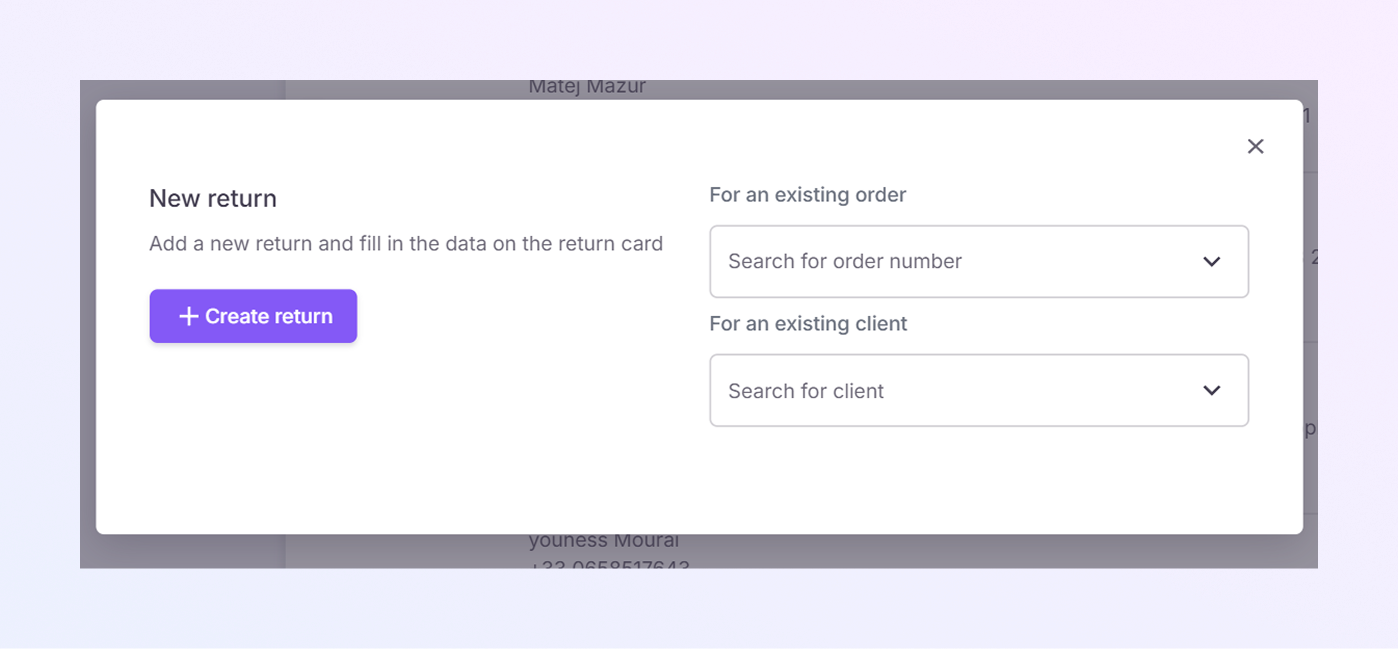
When you click Add Return, a new window will open, where you can enter details for the return.
-
For an existing order:
-
In the Search for order number field, you can search for a specific order number if the return is for a previous order. This helps you quickly find the order.
-
-
For an existing client:
-
In the Search for client field, you can search for an existing client by their name. This will auto-fill their information to make the return process quicker.
-
If you haven’t selected the order and client, click Create return to add a new return.
Product Section
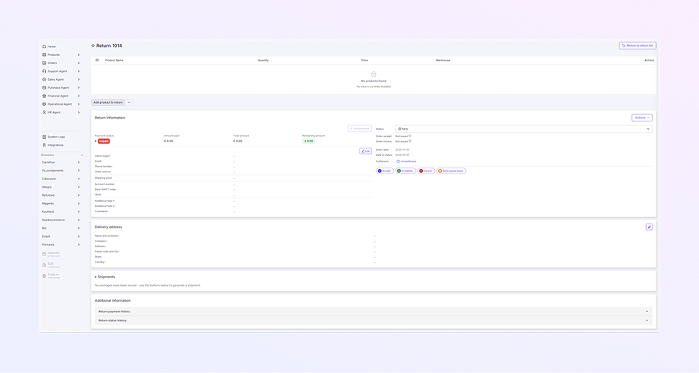
This section shows the details of the product being returned.
-
Add product to return: Click the dropdown arrow to choose whether to add a product from the warehouse or manually. Once selected, the 'Add Product' form will appear. Fill in all the required details and save.
-
Product Name, Quantity, Price, and Warehouse: The product details, including the number of products being returned, their price, and the warehouse from which they are being returned.
Return Information Section
The Return Information section contains the key details about the return.
-
Payment Status: The payment status helps track whether the customer has paid for the return or if any action is required.
-
Unpaid: The return hasn’t been paid for yet.
-
Paid: The return has been paid for.
-
-
Amount Paid: Shows the amount the customer has already paid for the return. This amount is important if there's any outstanding payment to be made.
-
Total Amount: The total value of the return request. It includes the amount the customer paid and any remaining balance for the return.
-
Remaining Amount: Displays the amount still owed for the return. For example, if the customer only paid part of the return cost, the remaining amount will display here.
-
Status: This field shows the current status of the order. The options may include:
-
Received: The return request has been received.
-
In Progress: The return is currently being processed.
-
Completed: The return has been fully processed and finished.
-
Rejected: The return request has been rejected.
-
New: The return is newly created and has not been processed yet.
-
-
Order Invoice & Receipt: This field shows whether the order invoice and receipt have been issued or not.
-
Not Issued: The invoice and receipt have not been created yet.
-
Issued: The invoice and receipt have been generated for the order.
-
-
Order Date: The order date is the date when the original order was placed by the client. This helps track when the order was first made.
-
Status Date: shows the date when the current return status was last updated. This helps you track when the return's status was changed.
-
Fulfillment: shows the progress of the return process. It can show the status of whether the return is unconfirmed or confirmed, helping track if the return has been accepted for processing.
Client Information
-
In this section, you'll see the client's details, which are important for communication and processing the return. E,g. Client Login, Email, Phone Number, order source, shipping price, account no, Bank code, IBAN, additional fields, and comments.
-
These details help ensure that the return process is linked to the correct customer. It also allows you to update the details if needed.
Available Actions on the Return
There are several action buttons for managing the return.
-
Accept: Marks the return as completed and allows the customer to send back the returned goods.
-
Completed: Accepts the return shipment, indicating that the return process is complete and the goods have been received.
-
Cancel: Cancels or rejects the return shipment. Use this if you decide not to proceed with the return.
-
Send Goods Back: If the product needs to be sent back to the customer, use this action to initiate the return shipment.
-
On the right side of the page, you will see action buttons to delete the return.
-
Edit payment: Modify payment details if necessary.
-
Edit return details: Update the return's product details or client information.
Delivery Address Section
The Delivery Address section shows the client's address where the product will be returned. It also allows you to update the address if needed.
-
Name and Surname: The client's name appears here (auto-filled from their details).
-
Company Name: If the return is related to a business client, the company name will appear here.
-
Address: The address where the product will be returned. This includes the street name, house number, and any other relevant address details.
-
Postal Code and City: The postal code and city where the return should be delivered.
-
State: The state (or region) where the client is located.
-
Country: The country where the client is based.
Shipments Section
In this section, you can view and manage the shipment related to the return.
-
No Shipments Issued
-
If no shipments have been created for this return yet, this section will display the message: No packages have been issued.
-
You can create a shipment to send the product back to the client.
-
-
Generate a Shipment
-
If you need to send goods back to the customer, you can generate a shipment from this section.
-
This can be done by clicking the Generate Shipment button (depending on your ExactFlow setup).
-
Additional Information Section
The Additional Information section contains extra details about the return process.
-
Return Payment History
-
This field shows the history of payments related to this return.
-
It helps you track if the customer has made any payments for the return and when those payments were made.
-
-
Return Status History
-
This field tracks the status changes of the return.
-
For example, it may show when the return was created, when it was marked as accepted, or when it was completed. It helps track the lifecycle of the return.
-