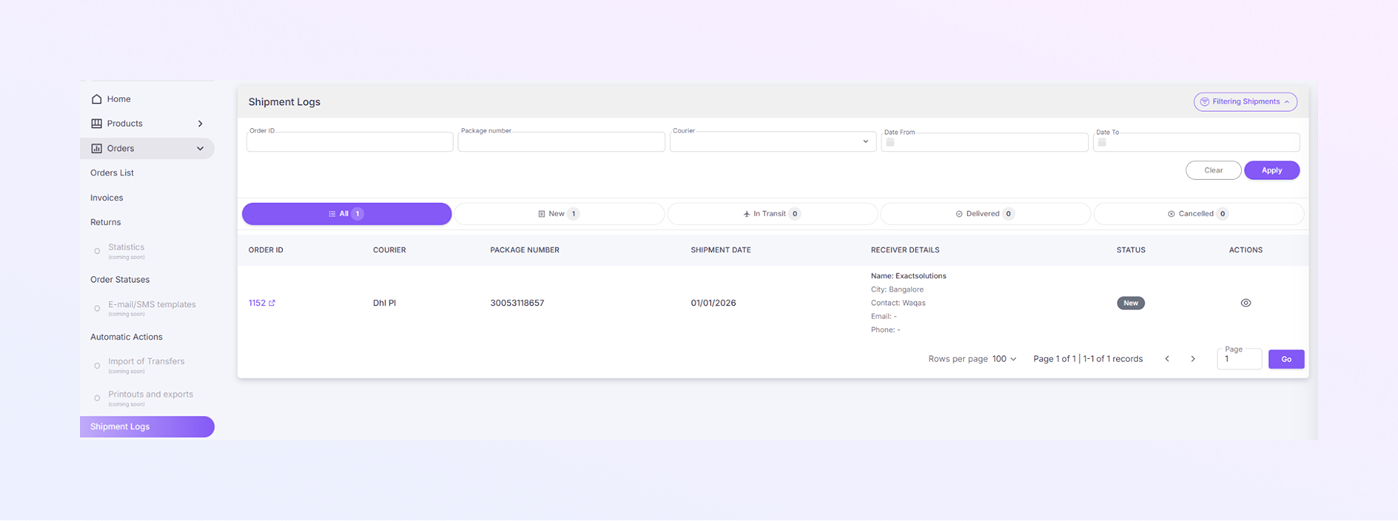
ExactFlow Shipment Logs Page User Guide
The Shipment Logs page helps you track all shipped orders in one place. You can see shipment details, check delivery status, and filter shipments easily.
How to Open the Shipment Logs Page
Log in to your ExactFlow account.
From the left sidebar, click Orders.
Select Shipment Logs.
You will now see the Shipment Logs screen.
Page Overview
-
Filtering Shipments
Filtering helps you quickly find a specific shipment. Available Filter Fields:
-
Order ID: Enter the order number to find shipments linked to a specific order.
-
Package Number: Enter the tracking number of the package.
-
Courier: Select a courier service (for example: DHL, FedEx, or Other).
-
Date From: Choose a start date to filter shipments created after this date.
-
Date To: Choose an end date to filter shipments created before this date.
Filter Buttons
Filter Buttons
-
-
Apply: Applies all selected filters and shows matching shipments.
-
Clear: Removes all filters and shows all shipment logs again.
-
Shipment Status Tabs
These tabs help you view shipments by their current status.ctions
-
All: Shows all shipments, regardless of status.
-
New: Shows newly created shipments.
-
In Transit: Shows shipments that are currently being delivered.
-
Delivered: Shows shipments that have been successfully delivered.
-
Cancelled: Shows shipments that were cancelled.
Click any tab to filter shipments by status quickly.
-
-
Shipment Logs Table
This table shows detailed information about each shipment.
-
Order ID: Displays the order number linked to the shipment. Clicking the Order ID opens the order details page.
-
Courier: Shows the courier service used (example: DHL PI).
-
Package Number: Displays the shipment’s tracking number. Used to track the shipment externally if needed.
-
Shipment Date: Shows the date when the shipment was created or dispatched.
-
Receiver Details: This section includes:
-
Name: Customer or business name
-
City: Delivery city
-
Contact: Contact person name
-
Email: Customer email (if available)
-
Phone: Customer phone number (if available)
-
-
Status: Shows the current shipment status:
-
New
-
In Transit
-
Delivered
-
Cancelled
-
Phone: Customer phone number (if available)
-
-
Actions Eye (View) icon: Click to view full shipment details.
-
-
Pagination
-
Rows per Page: Select the number of shipment records you want to view per page (e.g., 100).
-
Page Navigation: Shows the current page number. Use Previous / Next arrows or page number input to move between pages.
-