ExactFlow Manufacturer Page User Guide
The Manufacturer page lets you create and manage manufacturers (brands or vendors) for your products. After creating a manufacturer, you can: Assign it to products, search products by manufacturer, and use the manufacturer name and logo in sales channels and offers.
This guide explains the Manufacturer page in the ExactFlow Product module.
-
Log in to ExactFlow
-
From the left sidebar, click Products
-
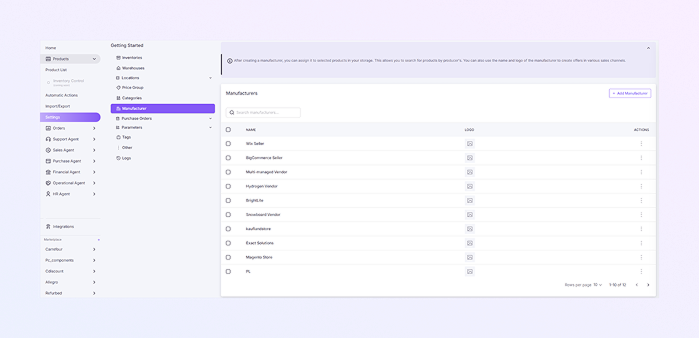
Click Settings → Open Manufacturer.
-
Manufacturer List Page
-
This table shows all manufacturers already added to your system.
-
Each row displays:
-
Checkbox: Select one or more manufacturers
-
Name: Manufacturer or brand name
-
Logo: Manufacturer logo (if uploaded)
-
Action (⋮): Edit or delete options
-
-
Use the Search Bar in the Search manufacturers field at the top. Type a manufacturer name to quickly find it.
-
Rows per Page is located at the bottom-right. Control how many manufacturers appear on one page.
-
-
Add a New Manufacturer
-
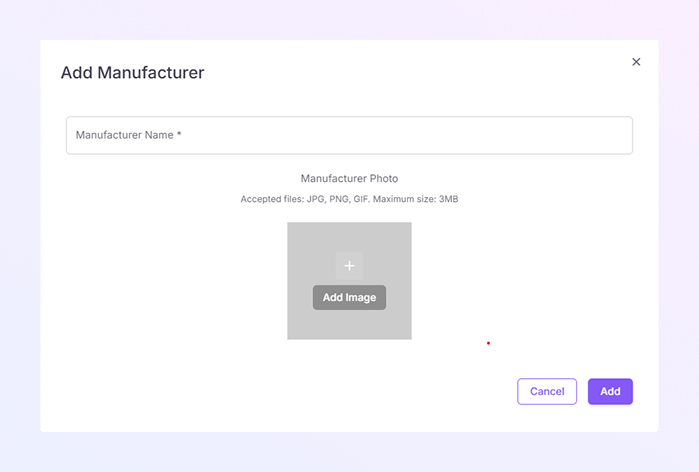
Click + Add Manufacturer (top-right). A new Add Manufacturer window will open.
-
Enter the official Manufacturer Name. Example: Apple, Samsung, BrightLite. This field is required.
-
Upload the manufacturer’s Logo (Optional). The logo can appear in Product details, Sales channels, and Offers & listings. Supported image formats may include PNG or JPG.
-
Click Save to add the manufacturer or Click Cancel to exit without saving.
-
-
Assigning Manufacturer to Products
After creating a manufacturer:
-
Go to Products → Product List.
-
Open a product.
-
Select the manufacturer from the Manufacturer field.
-
Save the product.
-
How to Open the Manufacturer Page
You will now see the Manufacturer list page.