ExactFlow Other Page User Guide
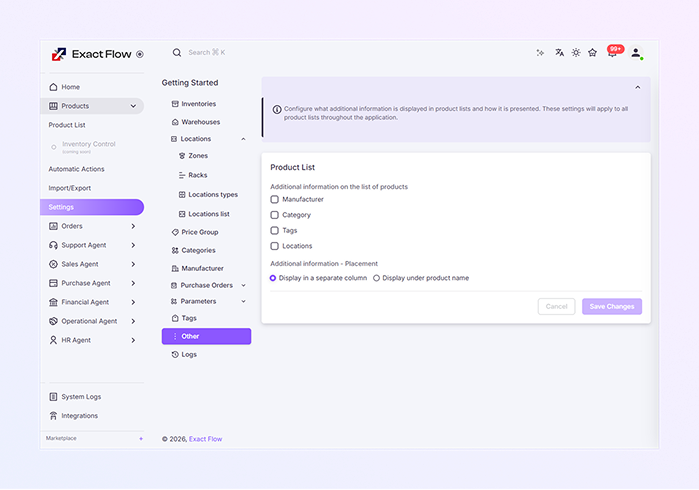
The Other page controls how additional product information is displayed in the Product List.
This page lets you choose what extra details appear with each product, and where those details are shown in the product list.
These settings apply to all product lists across the ExactFlow application.
-
Log in to your ExactFlow account.
-
From the left menu, click Settings.
-
Under Getting Started, scroll down and click Other.
-
Information Banner
-
At the top of the page, you will see an information message.
-
It explains that:
-
You can control what additional information appears in product lists.
-
You can decide how that information is displayed.
-
These settings affect all product lists in the system.
-
-
This helps ensure consistent product views for all users.
-
-
Product List Settings Section
-
This section lets you choose which extra product details are shown in the Product List.
-
Available Options: You can select and unselect the following details:
-
Manufacturer: Shows the product’s manufacturer name
-
Category: Displays the category the product belongs to
-
Tags: Shows tags assigned to the product
-
Locations: Displays product storage or warehouse locations
-
-
A checked box means the information will be shown, and an unchecked box means it will be hidden.
-
-
Additional Information – Placement
-
This section controls where the selected information appears.
-
Display Options: You can choose one of the following:
-
Display in a separate column: Each selected detail appears in its own column. Best for wide screens and detailed views.
-
Display under the product name: Extra details appear below the product name. Best for a clean and compact layout.
-
-
Only one option can be selected at a time.
-
Click Save Changes to apply your settings. The product list will update based on your selections.
-
Click Cancel to discard changes. The previous settings will remain unchanged.
-
Once saved, all users will see the same product list layout. Selected details will appear consistently, and Product information becomes easier to scan and understand.
-
How to Open the Other Page
You will now see the Other Settings page.