ExactFlow Parameters Group Page User Guide
The Parameter Groups page is used to organize parameters into groups. Instead of managing many parameters one by one, you can group them for better structure and easier product setup.
Parameter Groups help you to organize related parameters, keep product data clean and structured, reuse the same group across multiple products, and make product setup faster and easier.
Example groups: Product Specifications, Variant Options, Technical Details, Quality Attributes.
-
Log in to your ExactFlow account.
-
From the left sidebar, click Settings.
-
Under Getting Started, click Parameters.
-
Select Parameter Groups.
-
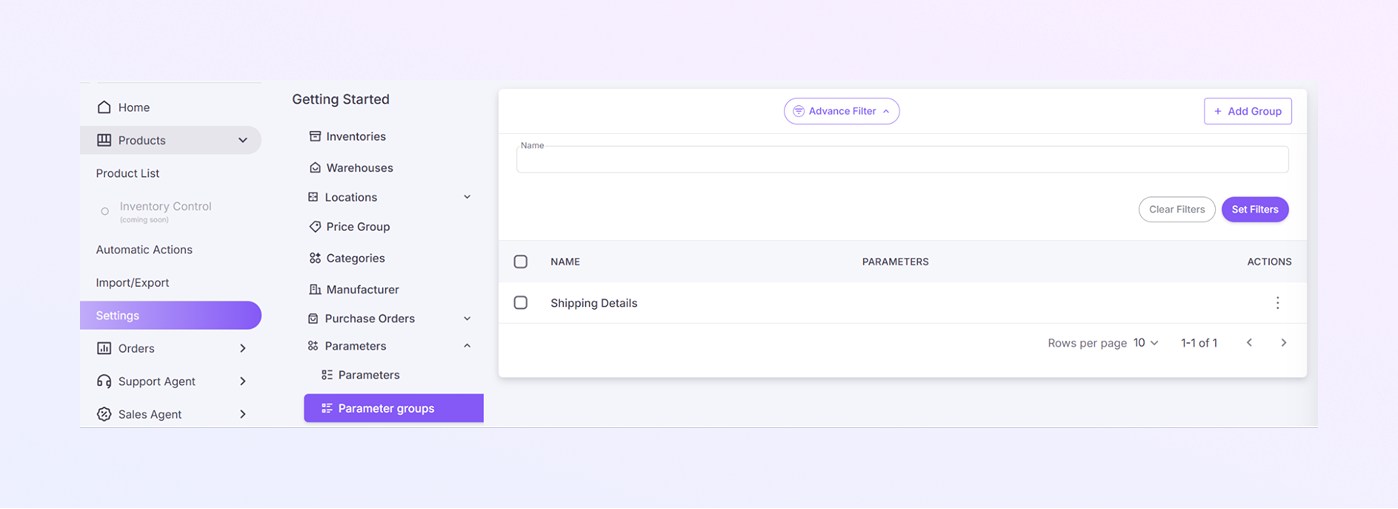
Parameter Groups List Page
-
This is the main area where all parameter groups are displayed.
-
In the Table, each row shows one parameter group with the following columns:
-
Checkbox: Select one or more groups
-
Name: Group name
-
Parameters: Parameter name (e.g., Color, Size)
-
Actions (⋮): Edit or delete the parameter
-
-
Find the group in the list. Click the ⋮ Actions menu. Select Edit, then Update the name. And Click Save.
-
Find the group you want to remove. Click the ⋮ Actions menu. Select Delete, and confirm the action. If a parameter group is already used in products, deleting it may remove it from those products.
-
Click Advanced Filter to show or hide filter options. It is useful when you have many parameter groups. This field allows you to search parameter groups by name.
-
Apply selected filters by the Set Filters button, or remove all filters and show all parameter groups by the Clear Filters button.
-
-
Add Parameter Groups
-
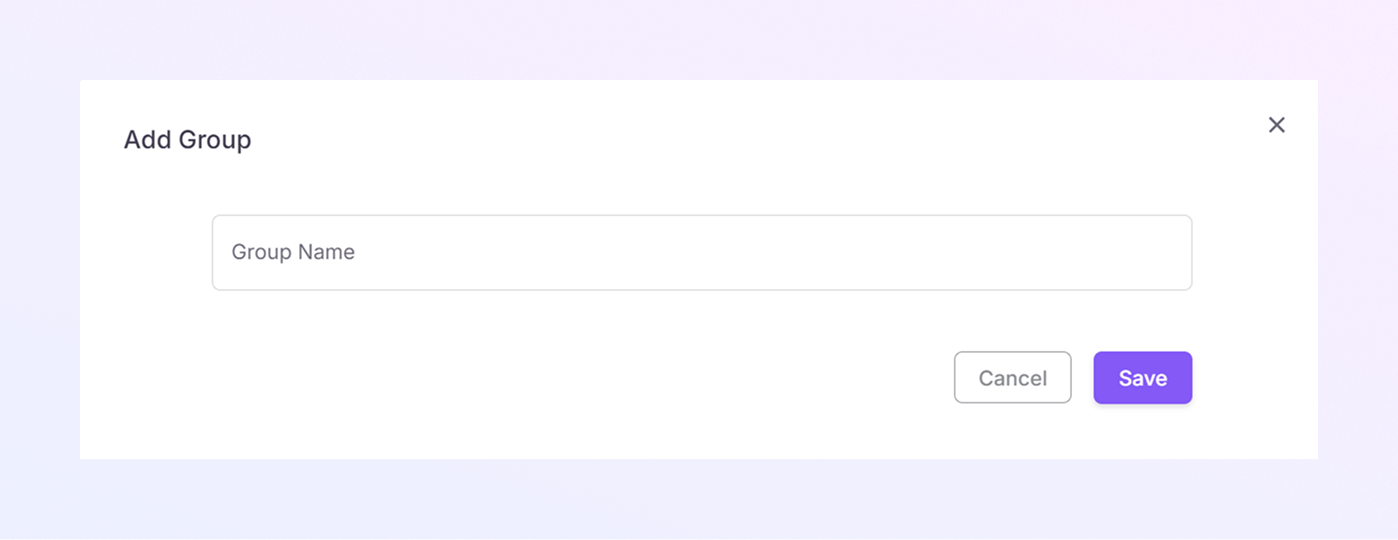
Click + Add Group to create a new parameter group. Located at the top-right corner of the page.
-
Enter the Group Name. Example: Product Specs, Variant Attributes, Shipping Details.
-
Click Save to create the group or click Cancel to exit without saving. Your new parameter group will now appear in the list.
-
-
How Parameter Groups Are Used
-
Go to Settings → Parameters.
-
Create or edit a parameter.
-
Assign the parameter to a Parameter Group.
-
When adding products, parameters will appear organized by group. This makes product data easier to manage and understand.
-
How to Open the Parameter Groups Page
You will now see the Parameter Groups page.