ExactFlow Parameters Page User Guide
The Parameters page is used to create and manage product attributes such as Color, Size, or any custom option.
Parameters help you describe product variations clearly, add structured product details, use the same options across many products, and keep product data consistent. Example parameters: Color, Size, Material, Brand Type.
-
Log in to your ExactFlow account.
-
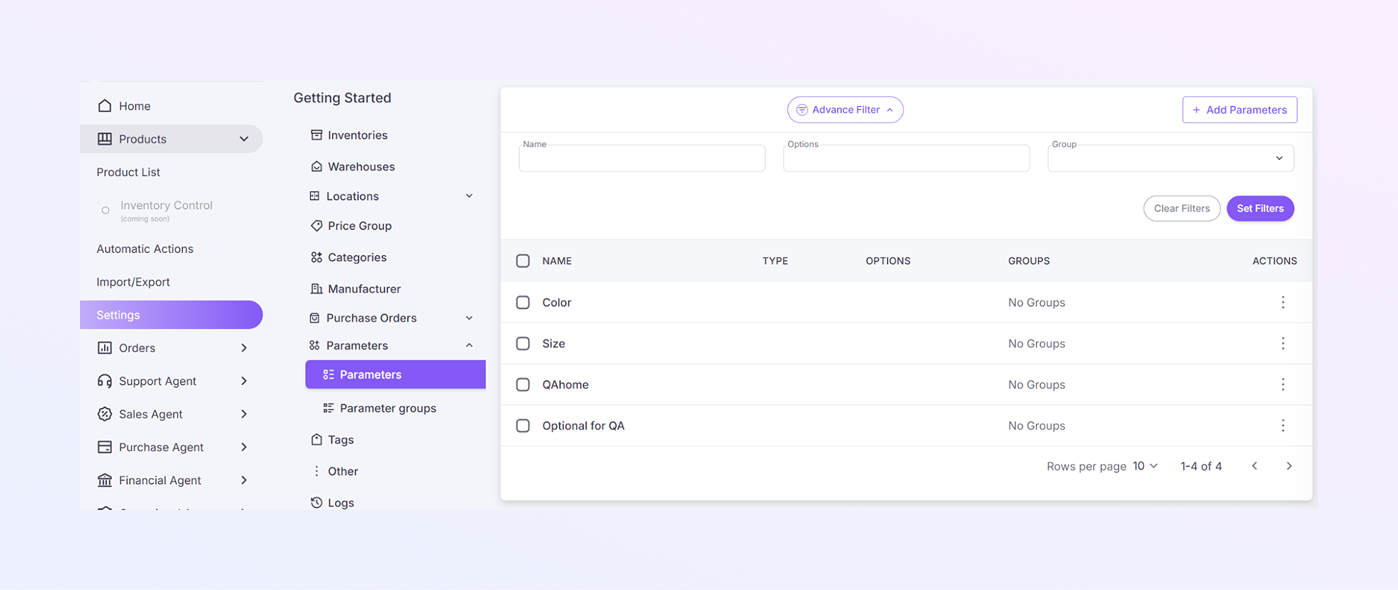
From the left menu, click Settings.
-
Under Getting Started, click Parameters.
-
Select Parameters (sub-page).
-
Parameters List Page
-
In the Parameters Table, each row shows one parameter with the following columns:
-
Checkbox: Select one or more parameters
-
Name: Parameter name (e.g., Color, Size)
-
Type: Parameter type (text, select, etc.)
-
Options: Values available for the parameter
-
Groups: Parameter group (if assigned)
-
Actions (⋮): Edit or delete the parameter
-
-
Find the parameter in the list. Click the ⋮ Actions menu. Select Edit, then Update the name, options, or group. Click Save.
-
Find the parameter you want to remove. Click the ⋮ Actions menu. Select Delete, and confirm the action. If a parameter is already used in products, deleting it may remove it from those products.
-
Click Advanced Filter to show or hide filter options. It helps you find specific parameters quickly. There are Filter Fields:
-
Name: Search parameters by name (e.g., “Color”)
-
Options: Filter by option values
-
Groups: Filter by parameter group
-
-
The small number under the name indicates the number of items or links associated with this supplier.
-
Apply selected filters by the Set Filters button, or remove all filters and show all parameters by the Clear Filters button.
-
-
Add a New Parameter
-
Click + Add Parameters to create a new parameter. Located at the top-right corner.
-
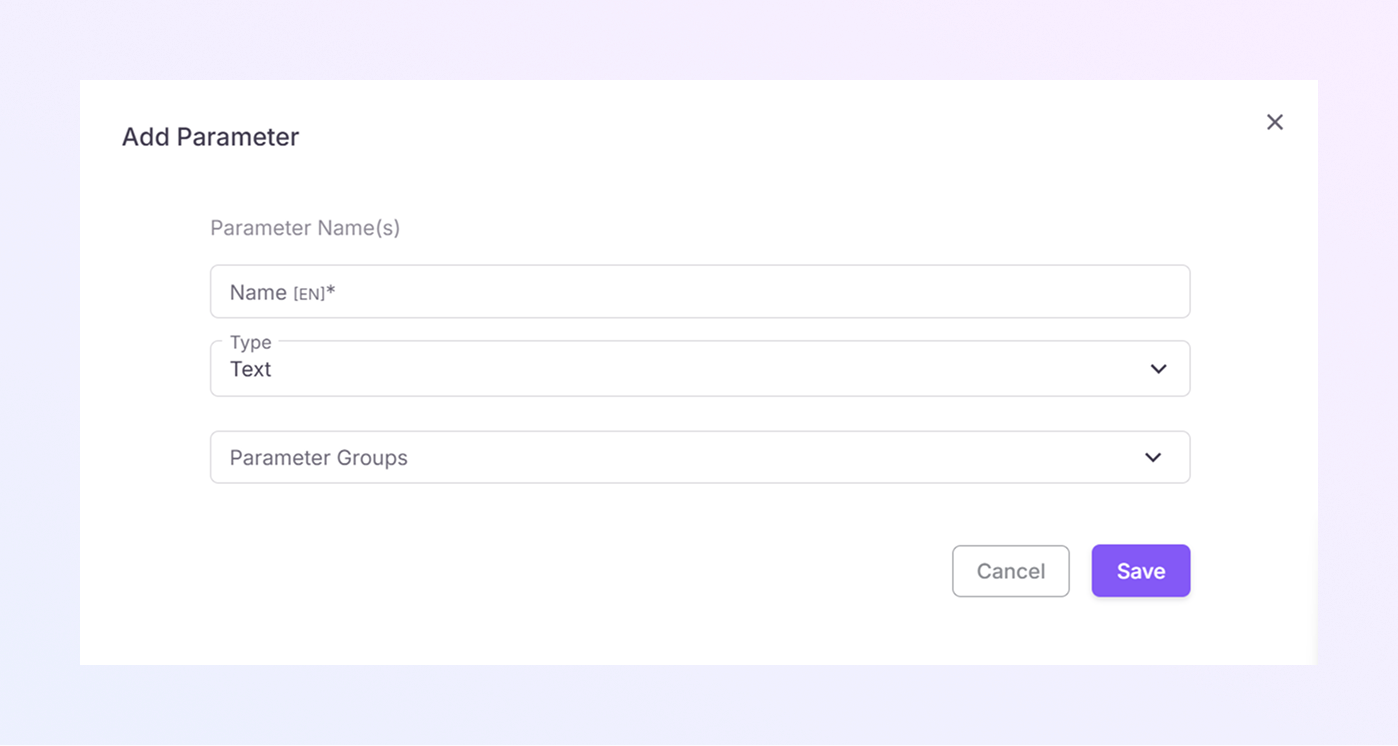
Enter the Parameter Name. Example: Color, Size, Material.
-
Choose the Parameter Type. Example: Dropdown, Text, Multi-select.
-
Assign a Group (optional).
-
Click Save to create the parameter or Click Cancel to exit without saving.
-
-
How Parameters Are Used in Products
-
Go to Products → Product List.
-
Open a product.
-
Add parameters under product details.
-
Select values from predefined options.
-
Save the product.
-
How to Open the Parameters Page
You will now see the Parameters list page.