ExactFlow Price Group Page User Guide
A Price Group is a separate price list for your products. You use price groups when you want: Different prices for different sales channels (Amazon, Shopify, WooCommerce, etc.), Prices in different currencies, Different prices for different customer types, and automatically calculated prices (for example: cost price + margin).
ExactFlow lets you create, manage, and sync these price groups easily. This guide explains the Price Group page in the ExactFlow Product module.
-
Open the ExactFlow app
-
From the left sidebar, click Products.
-
Click Settings → Open Price Group.
-
Price Groups List Page
-
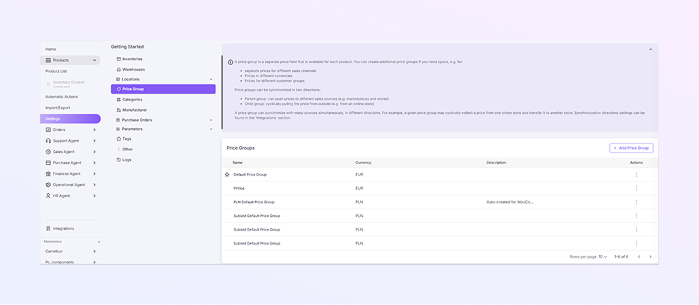
On this page, you can see all price groups in your system.
-
Each row shows one price group with these columns:
-
Name: The name of the price group (for example: Default Price Group & EUR Price)
-
Currency: The currency used for this price group (EUR, USD, PLN, etc.)
-
Description: Optional notes about the price group (Example: “Auto-created for WooCommerce”)
-
Actions (⋮): Click the three dots to edit the warehouse, set the default warehouse by ⭐, and delete the warehouse (if allowed).
-
The star marks the default price group.
-
-
The default price group is used automatically if no other group is selected.
-
-
Add a New Price
-
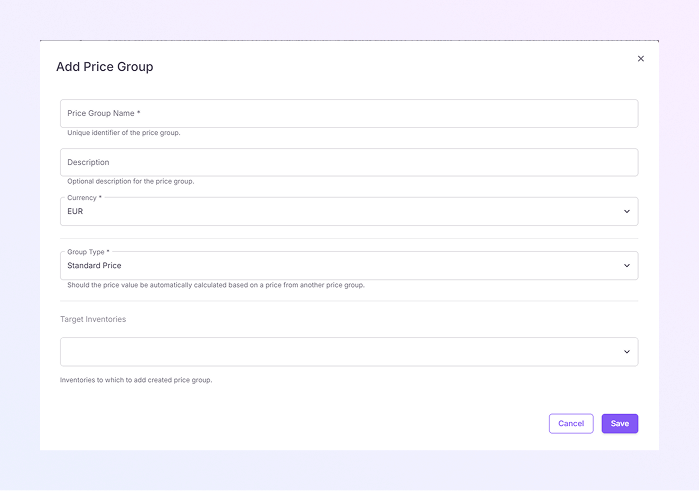
To create a new price group, click + Add Price Group (top-right button). The Add Price Group form will open.
-
Enter a unique Price Group Name (Required). Example: USD Price Group, Wholesale Prices, Amazon EU Prices.
-
Add a short Description (Optional) for this price group. Example: “Prices for Amazon marketplace”
-
Select the Currency (Required) for this price group. Example: EUR, USD, and PLN.
-
Select the Group Type (Required). This defines how the price is calculated. Options include:
-
Standard Price: The product uses a fixed price you set manually.
-
Based on another price group: The product price is calculated relative to another price group (for example, applying a markup or discount from a base price).
-
-
Select Target Inventories (Optional) for this price group. It helps when you manage multiple inventories or stores.
-
Click Save to create the price group, or click Cancel to close without saving. Once saved, the price group appears in the Price Groups list.
-
You can now assign prices to the products, Sync prices with connected marketplaces, and use it in integrations.
-
How to Open the Price Group Page
You will now see the Price Groups list page.