


ExactFlow Product List Page User Guide
The Product Module helps you view, filter, manage, edit, download, and organise all your products in the ExactFlow system. This guide explains every part of the Product List page.
-
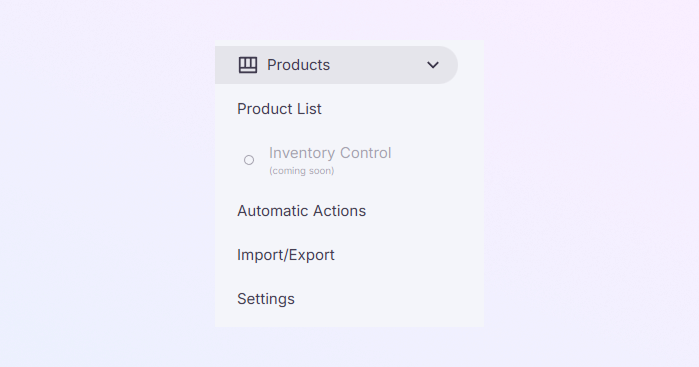
How to Open the Product Module
-
Go to the left sidebar menu.
-
Click on Products.
-
Select Product List.
You are now on the main product management page.
-
-
Left Sidebar Menu
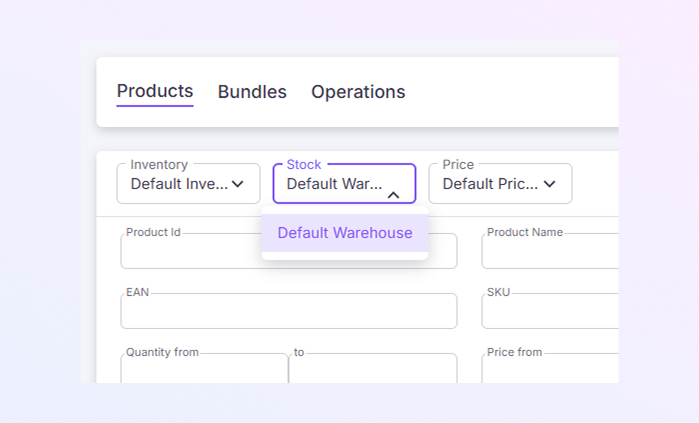
At the top of the page, you will see three tabs:
-
Products: This is the main view where you can see all individual products.
-
Bundles: Shows groups of products sold together as a single item.
-
Operations: Shows product-related processes (tasks, status, items, dates, details, actions, etc.).
-
-
Inventory, Stock, and Price Selectors
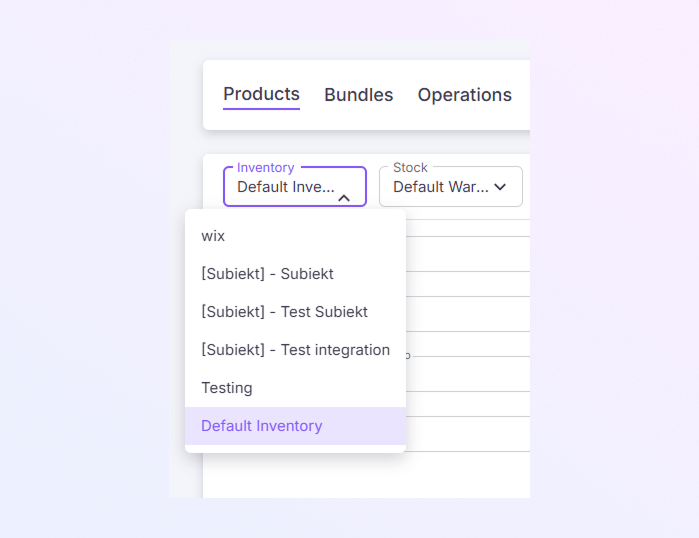
At the top of the Product List page, you will see three dropdown menus:
-
Inventory Selector
Let you choose which inventory source you want to view. Examples from your screen:
-
Default Inventory
-
Wix
-
-
Stock Selector
Choose a warehouse or stock location. Example: Default Warehouse.
-
Price Selector
Select the price group you want to display. Examples:
-
Default Price Group (EUR)
-
PLN Default Price Group (PLN)
You can view the right amount of stock and prices for each marketplace with the help of these selectors.
-
-
-
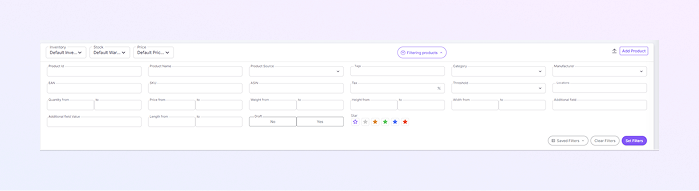
Filter Section (Product Search Panel)
In this section, you can search for products using detailed fields.
-
You may choose to filter by Product ID, Product Name, EAN, SKU, ASIN, Category, Tags, Manufacturer, Threshold, Locations, and Additional Fields.
-
This section also has range-based numerical fields. E.g.: Quantity (from–to), Price (from–to), Weight (from–to), Height (from–to), width (from–to), and length (from–to).
-
Draft Filter: Choose 'Yes' or 'No' to show draft or published products.
-
Star Rating Filter: You can filter products based on star color.
-
Filter Buttons:
-
Saved Filters: Load filters you saved earlier.
-
Clear Filters: Remove all filter selections.
-
Set Filters: Apply your chosen filters.
-
-
-
Product Table (Main List of Products)
All of your products are displayed in this table. Every row shows Product Name, ID, SKU, Price, Quantity, Source (such as BigCommerce or ExactFlow Default), Status, Created On date, and Actions menu.
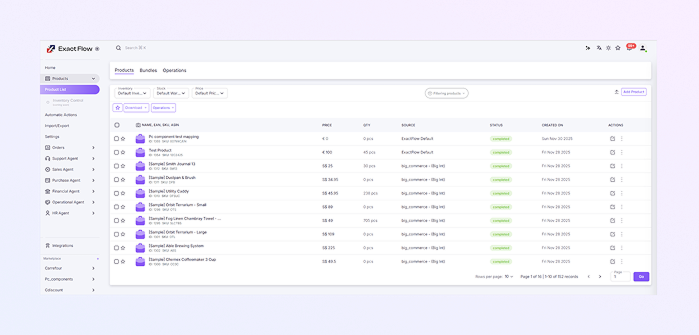
Actions Available:
-
You can edit the product.
-
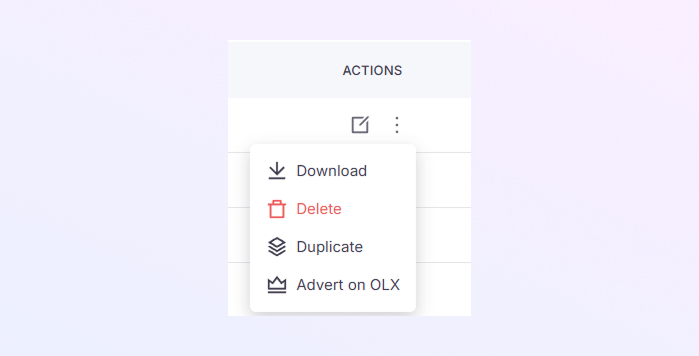
Additional options (three-dots icon) allow you to download, delete, duplicate, and promote the product on OLX.
-
-
Star Marking Feature
-
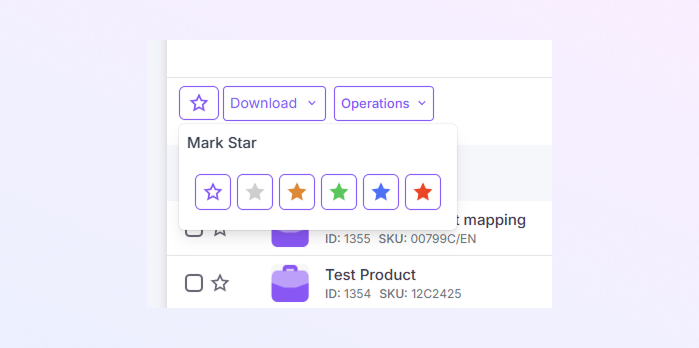
You can indicate which products are important by placing a star icon next to each one.
-
White, grey, yellow, green, blue, or red stars are among the options available to you.
-
Products can be tagged by workflow or priority using this feature.
-
-
Bulk Actions: Download Button
-
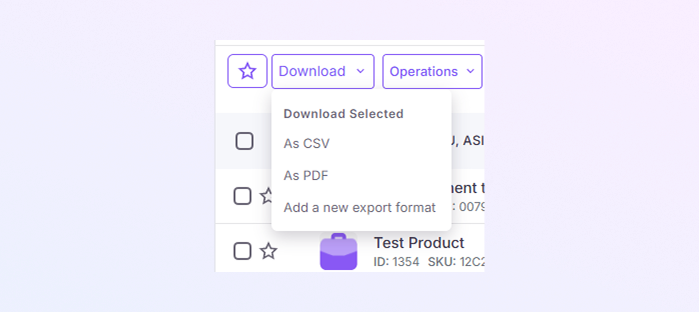
When you select products using the checkboxes, you can download them.
-
Options for downloading include CSV, PDF, and adding a new export format.
-
This helps you easily export product data.
-
-
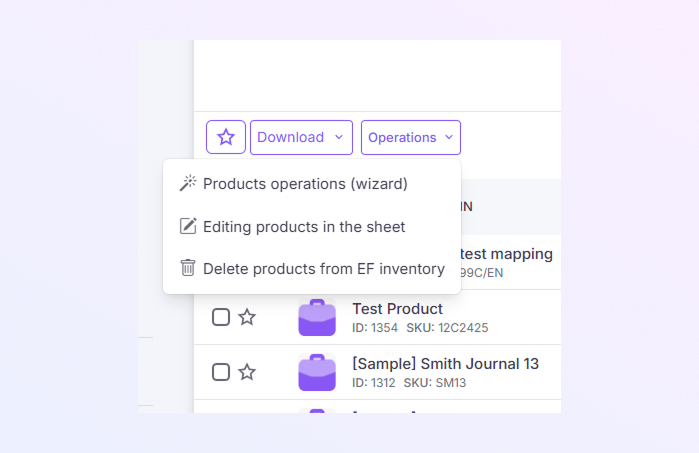
Bulk Actions: Operations Button
Click Operations to see available actions:
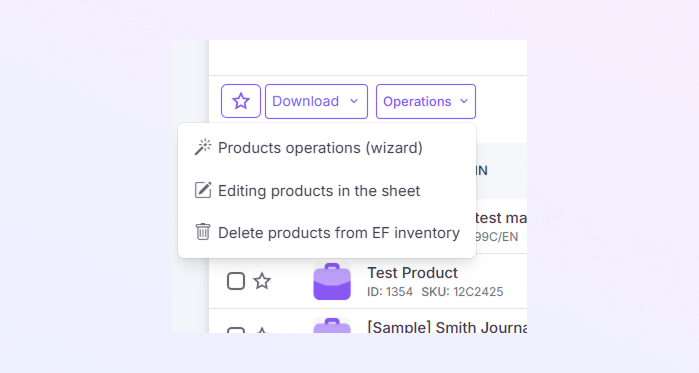
When you select one or more products in your ExactFlow inventory, you will see the Operations button.
This button lets you perform various bulk actions on the selected products.
Below is a clear explanation of what each option does:
-
Product Operations (Wizard)
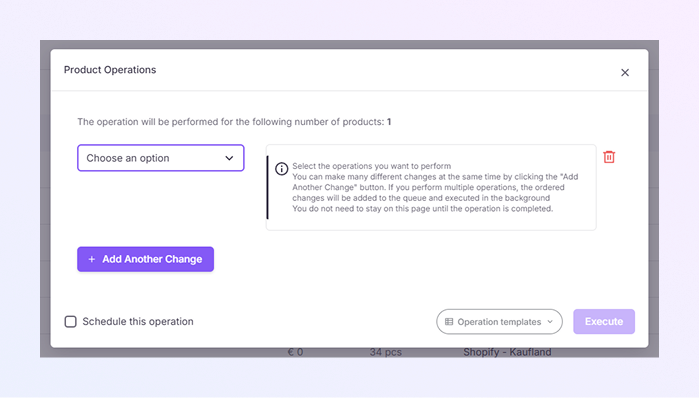
When you click Operations and then Product Operations, a pop-up window opens. This tool lets you apply multiple changes to one or more products using simple steps.
-
Selected product count
At the top, it shows how many products your operation will affect.
-
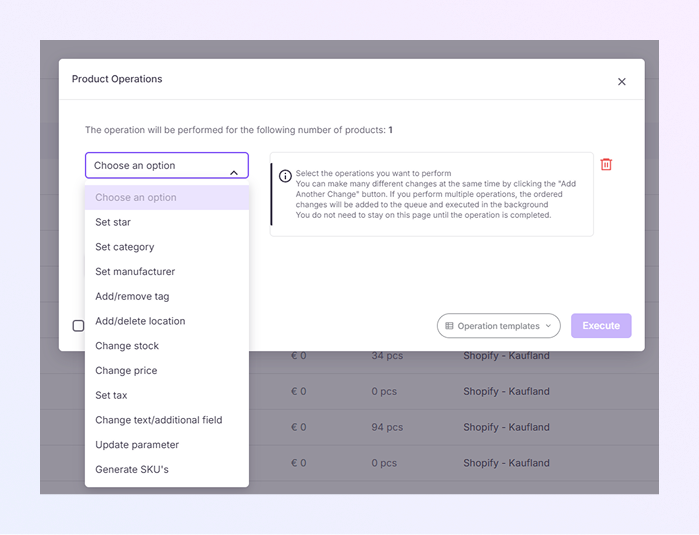
Operation dropdown
A menu that lets you choose the type of change you want to apply.
-
Information box
A section explaining how product operations work:
-
You can perform many actions at the same time.
-
You can add multiple changes using the “Add Another Change” button.
-
Operations are queued and run in the background.
-
You don’t need to stay on the page.
-
-
Add another Change button.
Click this to add more operations to apply in one go.
-
Delete icon
Removes an operation step you added.
-
Schedule this operation
A checkbox to delay the operation and run it at a specific time.
-
Operation templates
A dropdown that shows saved reusable operation combinations.
-
Execute button
Click this to run all selected changes.
-
-
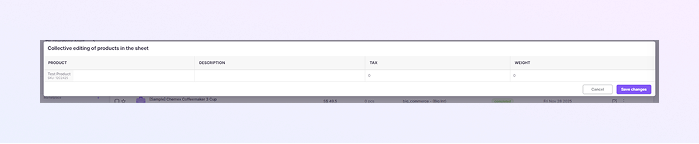
Editing Products in the Sheet
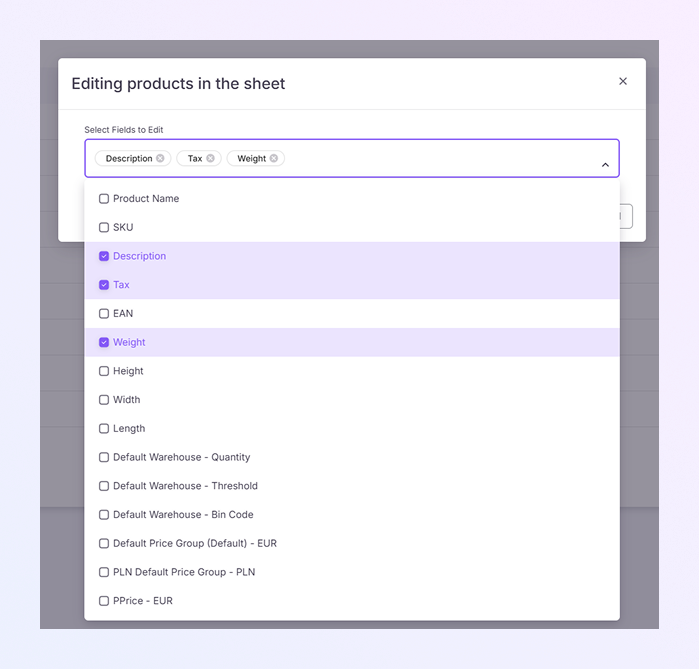
When you select this option, ExactFlow opens a pop-up window.
-
From the drop-down menu of this window, select the fields that you want to edit.
-
Then, the app allows you to edit the selected fields of products in the sheet.
-
-
Delete Products from the EF Inventory
This option permanently removes products from your ExactFlow internal inventory.
-
It does NOT delete products from your connected marketplaces.
-
It only removes the products stored inside ExactFlow’s product database.
-
Once removed, the products will no longer appear in the product list, search, operations, or mapping sections.
-
A confirmation pop-up will usually appear before deletion.
-
-
-
Pagination and Display Controls
At the bottom of the table:
-
Each page's rows: Choose how many products to display (for example, "10").
-
Page navigation arrows: move between pages
-
Input box for page number
-
Click the "Go" button to go to a particular page.
These controls make it easier to browse the list if you have a large number of products.
-
-
Meaning of Table Columns
Column
Meaning
Name, EAN, SKU, ASIN
These are basic product identifiers:
-
Name: The product’s name.
-
EAN (European Article Number): A barcode standard used to identify products internationally.
-
SKU (Stock Keeping Unit): A unique identifier used internally to track inventory.
-
ASIN (Amazon Standard Identification Number): A unique identifier used by Amazon for products.
Price
The price is based on the selected price group
QTY
Quantity available in the selected warehouse
Source
Where the product comes from (ExactFlow, BigCommerce, Magento, Shopify, etc.)
Status
Shows if product syncing is completed
Created On
Date the product was added
Actions
Edit or more options
-
-
Checklist for Beginners
If you are new, follow this simple flow:
-
Open Products → Product List
-
Select Inventory, Stock, or Price Group
-
Use filters if you want to search for a specific product.
-
View your products in the table.
-
Use stars to highlight important products.
-
Use Download to export
-
Use Operations for bulk editing.
-
Click Add Product to create a new item.
-
On this page
1.
How to Open the Product Module
2.
Left Sidebar Menu
3.
Filter Section (Product Search Panel)
4.
Product Table (Main List of Products)
5.
Star Marking Feature
6.
Bulk Actions: Download Button
7.
Bulk Actions: Operations Button
8.
Add Product Button
9.
Pagination and Display Controls
10.
Meaning of Table Columns
11.
Checklist for Beginners