ExactFlow Warehouses Page User Guide
This guide explains the Warehouses page in the ExactFlow Product module.
-
Log in to ExactFlow
-
From the left sidebar, click Products.
-
Click Settings.
-
Select Warehouses
-
Warehouses List Page
-
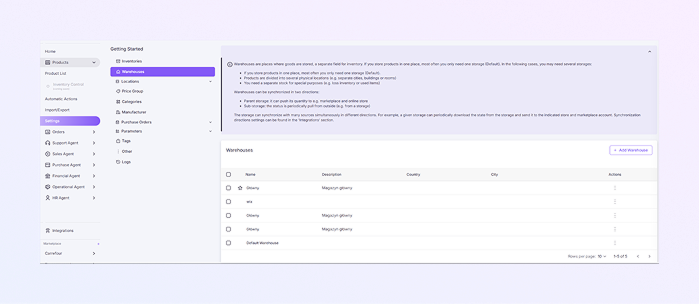
At the top, you see a short explanation that tells you: What warehouses are, when you may need multiple warehouses, and how warehouses sync stock with stores and marketplaces. This is only for guidance and does not change any settings.
-
The Warehouses Table shows all your warehouses.
-
Checkbox: Select one or more warehouses for bulk action. You can only delete the warehouse by multi-selection.
-
Name: The name of the warehouse (for example: Main Warehouse, Default Warehouse).
-
Description: Short explanation of the warehouse's purpose.
-
Country: The country where the warehouse is located.
-
City: The city of the warehouse.
-
Actions (⋮): Click the three dots to edit the warehouse, set the default warehouse by ⭐, and delete the warehouse (if allowed).
-
-
The warehouse with a star icon ⭐ is the Default Warehouse. This warehouse is used automatically if no other warehouse is selected.
-
-
Add a New Warehouse
-
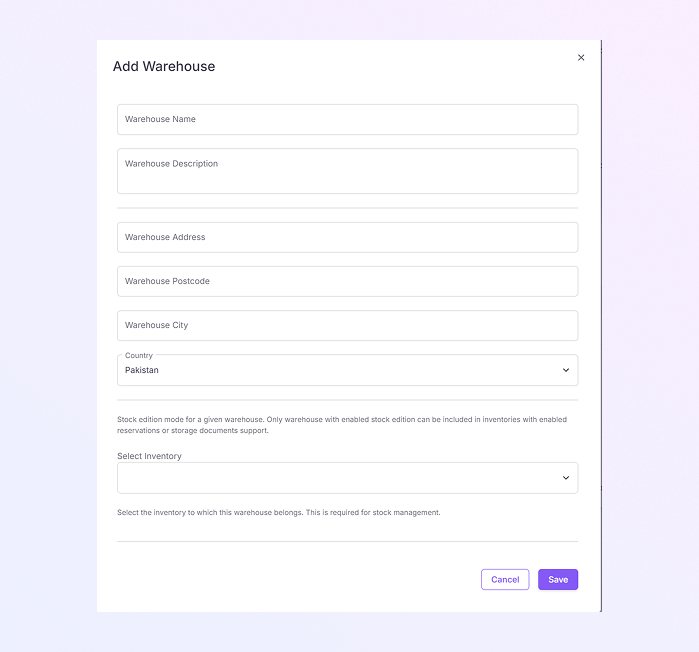
On the warehouses page, click + Add Warehouse (top-right). Then the Add Warehouse pop-up window opens.
-
Enter a clear and unique Warehouse name. Example: Main Warehouse
-
Add a short note about the Warehouse Description.
-
Enter the Warehouse Address by adding the street or building.
-
Enter the postal or ZIP code of the warehouse location.
-
Enter the city name where the warehouse is located.
-
Select the country from the dropdown list. Example: Morocco, Poland, etc.
-
Select the Inventory this warehouse belongs to. This is required for stock management.
-
Click Save to create the warehouse, or click Cancel to close without saving. Once saved, the warehouse appears in the warehouses list.
-
From the Actions three-dot menu, you can edit warehouse information, set it as a default, and delete a warehouse.
-
How to Open the Warehouses Pagee
You will now see the Warehouses list page.