ExactFlow Customers Ticket Page User Guide
The Customer Ticket Page is where all customer support requests (tickets) are shown. A ticket is automatically created when a customer chats with the AI Agent on any connected platform (like BackMarket).
This page helps support agents see new customer issues and know which tickets need urgent action.
How to Open the Customer Tickets Page
Log in to your ExactFlow account.
From the left sidebar, click on Support Agent.
Select Customer Ticket.
You will now see the Customer Ticket screen.
How Tickets Are Created
-
A ticket is generated automatically when a customer starts a chat with the AI Agent.
-
The AI Agent tries to solve the issue first. If needed, create a ticket for human support.
Ticket Assignment Logic
AI Agent Responsibilities:
-
Automatically assigns tickets to support agents
-
Suggests priority tickets
-
Helps agents overlook important issues
Support Manager Can:
-
Manually change the ticket assignee
-
Reassign tickets anytime
-
Override AI decisions if needed
AI assists, but humans control final decisions.
Page Overview
Sorting Option
-
Ticket Status Tabs
At the top of the page, you see ticket categories:
-
New: Tickets that need a first response.
-
Overdue: Tickets where SLA time is crossed
-
Waiting: Tickets waiting for customer or third-party response.
-
Closed: Completed tickets
-
All: All tickets together
These ticket numbers update automatically.
-
-
Dropdown Menu (Top Section)
-
From the top dropdown menu, you can select a specific marketplace, such as:
-
Backmarket
-
PCComponents
-
Pixmania
-
Refurbed
-
-
You can also choose a date range to specify the time period for which you want to view data.
-
The page will update to show information based on the selected marketplace and time period.
-
-
Search & Export Tools
-
Search: Quickly find a ticket using Order Number and customer name.
-
Export: Download ticket data (for reports or audits).
-
-
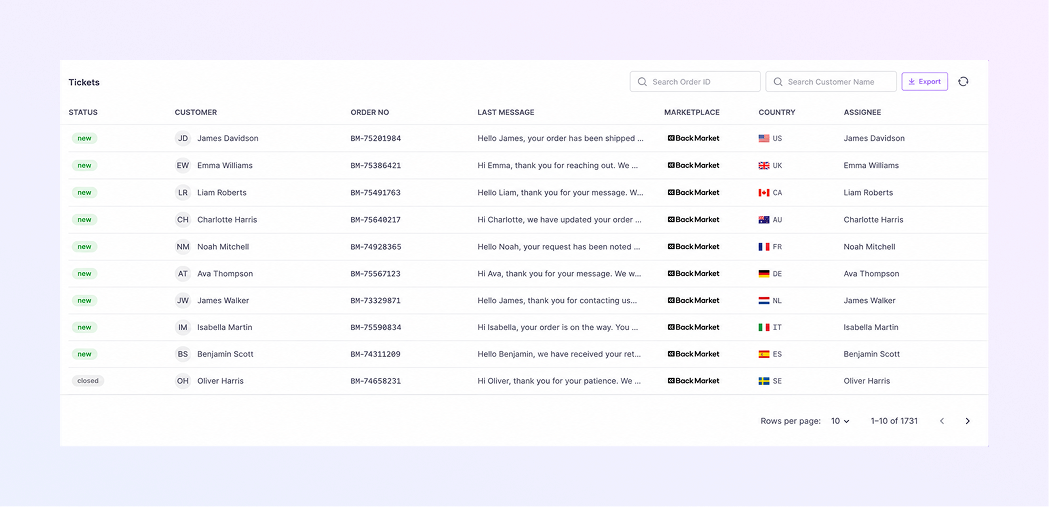
Ticket Table
Each row is one customer ticket.
-
Status: Shows the current state of the ticket (Example: New). Status changes automatically based on actions and SLA rules.
-
Customer: Shows customer name and initials. Clicking this usually opens the ticket details.
-
Order No: Unique order reference. Example: BM-48626441. This connects the ticket to Shipment, Product, and Marketplace (BackMarket). It is used for tracking and audits.
-
Last Message: Shows the most recent message from the customer or agent. It helps agents quickly understand the issue without opening the ticket.
-
Marketplace: Shows where the order came from. ExactFlow can support multiple marketplaces.
-
Country: Customer’s country shown by the Flag and Country code. It helps agents to understand the language and know the shipping rules.
-
Assignee: Shows which support agent is responsible. Tickets are auto-assigned by AI. Managers or agents can manually change the assignee.
-