


ExactFlow DHL Shipment Page User Guide
The DHL Shipment Page in ExactFlow helps you track shipments automatically, monitor delivery performance, and identify delays or risks, without manual work.
This page is powered by DHL API integration, so shipment updates are always current.
How to Open the DHL Shipment Page
Log in to your ExactFlow account.
From the left sidebar, click Support Agent.
Select DHL Shipment.
The DHL Shipment Dashboard will open.
Page Overview
The DHL Shipment Page contains three main sections:
-
Live Shipment Statistics
-
Dashboard Filters
-
Shipment Results Table
-
Live Shipment Statistics
These cards give a quick snapshot of shipment performance.
-
Total: Total DHL shipments in the selected period.
-
Delivered: Shipments successfully delivered.
-
In Transit: Shipments are currently moving through DHL.
-
Untracked: Shipments with missing or no tracking updates.
-
SLA Breached: Shipments that exceeded the allowed delivery time.
-
Unknown: Shipments with no confirmed status.

DHL Shipment Logic
-
DHL is fully connected via API
-
Shipment updates are:
-
Automatically fetched
-
Updated in real time
-
No manual tracking required
-
You do not need to check the DHL website manually.
Standard Shipment Time Rule
-
Standard delivery time: 3 days
-
If a shipment is not delivered after 3 days, it is marked as SLA Breached.
This ensures Faster issue detection, Better customer experience, and Clear accountability.
-
-
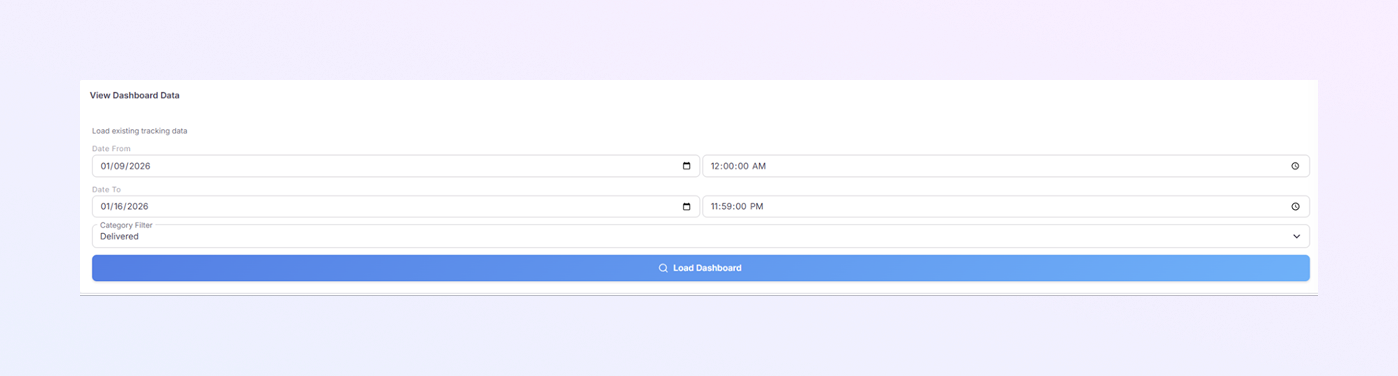
Dashboard Filters Section
Use filters to control what shipment data you see.
Date & Time Filters
-
Date From / Time From: Start of the tracking period
-
Date To / Time To: End of the tracking period
These filters help you view shipments for a specific timeframe.
Category Filter
Filter shipments by status:
-
Delivered
-
In Transit
-
Untracked
-
SLA Breached
Click Load Dashboard, and the dashboard refreshes using your selected filters.
-
-
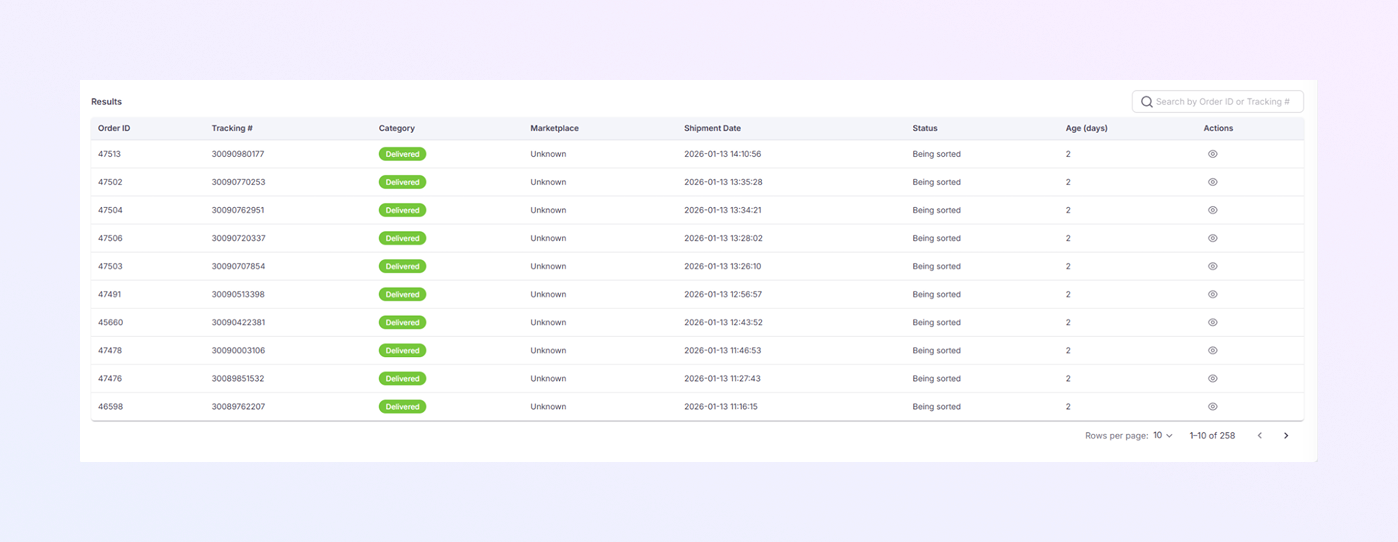
Shipment Results Table
This table shows detailed information for each DHL shipment.
-
Order ID: Internal order number.
-
Tracking #: DHL tracking number (auto-synced via API).
-
Category: Shipment category (example: Delivered).
-
Marketplace: Source marketplace of the order.
-
Shipment Date: Date and time the shipment was created.
-
Status: Current DHL status (example: Being sorted).
-
Age (days): Number of days since shipment started.
-
Actions (Eye Icon): View full shipment and tracking details.
Shipment Details Inside Tickets
Shipment information is also:
-
Automatically shown inside ticket details
-
Linked directly to customer support cases
This allows agents to:
-
Answer customer questions faster
-
See delivery progress without switching tools
Search Function
From the top-right of the table, you can search shipments by:
-
Order ID
-
Tracking Number
This is useful when handling specific customer requests.
-