ExactFlow Ecommerce Chat Page User Guide
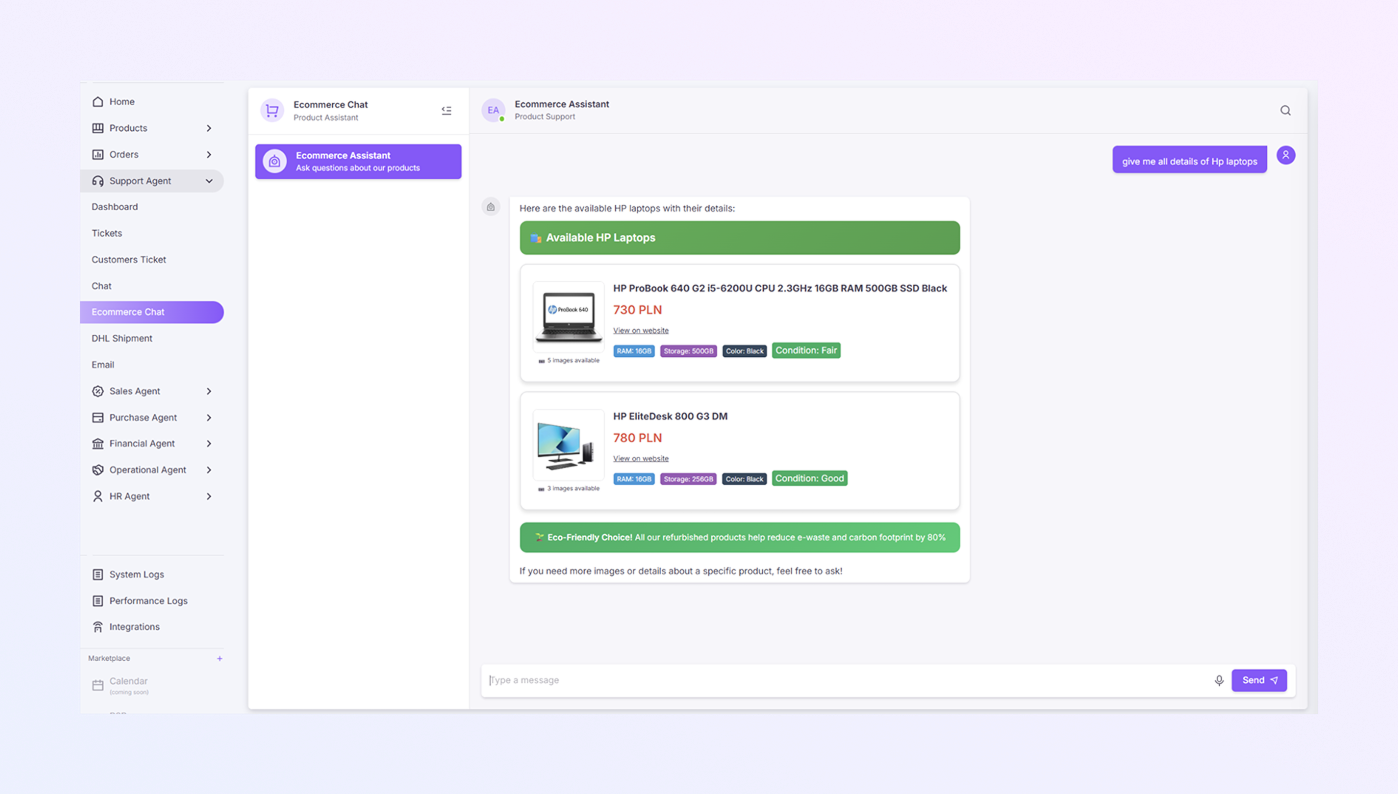
The E-commerce Chat Page allows customers to ask questions about products and get instant answers from the AI E-commerce Assistant. It helps customers explore products, prices, availability, and details.
How to Open the E-commerce Chat Page
Log in to your ExactFlow account.
Look at the left sidebar menu.
Click on Support Agent.
Select Ecommerce Chat.
The E-commerce Chat screen will open.
You are now ready to chat with the E-commerce Assistant.
Page Layout Overview
The E-commerce Chat page has three main areas:
-
Chat Header
-
Chat Conversation Area
-
Message Input Area
Chat Header
At the top of the chat area, you will see:
-
E-commerce Assistant
-
Status label: Product Support
-
A search icon on the right (to search chats or content)
This tells you that you are chatting with the AI E-commerce Assistant.
Chat Conversation Area
This is the main area where messages appear.
-
Customer messages appear on the right side
-
AI responses appear in the center/left
-
Product results are shown as product cards.
Message Input Area
At the bottom of the screen, you will see:
-
A text input box that says: Type a message
-
A microphone icon (for voice input, if enabled)
-
A Send button
How to Send a Message
-
Click inside the message box.
-
Type your question.
-
Click Send or press Enter.
Important Notes
-
The AI replies instantly with product information.
-
Customers do not need technical knowledge.
-
Support teams can monitor chats if needed.
-
Product details are shown in a clean, card-style format.
-
The chat improves the customer buying experience.