ExactFlow Email Page User Guide
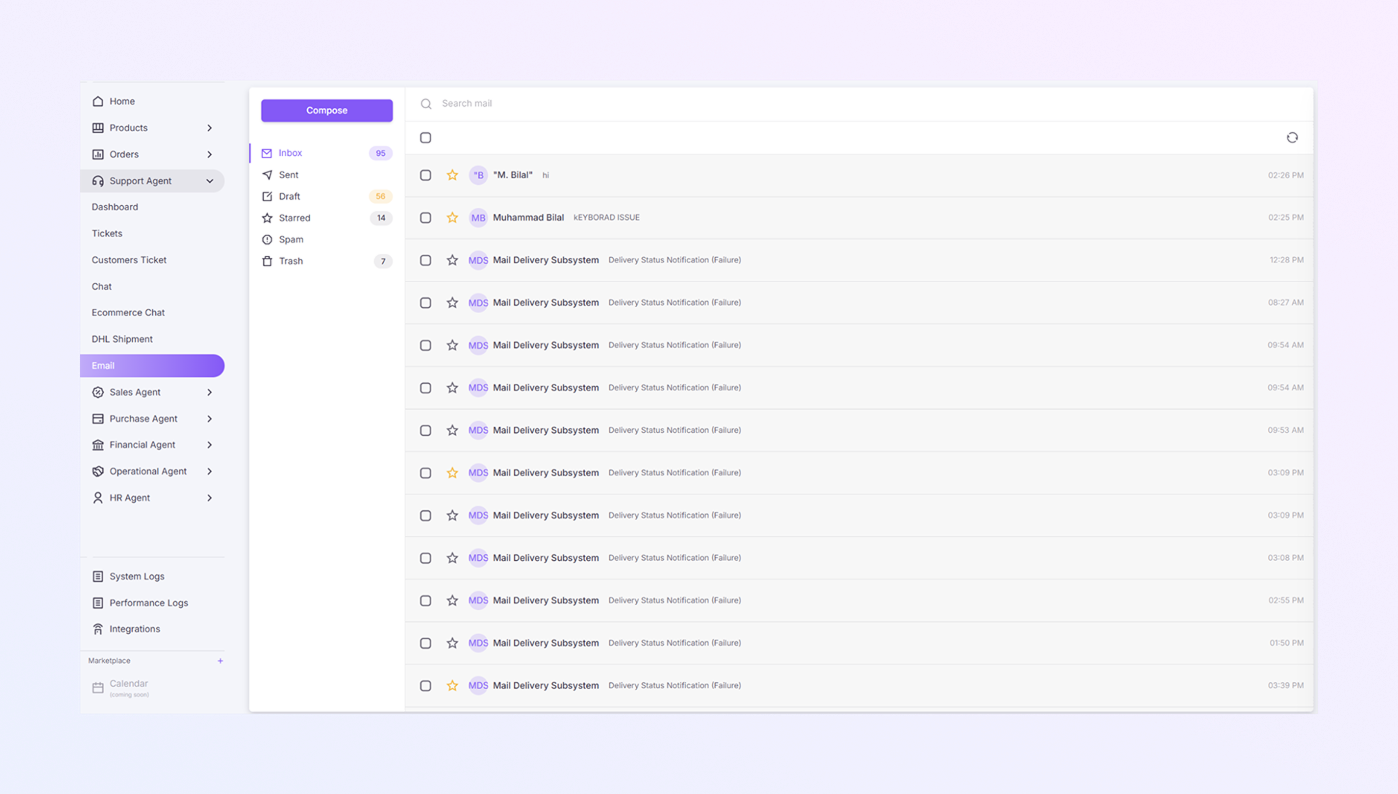
The Email Page in ExactFlow allows support agents and teams to send, receive, and manage emails directly inside the app. It works like a mailbox where you can read customer emails, reply to them, and organize messages easily.
How to Open the Email Page
Log in to your ExactFlow account.
Look at the left sidebar menu.
Click on Support Agent.
Select Email.
The Email page will open.
You are now inside the Email module.
Page Layout Overview
The Email page is divided into three main sections:
-
Left Email Menu
-
Email List Panel
-
Top Action Bar
Left Email Menu
This panel helps you organize your emails.
Compose Button
-
Located at the top
-
Click Compose to write a new email
Email Folders
You will see the following folders:
-
Inbox: Shows all received emails
-
Sent: Emails you have already sent
-
Draft: Emails saved but not sent yet
-
Starred: Important emails marked with a star
-
Spam: Unwanted or suspicious emails
-
Trash: Deleted emails
Click any folder to view its emails.
Email List Panel
This section shows a list of emails in the selected folder.
Each email row shows:
-
Checkbox: Select email for actions
-
Star icon: Mark email as important
-
Sender name (example: Glenn Maxwell)
-
Email subject (example: KEYBOARD ISSUE)
-
Time: When the email was received
Unread emails appear bold.
Top Action Bar
At the top of the email list, you will see:
-
Search mail bar: Type keywords to find emails quickly
-
Select all checkboxes: Select all emails in the list
-
Refresh icon: Reload emails to get the latest messages
Star Email (Important Email)
-
Click the star icon next to an email
-
Starred emails appear in the Starred folder
-
Useful for tracking important customer messages
How to Read an Email
-
Click on any email from the list.
-
The email opens.
-
You can read the full message.
-
You can reply, forward, or delete the email.
How to Compose a New Email
-
Click the Compose button.
-
A new email window opens.
-
Enter:
-
Recipient email address
-
Subject
-
Message content
-
-
Click Send.
-
You can also save the email as a Draft.
How to Delete an Email
-
Select the email using the checkbox.
-
Delete it.
-
The email moves to the Trash folder.
Spam Handling
-
Emails marked as spam go to the Spam folder.
-
This helps keep your inbox clean.
Important Notes
-
Unread emails are highlighted
-
Drafts are saved automatically
-
Star important emails for quick access
-
Trash emails can be recovered if needed
-
System emails may appear for delivery issues