


ExactFlow Data Upload Page User Guide
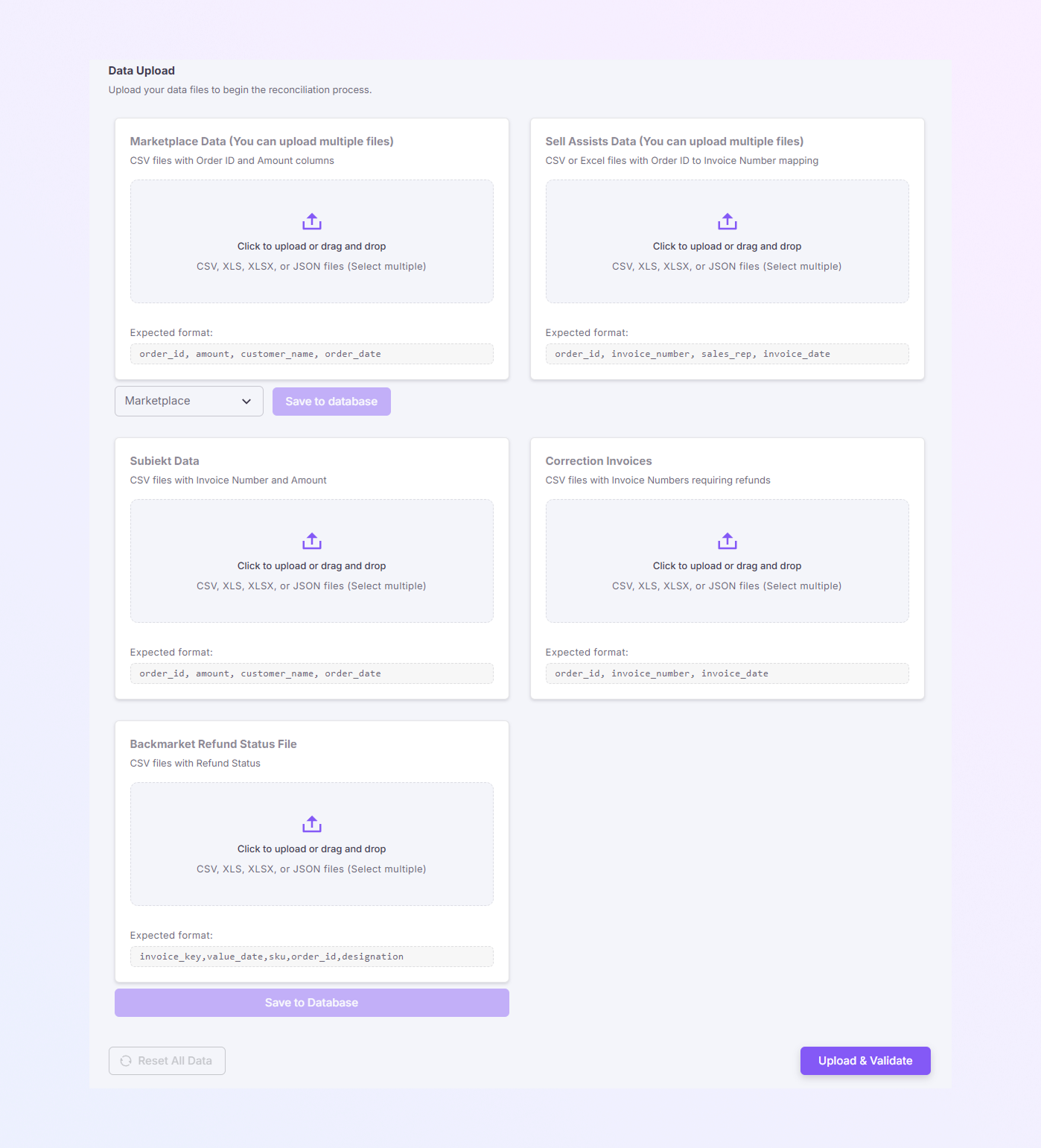
The Data Upload page helps you upload and match financial data from different sources, so Exact Flow can reconcile orders, invoices, and refunds correctly. This page is mainly used by finance, accounting, and operations teams to make sure all marketplace data matches internal sales and invoice records.
How to Open the Data Upload Page
Log in to your Exact Flow account.
Look at the left sidebar menu.
Click Financial Agent
Click Data Reconciliation.
Select Data Upload.
You will now see the Data Upload screen with multiple upload sections.
Page Overview
On this page, you will see:
-
Multiple upload boxes, each for a specific type of data
-
Clear instructions under every upload box
-
A Marketplace selector
-
Save to Database and Upload & Validate buttons
-
CSV
-
XLS
-
XLSX
-
JSON
Each upload section accepts files in:
You can upload one or multiple files at the same time.
Upload Sections
-
Marketplace Data
Purpose
This section is used to upload order data from marketplaces (like Backmarket, Refurbed, etc.).
What this data includes
-
Order ID
-
Order amount
-
Customer name
-
Order date
Expected file format
order_id, amount, customer_name, order_date
How to upload
-
Click to upload or drag and drop.
-
Select your marketplace order file.
-
You can upload multiple files if needed.
This data helps Exact Flow understand how much was sold on each marketplace.
-
-
Sell Assets Data
Purpose
This section connects Order IDs to Invoice Numbers.
What this data includes
-
Order ID
-
Invoice number
-
Sales representative
-
Invoice date
Expected file format
order_id, invoice_number, sales_rep, invoice_date
How to upload
-
Click the upload area.
-
Choose the correct invoice mapping file.
-
Upload one or more files.
This step helps link marketplace orders with internal invoices.
-
-
Subiekt Data
Purpose
This section uploads invoice amount data from Subiekt (or similar ERP systems).
What this data includes
-
Order ID
-
Invoice amount
-
Customer name
-
Order date
Expected file format
order_id, amount, customer_name, order_date
How to upload
-
Click the upload box under Subiekt Data.
-
Select your ERP invoice file.
-
Upload the file.
This data is used to compare marketplace sales with ERP invoice values.
-
-
Backmarket Refund Status File
Purpose
This section uploads refund status data from Backmarket.
What this data includes
-
Invoice key
-
Refund value
-
Date
-
SKU
-
Order ID
-
Refund designation
Expected file format
invoice_key, value_date, sku, order_id, designation
How to upload
-
Click the upload area.
-
Select the refund status file.
-
Upload the file.
This ensures refund data is correctly matched with original orders and invoices.
-
-
Correction Invoices
Purpose
This section is for invoices that need corrections or refunds
What this data includes
-
Order ID
-
Invoice number
-
Invoice date
Expected file format
order_id, invoice_number, invoice_date
How to upload
-
Click the upload area.
-
Select the correction invoice file.
-
Upload the file.
This helps the system track refunds, adjustments, or corrected invoices.
-
Marketplace Selection
Below the Marketplace Data section, you will see a Marketplace dropdown.
How it works
-
Select the marketplace you are uploading data for
-
Example options: Backmarket, Refurbed, etc.
Choosing the correct marketplace ensures accurate reconciliation.
Save to Database Button
-
This stores the uploaded data in the system
-
No reconciliation has happened yet, only saving
-
You want to upload files step by step
-
You are not ready to validate yet
Use this when:
Upload & Validate Button
-
Located at the bottom-right of the page
-
Starts the data validation process
-
Exact Flow checks file formats
-
Matches Order IDs, Invoice Numbers, and amounts
-
Identifies missing or mismatched data
When clicked:
This is the final step before reconciliation results are generated.
Reset All Data Button
-
Clears all uploaded files
-
Use this if:
-
You uploaded the wrong files
-
You want to start fresh
-
Summary
The Data Upload page allows you to:
-
Upload marketplace orders
-
Match orders with invoices
-
Track refunds and corrections
-
Prepare clean data for reconciliation
-
Avoid financial mismatches and errors
This page is the foundation for accurate financial reporting inside the Exact Flow Financial Agent module.