


ExactFlow Orders List Page User Guide
The Orders List page shows all customer orders received from your connected sales channels (such as Shopify).
From this page, you can view all orders in one place, Search and filter orders, check order status and payment status, Open order details, and track order progress.
-
Log in to your ExactFlow account.
-
From the left sidebar menu, click Orders.
-
Click Orders List.
-
The Orders List page will open.
How to Open the Orders List Page
- Top Section Overview
-
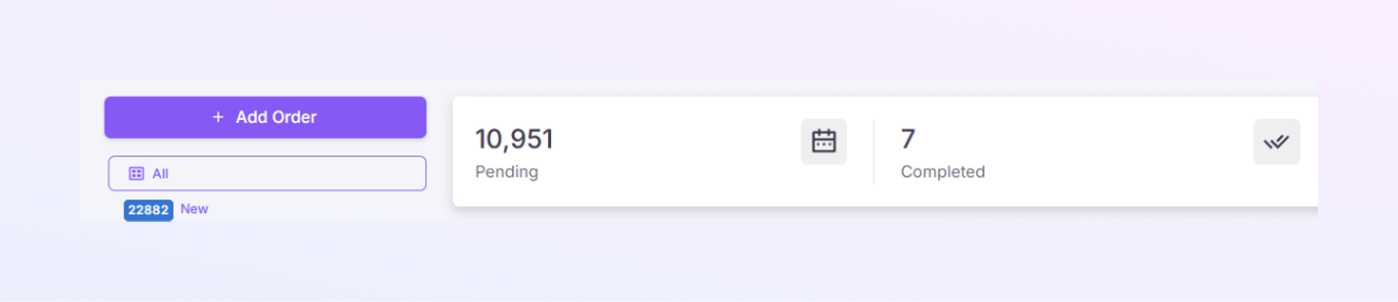
“+ Add Order” button placed on the top left corner. Use this button to create a new order manually.
-
At the top, you may see order counts such as:
-
Pending: Orders that are not completed yet
-
Completed: Orders that are fully processed
-
-
This helps you quickly understand the order workload.
-
You will see multiple colored status labels. These show the current state of orders.
-
New: Order just received
-
To Send: Order ready to be shipped
-
Sent: Order has been sent
-
Cancelled: Order cancelled
-
In Transit: Order is on the way
-
-
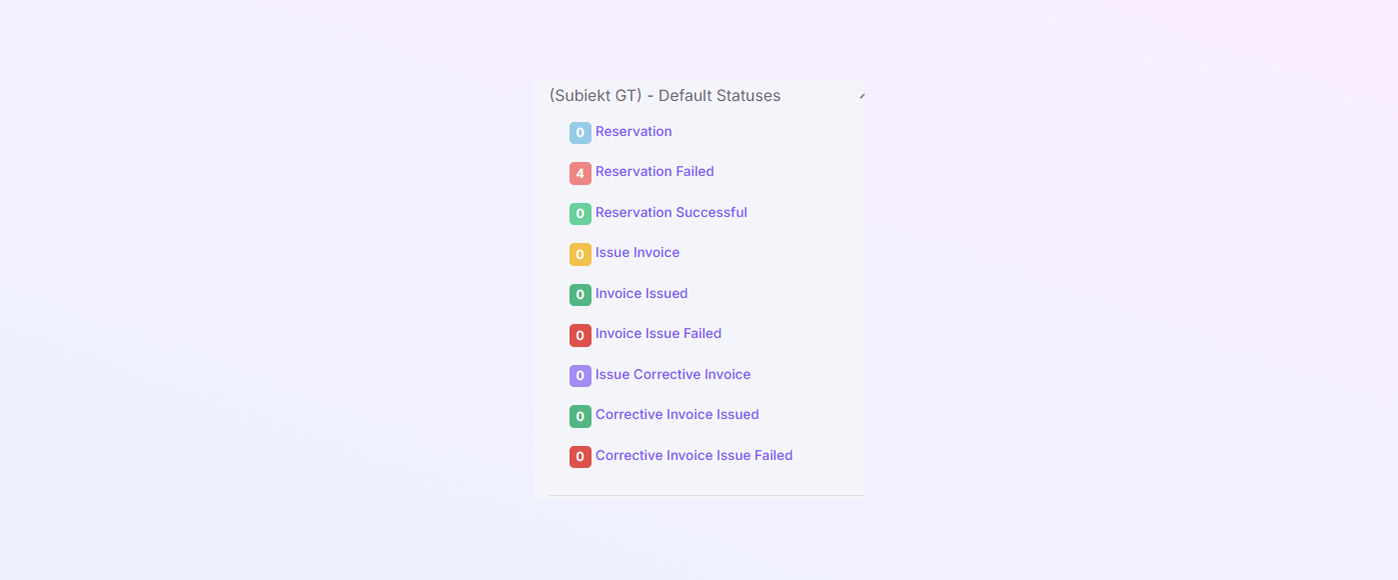
Default Statuses
The following statuses are not default system statuses. They can be manually created in the Order Statuses tab and do not appear automatically for newly created or unconfigured orders:
-
Reservation
-
Reservation Failed
-
Reservation Successful
-
Issue Invoice
-
Invoice Issued
-
Invoice Issue Failed
-
Issue Corrective Invoice
-
Corrective Invoice Issued
-
Corrective Invoice Issue Failed
Once created and assigned colors, these statuses help users quickly understand the progress of an order.
-
-
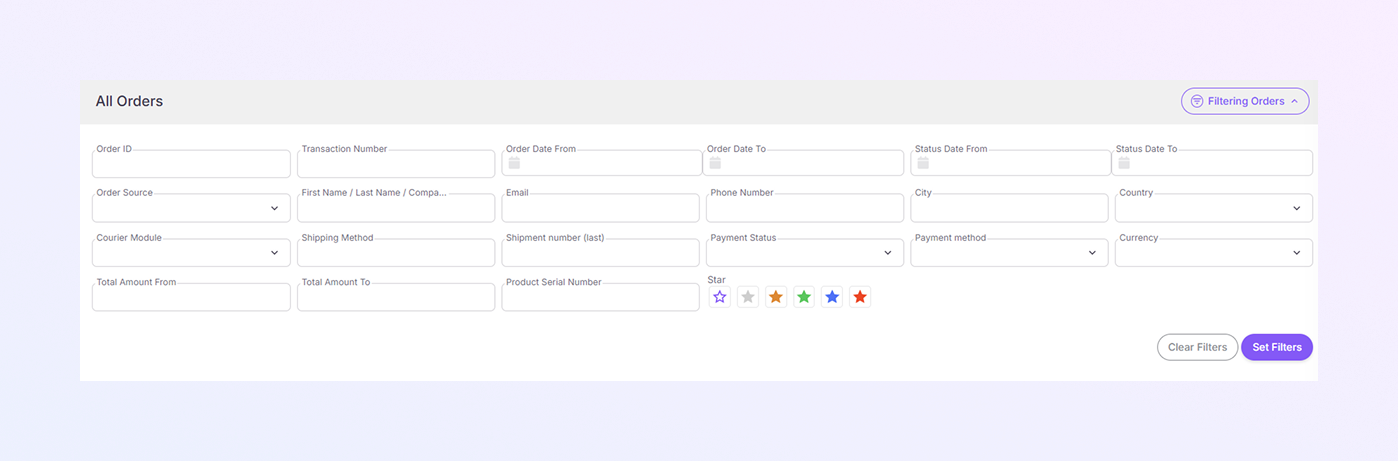
Click the Filtering Orders button (top right). The filter panel will expand.
-
You can filter orders using these fields:
-
Order ID: Search by ExactFlow order number
-
Transaction Number: Payment transaction reference
-
Order Date From: Start date of order creation
-
Order Date To: End date of order creation
-
Status Date From: When the order status started
-
Status Date To: When the order status ended
-
Order Source: Platform source (e.g., Shopify)
-
First Name / Last Name / Company: Customer details
-
Email: Customer email address
-
Phone Number: Customer phone
-
City: Customer city
-
Country: Customer country
-
Courier Module: Shipping courier integration
-
Shipping Method: Delivery method
-
Shipment Number (last): Last shipment reference
-
Payment Status: Paid / Unpaid / Failed
-
Payment Method: Card, COD, etc.
-
Currency: Order currency
-
Product ID: Exact product identifier
-
Product Serial Number: Serial or SKU number
-
Total Amount From: Minimum order value
-
Total Amount To: Maximum order value
-
Star icons allow filtering by customer rating.
-
Apply selected filters by the Set Filters button, or remove all filters and show all orders by the Clear Filters button.
-
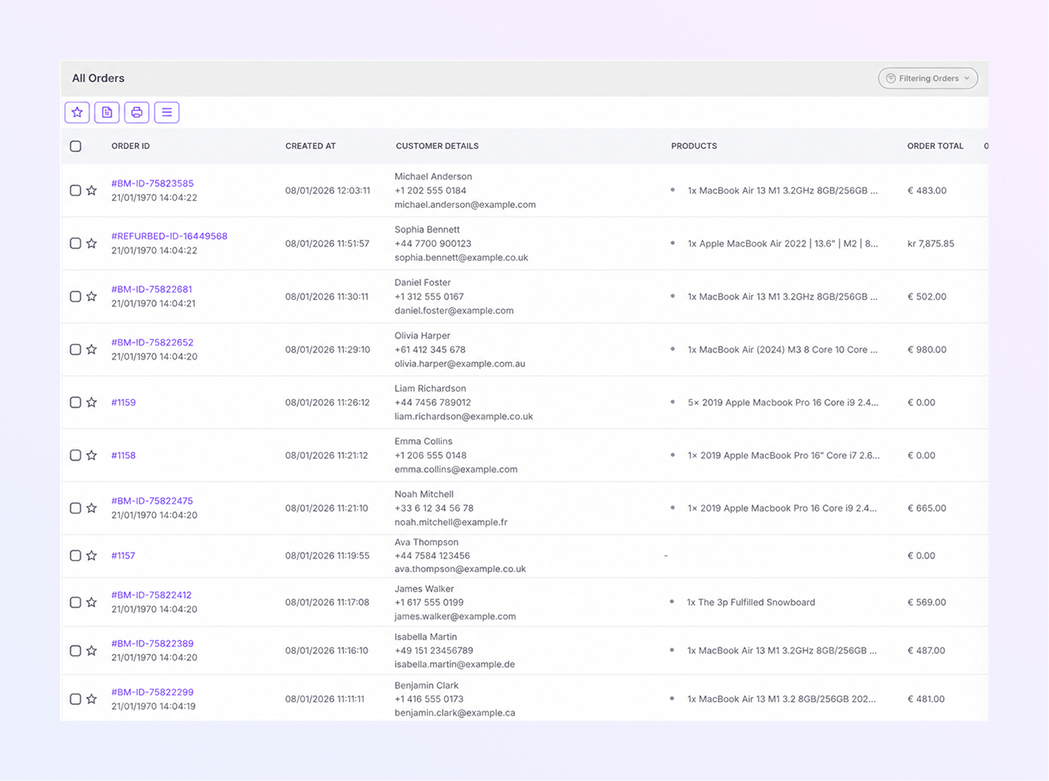
Selection Checkbox: Select one or multiple orders for bulk actions.
-
Order ID: Click the Order ID to open full order details.
-
Customer Details: Customer name, Phone number, and Email address.
-
Products: Displays products included in the order, showing product name and quantity.
-
Order Total: Total order amount with currency.
-
Order Source: Platform where the order came from (e.g., Shopify).
-
Order Status: Current status of the order (e.g., New Orders)
-
Payment Status: Shows whether the payment is Paid or Unpaid.
-
Additional Information: Icons display extra details, such as notes, Special flags, and System indicators.
-
Order Date: Date and time when the order was created.
-
Action Column: Click the three dots (⋮) to see available actions for that order.
-
Star (⭐ Icon): Marks selected orders as important or priority orders and any labeling. Select one or more orders. Click the ⭐ icon. You can choose any color from the star. Orders are marked as starred.
-
Document / Invoice Action (📄 Icon): Used for bulk invoice-related operations. It generates invoices, processes invoice requests, and manages invoice status for multiple orders. Availability depends on invoice configuration and permissions.
-
Export / Print (🖨 Icon): Export or print order data in bulk. It used to download the purchase order, product list, and order list.
-
View / List Action (☰ Icon): Delete the selected orders.
-
The archive stores orders that are completed, no longer active, and do not require daily monitoring. Archived orders are not deleted.
-
See Archive Orders by clicking the Archive button in the left sidebar.
-
Trash contains orders that were removed intentionally. These orders are not visible in the main list, but are still stored temporarily.
-
You can review deleted orders, permanently delete orders, and restore orders (if enabled) in Trash. Restoring availability depends on system permissions.
-
Once an order is permanently deleted, it cannot be recovered.
-
Add Status allows you to create custom order statuses tailored to your business workflow.
-
Add a new order status by clicking "+ Add Status," and then the app navigates to the Order Statuses page. Here, you add a new status.
-
Rows per Page: Choose how many orders appear per page (default: 10)
-
Page Navigation: Use arrows to move between pages, which display the current page and the total number of records.
Order Summary Cards
Order Status Legend

Filtering Orders
Order Information
Customer Information
Payment & Shipping
Product Details
Rating Filter
Filter Buttons
Orders Table (Main List)
This is where all orders are displayed.
Bulk Actions
Bulk Actions allow you to perform the same action on multiple orders at once, instead of handling each order separately.
Archive (Left Sidebar)
Trash (Left Sidebar)
Add Status (Left Sidebar)

Pagination