ExactFlow Payers Page User Guide
A Payer is a profile used for managing payment information, often linked to purchase orders and suppliers.
You use payers when you want to manage who will pay for the goods in your system. Also, easily assign payers to suppliers when creating purchase orders, and keep track of payments from different sources or entities
ExactFlow lets you create, manage, and sync these payer profiles easily.
-
Log in to ExactFlow
-
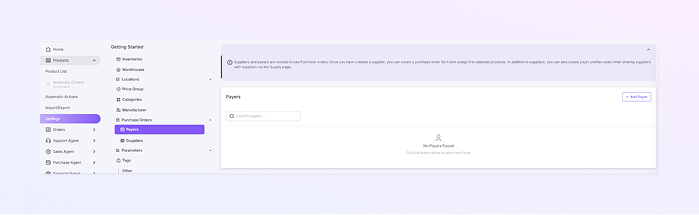
From the left sidebar, click Products
-
Click Settings → Open Purchase Orders → Click Payers.
-
Payers List Page
-
On this page, you can see all payers in your system.
-
Each row shows one payer with these columns:
-
Payer Name: The name of the payer (for example: Company XYZ).
-
Address: The payer's address.
-
PostCode: The payer's postal code.
-
City: The payer's city.
-
Tax ID: The payer's tax identification number.
-
-
-
Add a New Payer
-
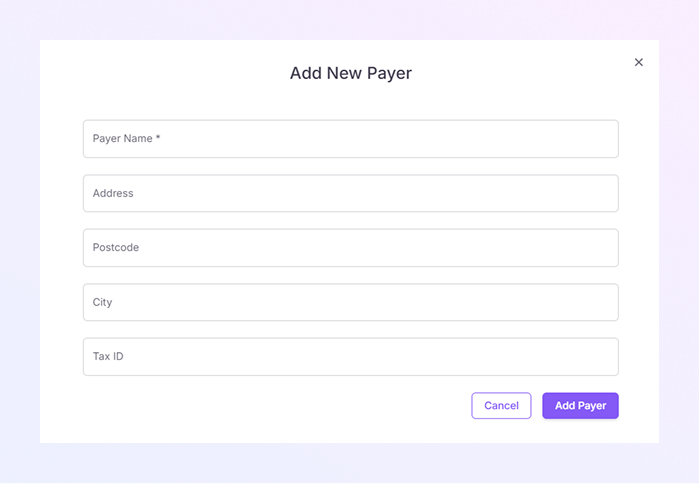
To create a new payer, click the + Add Payer button (located in the top-right corner). The Add New Payer form will open.
-
Enter the Payer Name. For example: "Company ABC". This field is required to create a payer.
-
Enter the payer's Address. This field is optional, but it can help maintain full payer information.
-
Enter the payer's Postcode. This field is optional but useful for complete records.
-
Enter the payer's City. This field is optional, but it helps with full address details.
-
Enter the payer's Tax ID. This field is required to complete the payer setup.
-
Click Save, then the payer will be added to the list, or click Cancel to close the form without saving.
-
Once saved, the payer will appear in the Payers list. You can now assign the payer to purchase orders and suppliers when needed.
-
How to Open the Payers Page
You will now see the Payers list page.