ExactFlow Suppliers Page User Guide
A Supplier is a company or person from whom you buy products. You must create suppliers to:
-
Create purchase orders
-
Link products to the correct supplier
-
Track where your products come from
-
Manage purchasing more easily
In ExactFlow, suppliers collaborate with Payers and manage Purchase Orders.
-
Log in to ExactFlow
-
From the left sidebar, click Products
-
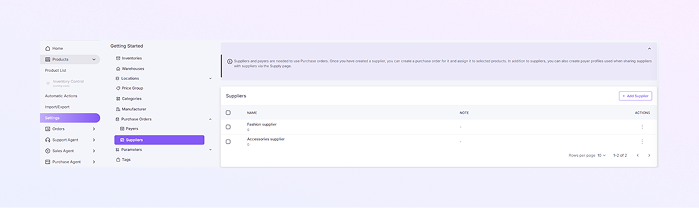
Click Settings → Open Purchase Orders → Click Suppliers
-
Payers List Page
-
This page shows all suppliers saved in your system. If you have already added suppliers, they will appear in a table.
-
Each row represents one supplier.
-
Use the Selection Checkbox to select one or more suppliers. Helpful for bulk actions (if enabled)
-
The supplier’s Name. Example: Fashion supplier, Accessories supplier.
-
The small number under the name indicates the number of items or links associated with this supplier.
-
Add an Optional Note about the supplier. Example: Payment terms, Delivery information.
-
Actions (⋮): Click the three dots to edit the supplier, and delete the supplier (if allowed).
-
-
Add a New Supplier
-
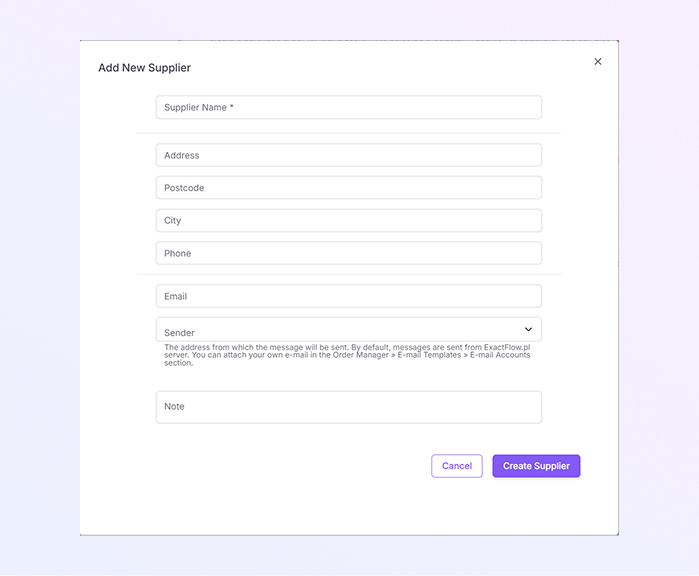
To create a new supplier, click + Add Supplier (top-right corner). The Add Supplier form will open.
-
Enter the Supplier Name. Example: ABC Fashion Ltd, Global Accessories Supplier. This field is required to create a supplier.
-
Enter the Supplier's Address. This field is optional, but it can help maintain full supplier information.
-
Enter the Supplier's Postcode. This field is optional but useful for complete records.
-
Enter the Supplier's City. This field is optional, but it helps with full address details.
-
Enter the Supplier's Phone no. This field is optional, but it helps to contact the supplier.
-
Enter the Email address of the supplier. This is where purchase orders will be sent.
-
If you want to send a copy of the email to another email address, enter it in the "Email Copy To" field.
-
Select the Sender email address that will be used to send purchase orders from the list. By default, it will be from ExactFlow.pl, but you can add your own email if you prefer.
-
Note is an internal field where you can add any comments or notes that will only be visible to you within the ExactFlow system. These comments will not be shared with the supplier.
-
Once all the details have been filled in, click the Create Supplier button to save the supplier information.
-
If you wish to cancel the process, click Cancel.
-
Once saved, the supplier appears in the Suppliers list. You can now create purchase orders for this supplier, assign products to the supplier, and link a payer to the supplier (via the Supply page).
-
How to Open the Suppliers Page
You will now see the Suppliers list page.