


ExactFlow Constraints Page User Guide
You can set basic purchase rules for each product on the Constraints page. These rules tell ExactFlow when to buy, how much to buy, and how to handle supplier limits.
Setting up this page correctly makes purchasing predictable. If not, you might see missed sales, overstock, or delayed orders.
How to Open the Constraints Page
Sign in to your Exact Flow account.
From the left menu, open Purchase Agent.
Click Constraints.
The page opens with a list of SKUs and their current purchase settings.
Page Overview
-
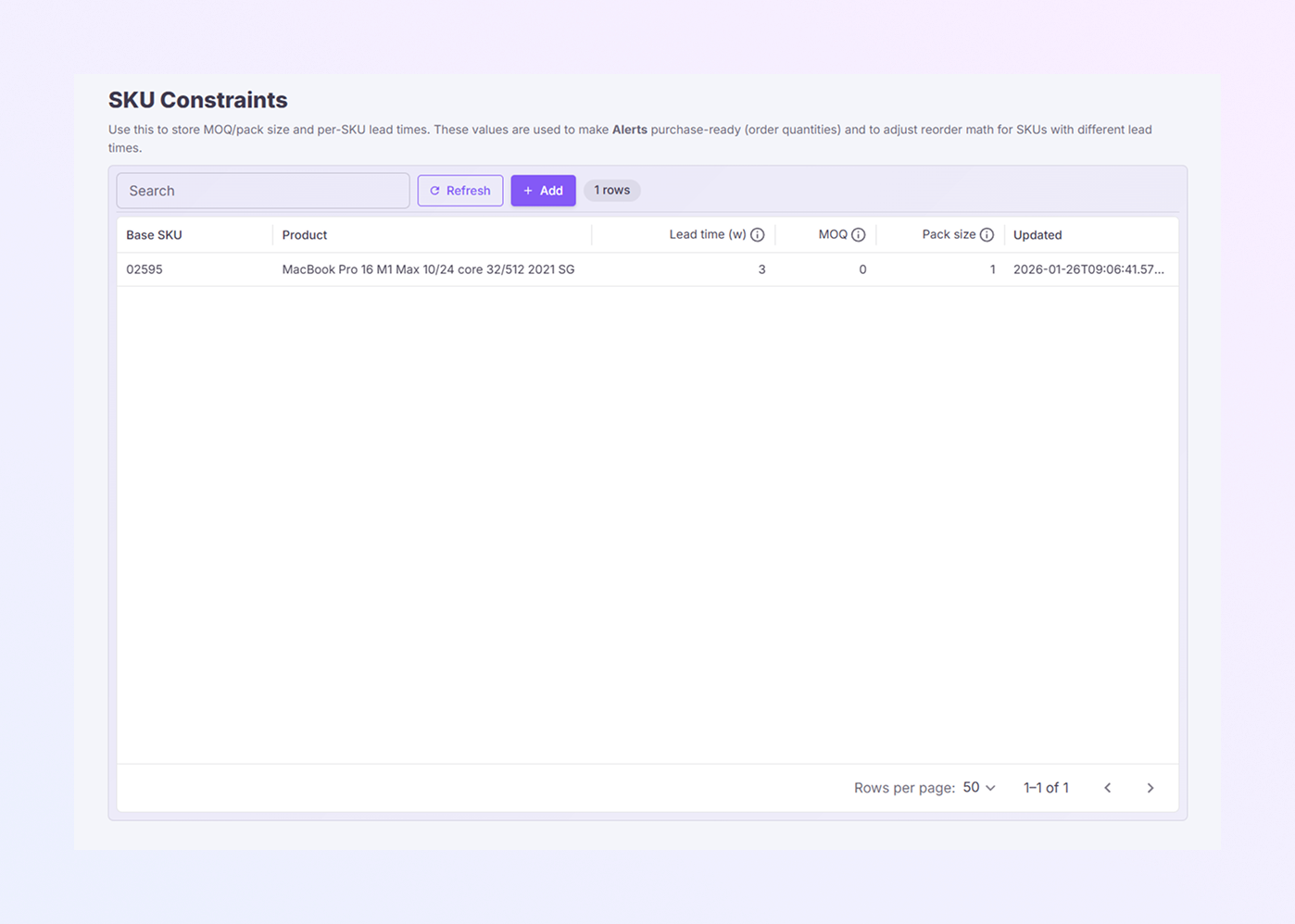
The page title, SKU Constraints, appears at the top.
-
Search: To find a product quickly, use the search bar. You can search by product name or SKU code. The list updates as you type.
-
Refresh: Reloads the page and pulls the latest data. This is helpful after updates or changes.
-
Add: Creates a new constraint for a product by opening a form.
Understanding the Constraints Table
Each row represents one SKU and its purchase rules.
Base SKU: The primary SKU for planning and purchasing.
Product: The full product name associated with the SKU.
Lead Time (w): The number of weeks it takes for the product to arrive. This value determines the timing of reorder alerts.
MOQ: The minimum order quantity allowed. There is no minimum if this is set to 0.
Pack Size: The number of orders the supplier requires. For example, if the pack size is 5 means orders must be in multiples of 5.
Updated: Shows the most recent change date for the rule.
Adding a New Constraint
You’ll usually add a constraint when a supplier has special rules, a new product comes in, or something changes, like lead time or packaging.
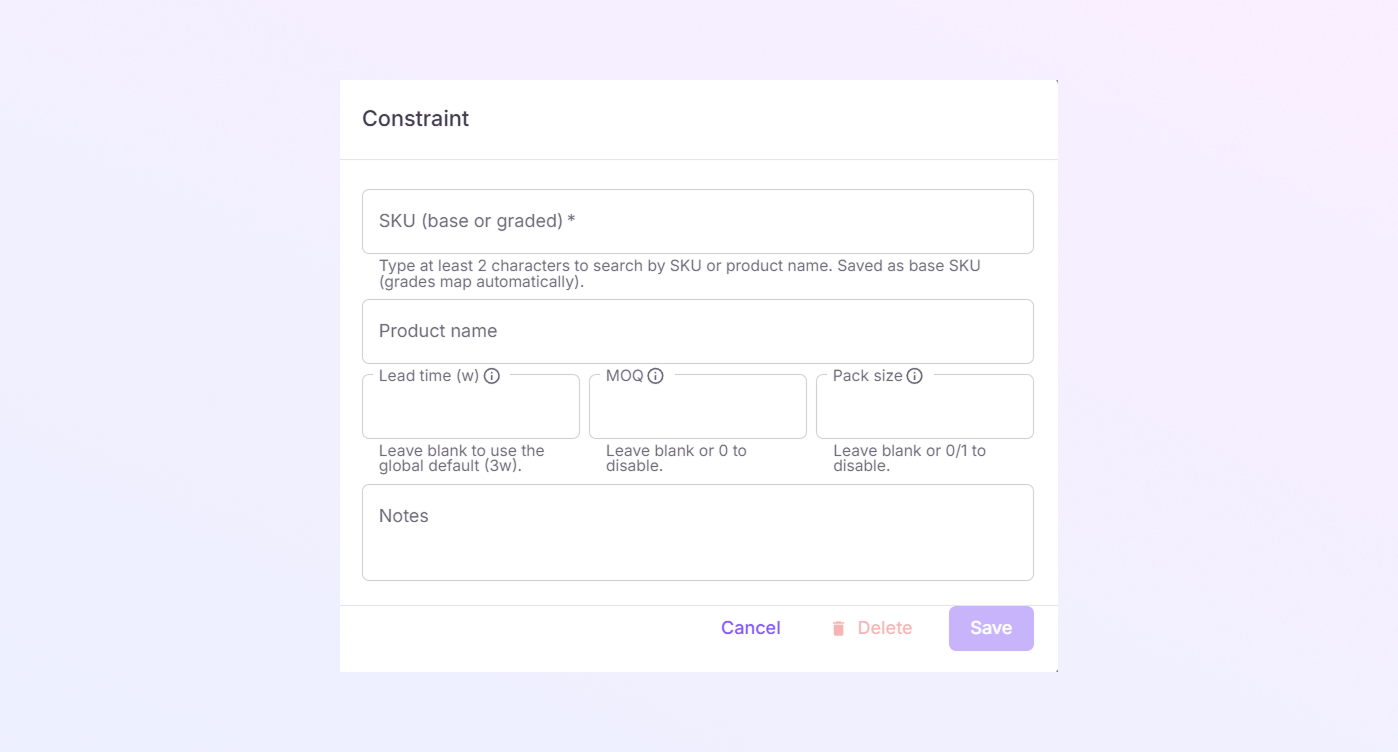
To add one, click Add, and the constraint form will pop up.
Here’s how the fields work:
-
SKU (Base or Graded) is required. Once you pick the base SKU, the system saves it and automatically links any graded versions.
-
Product Name fills in automatically after you choose the SKU. It helps ensure you choose the right product.
-
Lead Time (Weeks): Enter the supplier's lead time in weeks. If delivery takes about three weeks, enter 3. If this field is left blank, ExactFlow uses the three-week system default.
-
MOQ is where you enter the supplier’s minimum order. If they require at least 10 units, enter 10. If there’s no minimum, leave it blank or set it to 0.
-
Pack Size matters when suppliers insist on ordering in fixed quantities. A pack size of 6 means orders must be 6, 12, 18, etc. If that doesn’t apply, leave it empty or set it to 0.
-
Notes are optional, but surprisingly useful. It is helpful for supplier reminders, temporary conditions, and internal comments for your team.
-
Save: Applies the rule immediately and updates the purchasing logic.
-
Cancel: Closes the form without saving anything.
-
Delete: Removes the constraint entirely. This one’s powerful, so use it carefully, especially if the product is active.
Why This Page Matters
ExactFlow uses these settings every single day to decide:
-
How much to order
-
When to reorder
-
When to trigger supplier alerts.
Incorrect settings may result in overordering, delayed restocking, and lost revenue.
Summary
At its core, the Constraints page helps you keep purchasing under control. It lets you respect supplier limits, fine-tune planning, and reduce inventory risks before they turn into real problems.