


ExactFlow Training Horizons Page User Guide
The Training Horizons page is used to train and update the system’s purchasing intelligence. It tells ExactFlow how much historical data to look at when learning demand patterns, costs, and buying behavior.
How to Open the Training Horizons Page
Log in to your Exact Flow account.
From the left sidebar, click Purchase Agent.
Click Train Horizons.
The Training Horizons screen will open.
What This Page Is Used For
The Training Horizons page helps you:
-
Decide how much past data the system should learn from
-
Retrain the purchasing model when business patterns change
-
Improve forecast accuracy and purchase recommendations
In short, this page controls how the system learns.
Lookback Indicator
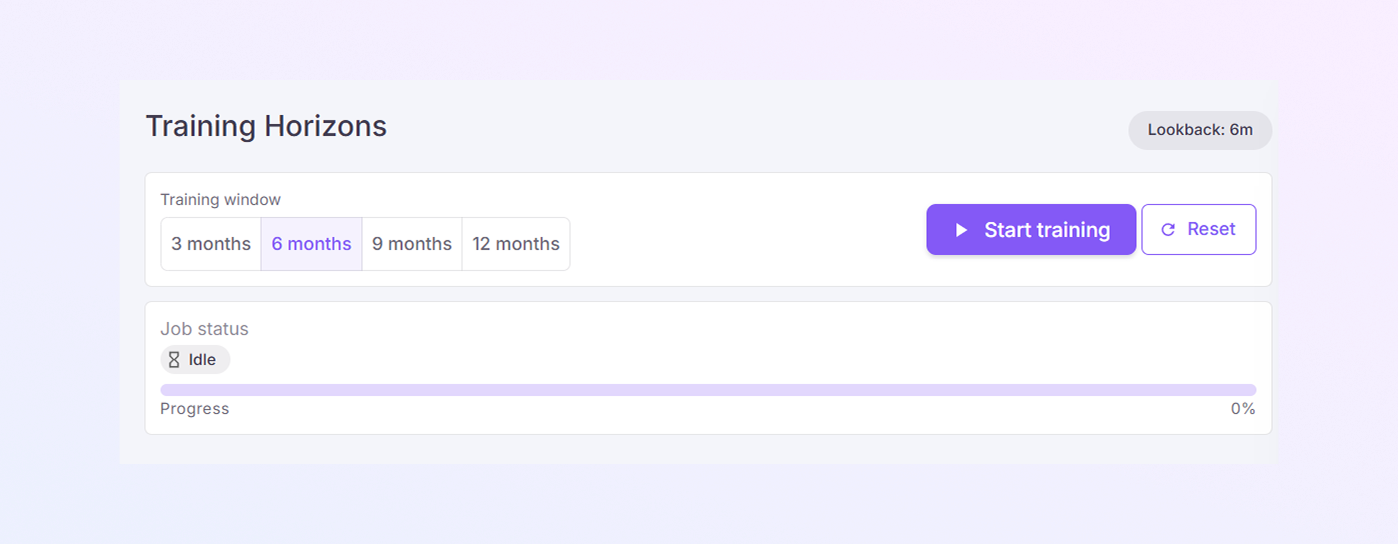
At the top-right corner, you will see a label like: Lookback: 6m
This shows how far back the system currently uses data. “6m” means the last 6 months of data.
This updates automatically based on your training selection.
Training Window Section
In the main section, you will see Training window options. You can choose one of the following: 3 months, 6 months, 9 months, or 12 months.
-
Shorter windows react faster to recent changes
-
Longer windows give more stable, long-term learning
-
Use 3 months for fast-changing products
-
Use 6 or 9 months for steady sales
-
Use 12 months for seasonal or long-term trends
For example:
The selected option is highlighted.
Start Training Button
-
Once you choose a training window, click Start training.
-
This tells the system to reprocess historical data, update internal models, and improve purchase planning results.
-
Training may take some time, depending on the data size.
Reset Button
-
The Reset button clears the current selection, stops any planned changes, and returns the page to its default state
-
Use this if you selected the wrong training window by mistake.
Job Status Section
Below the training controls, you will see the job status.
Possible statuses include:
-
Idle: No training is running
-
Running: Training is in progress
-
Completed: Training finished successfully
This lets you know what the system is currently doing.
Progress Bar
Under Job status, there is a Progress bar.
-
Shows how much of the training is completed
-
Starts from 0%
-
Moves toward 100% as training continues
This helps you track progress without guessing.
When Should You Run Training?
You should run training when:
-
You add new products
-
Sales patterns change
-
Supplier pricing changes
-
Seasonal demand shifts
-
Forecasts feel less accurate
Regular training keeps the system aligned with reality.
Summary
-
The Training Horizons page is a system learning control center.
-
It allows you to choose how much history the system learns from, refresh purchasing intelligence, and improve planning accuracy over time.