ExactFlow BuyBox Page User Guide
Sales teams can easily monitor how their products are doing in various marketplaces with the BuyBox page. It provides intelligent pricing recommendations to increase winning chances and increase sales, as well as a clear display of which products are winning, partially winning, or losing the BuyBox.
How to Open the BuyBox Page
Log in to your ExactFlow account.
From the left sidebar, click Sales Agent.
Click BuyBox.
You will now see the BuyBox dashboard.
Marketplace Selector
-
There is a Marketplace dropdown at the top-right corner of the page.
-
You choose a particular marketplace. For example, backmarket, refurbished, etc.
-
All BuyBox data updates are based on the selected marketplace.
-
Use this when managing multiple marketplaces.

BuyBox Summary Section
-
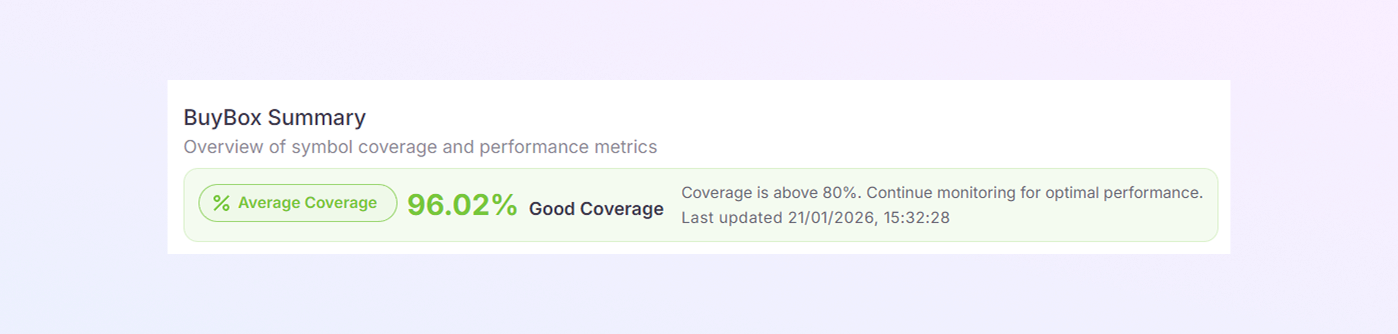
At the top, you see a BuyBox Summary banner showing:
-
Coverage Percentage (Example: 96.02%)
-
Coverage status like Good Coverage
-
A short message about performance health
-
-
Green color means strong BuyBox performance.
Summary Statistics Cards
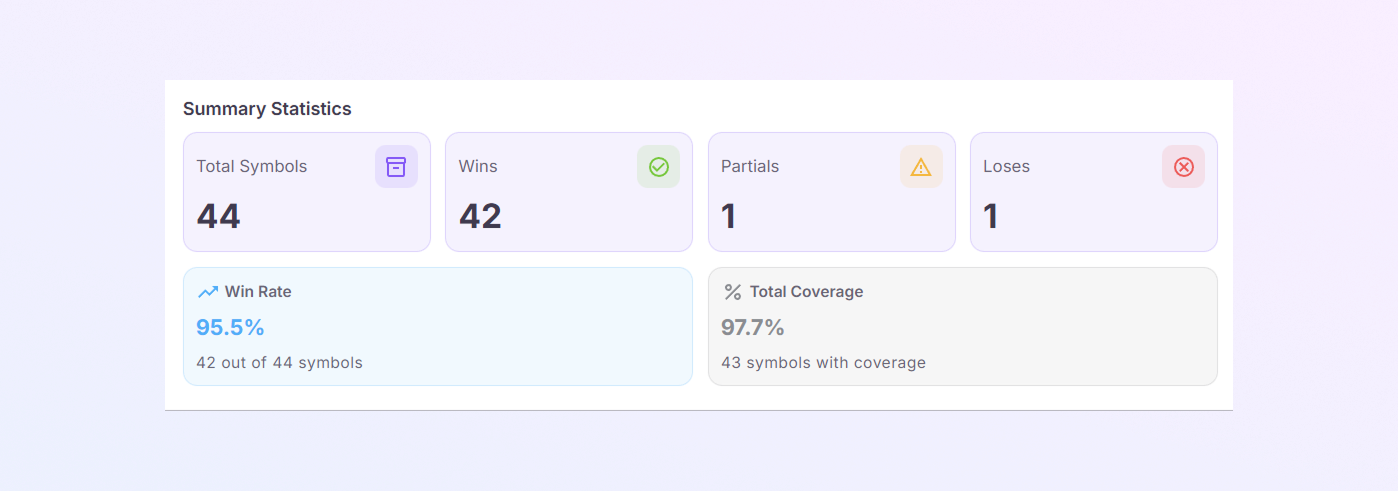
Below the summary bar, you will see small info boxes:
-
Total Symbols: Total products analyzed
-
Wins: Products currently winning BuyBox
-
Partials: Products partially winning BuyBox
-
Losses: Products losing BuyBox
-
Win Rate: Percentage of winning symbols
-
% Total Coverage: Overall BuyBox coverage
These cards give a quick performance snapshot.
Status Distribution Chart
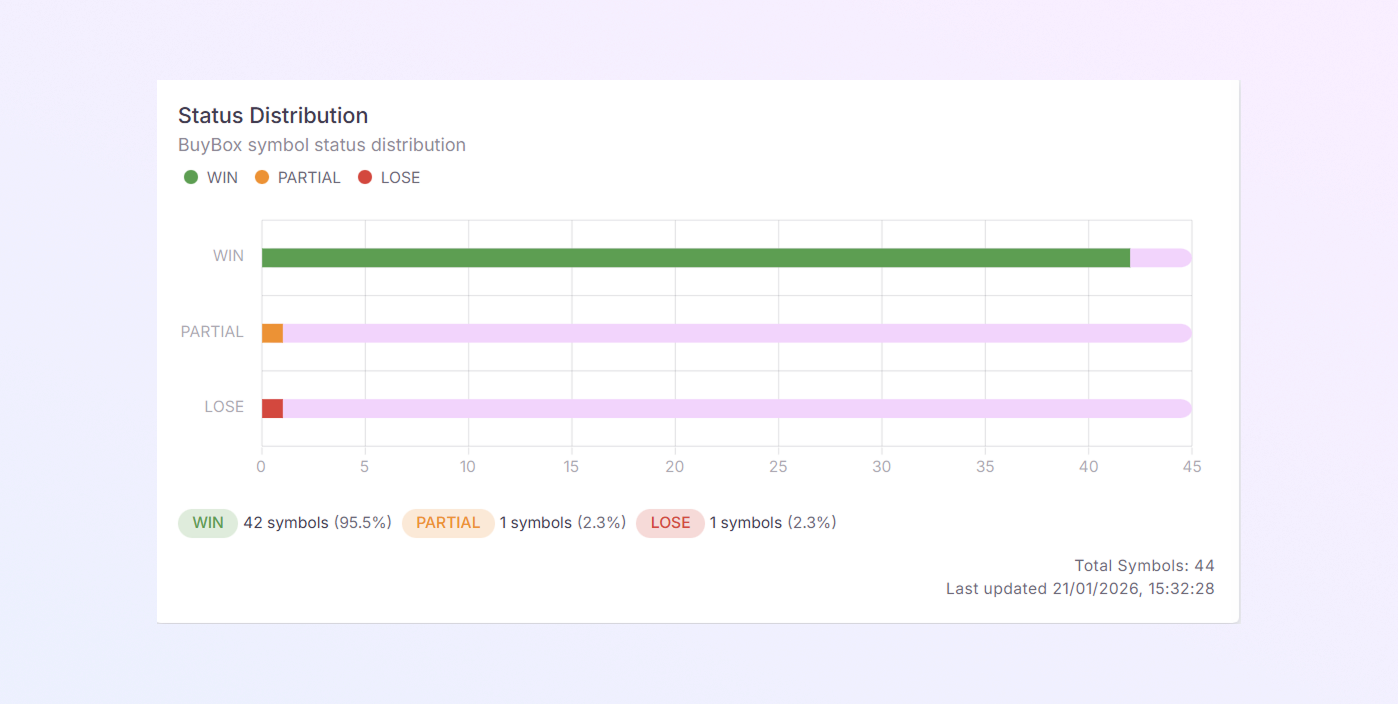
This section shows a visual bar chart for BuyBox status.
-
Green for Win
-
Orange for Partial
-
Red for Lose
This helps you quickly identify problem areas and focus on partial and losing SKUs.
Symbols List Table
This table shows detailed BuyBox data for each SKU.
-
Symbol: Product identifier
-
Product Name
-
Available: Stock available
-
Stock: Total stock
-
Stock Reserved
-
Markets Total: Total marketplaces
-
Wins: Number of BuyBox wins
-
Partials: Partial wins
-
Losses: BuyBox losses
-
Coverage %: BuyBox coverage
-
Status: Win / Partial / Lose
-
Markets: Marketplaces where listed
Status labels make it easy to spot issues.
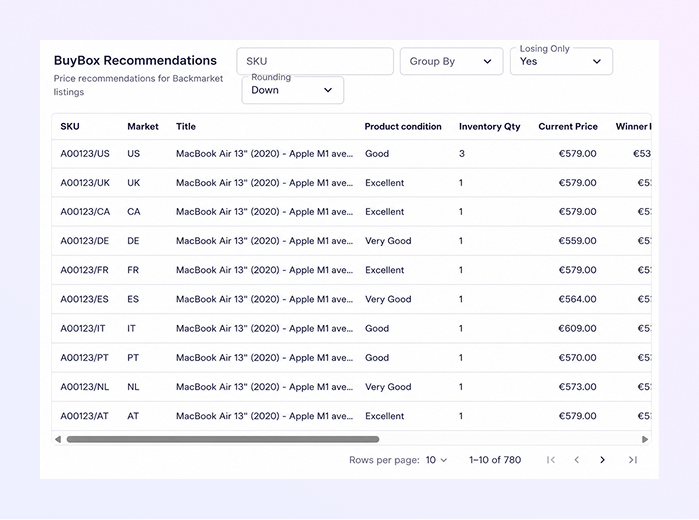
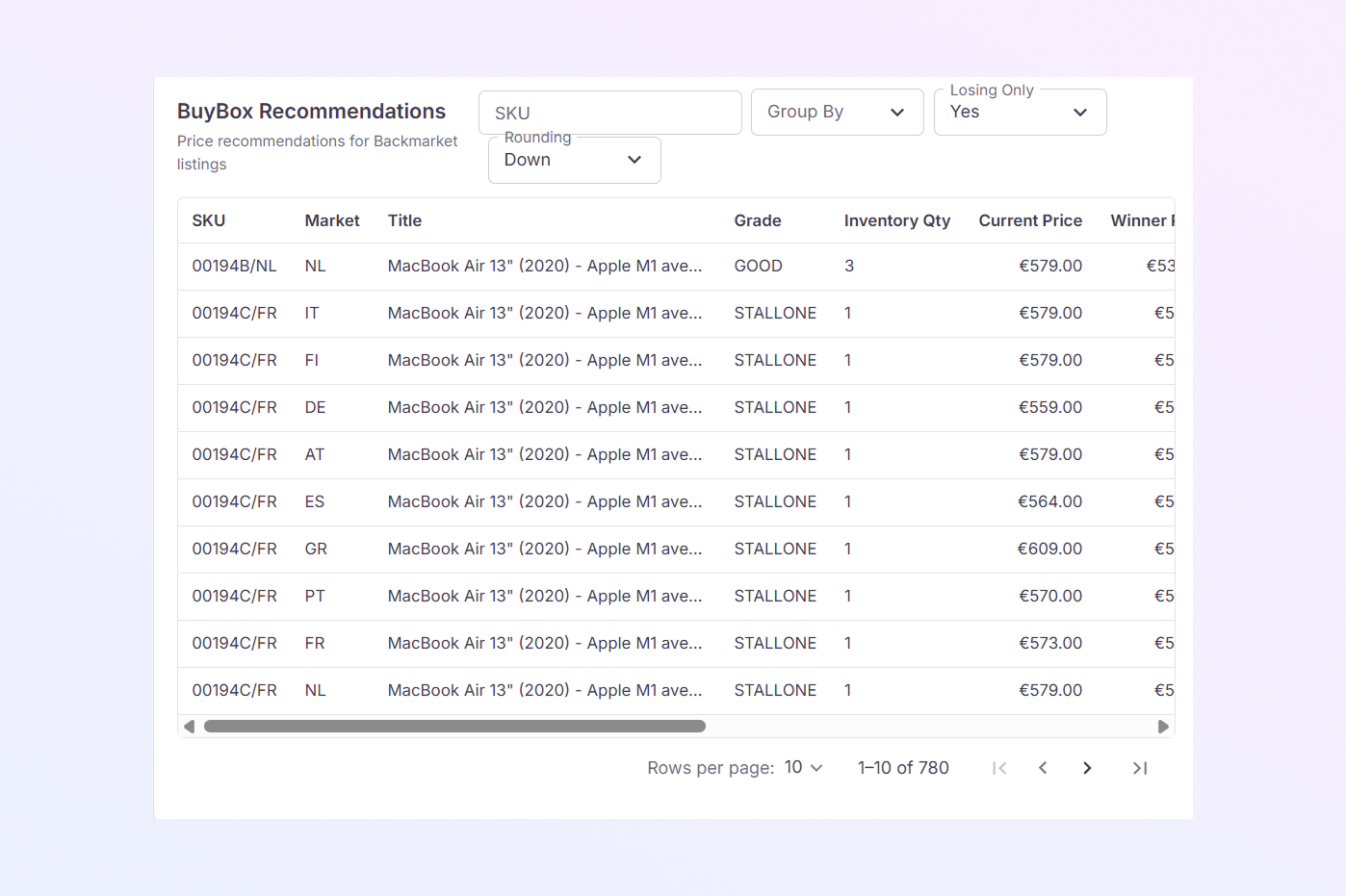
BuyBox Recommendations Section
This is the most important section of the page.
-
It provides price recommendations. Focuses mainly on Partial SKUs & Lost SKUs.
-
These SKUs are at risk of losing sales.
-
Columns you will see
-
SKU
-
Market
-
Title: Product name
-
Grade: Product condition
-
Inventory Qty
-
Current Price
-
Winner Price: Price of BuyBox winner
-
Min Price: Lowest allowed price
-
Price to Win: Price needed to win BuyBox
-
Recommended Price: Suggested new price
-
Delta: Price difference
-
Delta %: Percentage difference
-
Data Is Winning: Yes / No
-
Potential Win: Yes / No
-
How BuyBox Recommendations Help
-
For Partial SKUs: Shows how close your price is, and recommends a minor change to win fully.
-
For Lost SKUs: Determines the cause of BuyBox's loss and suggests a competitive price to regain sales.
-
This helps increase BuyBox wins, improve conversion rate, and prevent revenue loss.
Filters & Controls in Recommendation Table
-
You may see options like:
-
Search by SKU
-
Group By
-
Losing Only
-
Sorting options
-
-
Use these to focus on problem SKUs and take faster action.
Export Option
-
To download BuyBox data, use the Export CSV feature.
-
Beneficial for price analysis, reports, and team sharing.