


ExactFlow List Management Page User Guide
You can view, monitor, and manage all of your product listings across various marketplaces with the Listing Management page. Listing coverage, product status, alerts, inventory condition, and sales performance are all displayed in one place.
Sales teams can prevent stock issues, increase visibility, and protect revenue with the help of this page.
How to Open the Listing Management Page
Log in to your ExactFlow account.
From the left sidebar, click Sales Agent.
Click Listing Management.
You will now see the Listing Management dashboard.
Top Filters
There are two dropdown filters at the top of the Listing Management page. You can manage what data appears on the page using these filters.
Category Dropdown
-
You can choose a product category using this dropdown. Categories may include:
-
Mobile Phones
-
Accessories
-
Laptops
-
-
The page automatically updates when you choose a category. Only listings from the chosen category are displayed.
-
Use this to focus on particular product categories.
Marketplace Dropdownn
-
This dropdown menu allows you to select a marketplace. Example marketplaces:
-
Backmarket
-
Refurbed
-
Other connected platforms
-
-
When you select a marketplace, you can only view products that are listed on the marketplace.
-
Tables, alerts, and coverage are updated accordingly.
-
Managing multi-marketplace listings becomes easier with this.

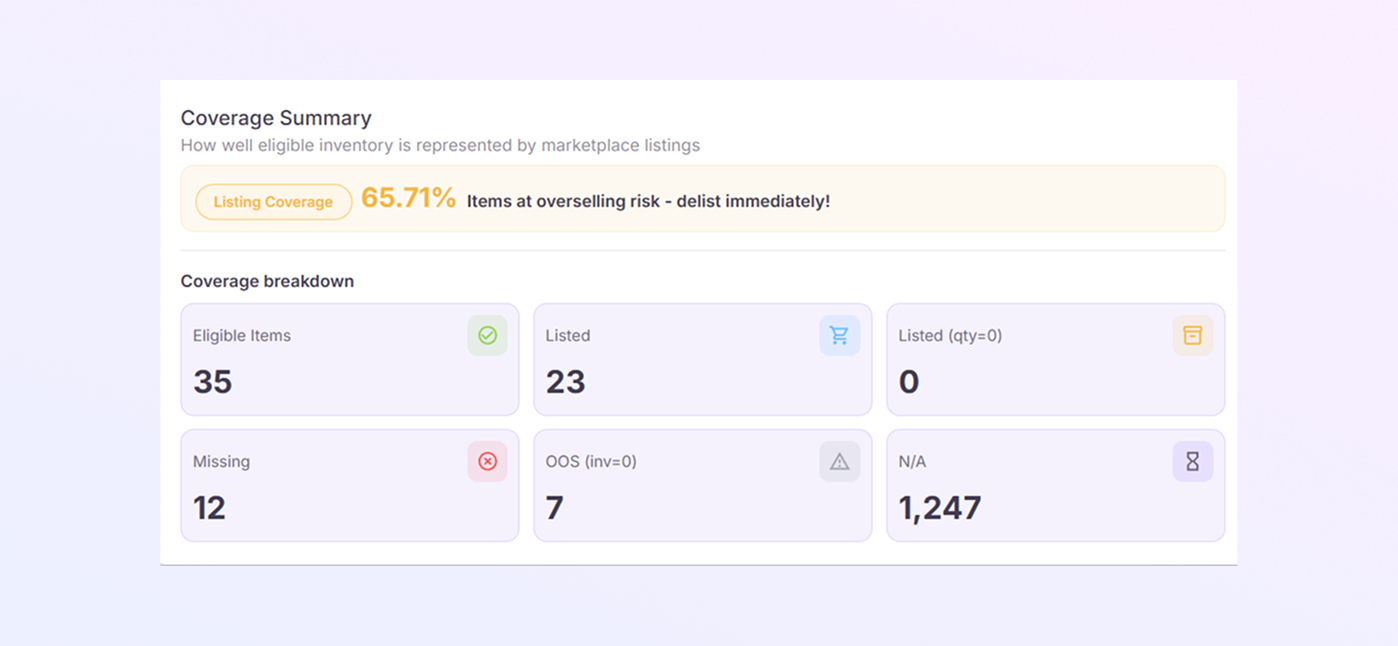
Coverage Summary
The Coverage Summary is located at the top of the page.
This section shows:
-
Percentage of total listing coverage
-
The number of successfully listed items
-
How many listings require attention or are missing?
This makes it easier for you to quickly assess how well your products are listed.
Coverage Breakdown Cards
The following small information boxes will appear below the summary:
-
Eligible Items: Total number of items that can be listed
-
Listed: currently available and for sale items
-
Inactive: items that aren't being sold right now
-
Missing: Unlisted products
-
Out of Stock: Listings with zero stock
-
Total Items: Total number of products
Each box provides a brief overview of your listing's health.
Status Distribution Section
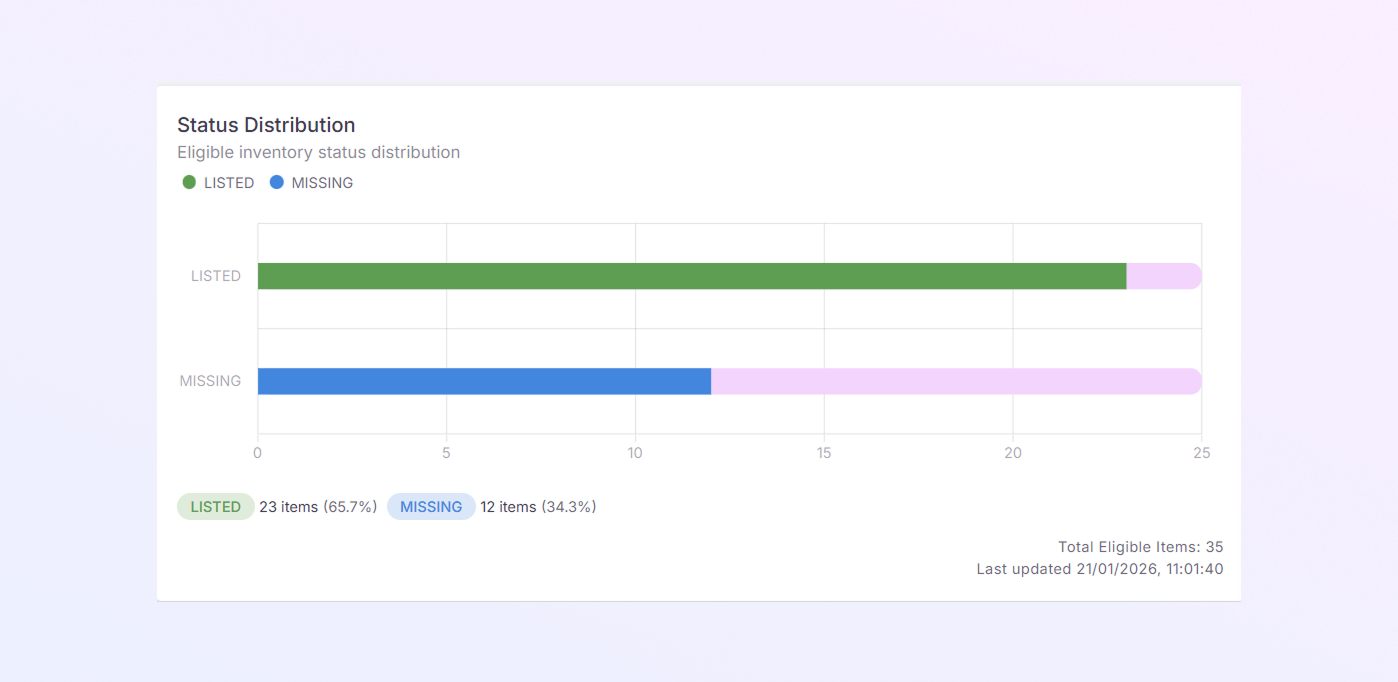
Colour bars are used in this section to display the listing status.
Usually colours show:
-
Green: Live listings
-
Blue: Active inventory
-
Pink color: Listings that are missing or inactive.
This facilitates the visual understanding of listing performance.
Sales & Alert Monitoring
Additionally, ExactFlow automatically tracks sales trends.
Sales Quantity Rule
-
If a product’s sales quantity drops below 10:
-
An alert is automatically generated by the system.
-
Instant notifications are sent to relevant teams.
-
-
This helps in preventing:
-
Stock issues
-
Listing failures
-
Revenue loss
-
-
Alerts appear clearly so action can be taken early.
Action Timeline & Alerts Section
-
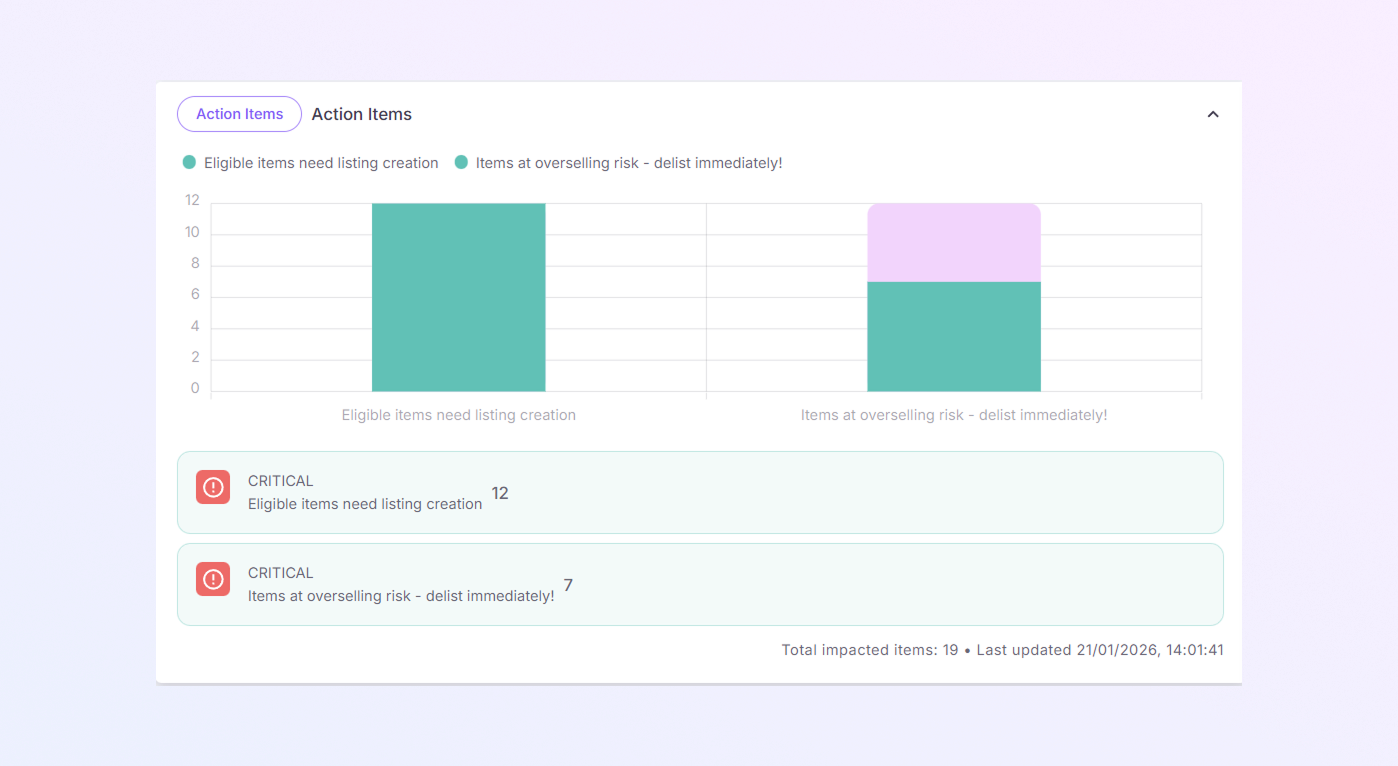
This section displays:
-
Listing actions
-
Alerts triggered by low sales or missing listings
-
System-generated warnings
-
-
You may see Critical alerts, Listing errors, and Coverage issues.
-
This helps sales teams respond quickly.
Successfully Listed Items Table
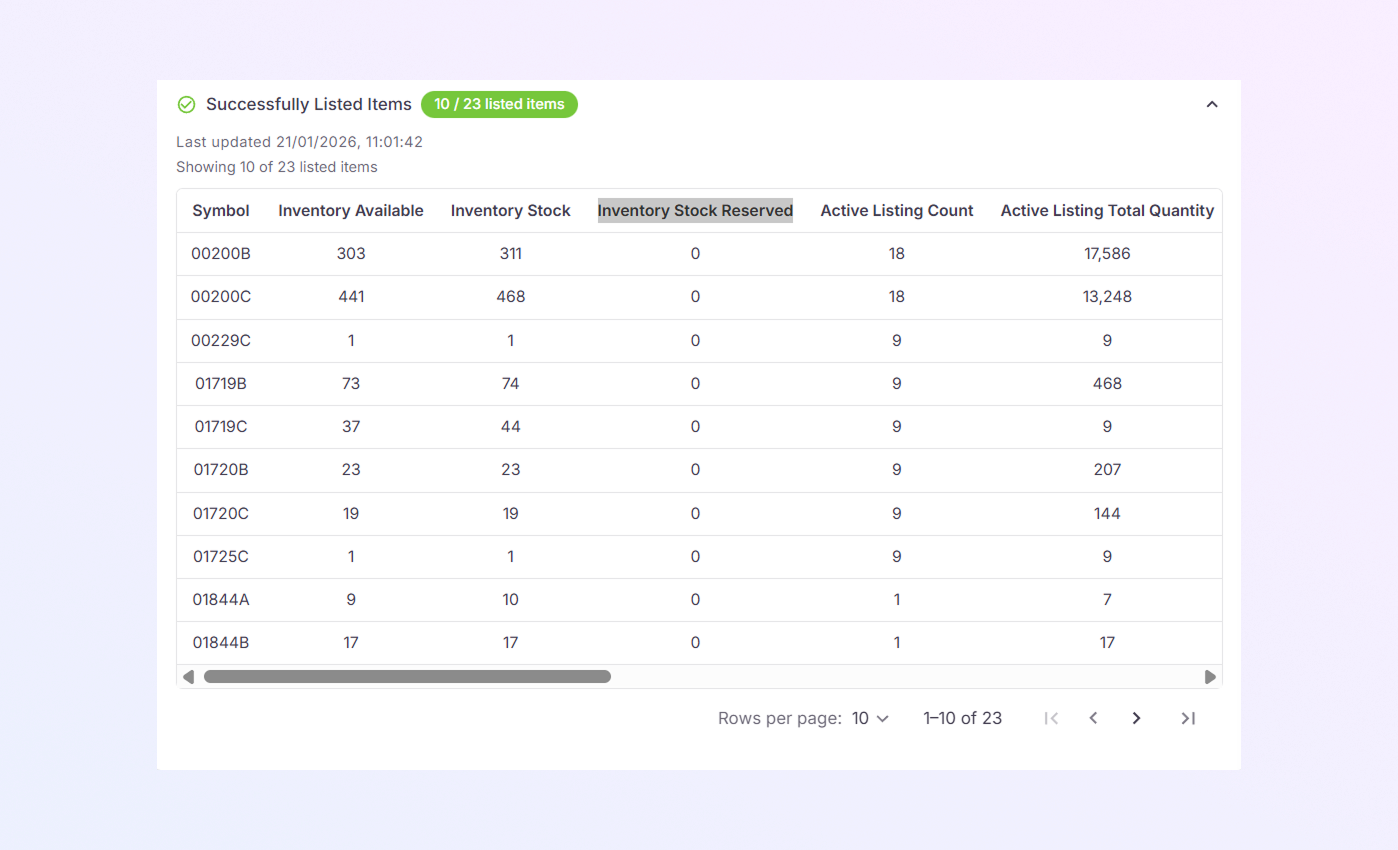
Products with accurate listings are displayed in this table.
Columns you see:
-
Symbol
-
Inventory Available
-
Inventory Stock
-
Inventory stock reserved
-
Active Listing Count
-
Active Listing Quantity
-
Status (Listed)
-
Inventory Grade
-
Listing Grade
-
Listing Ids
-
Listing Skus
-
Timestamp
-
Inventory Available Rate
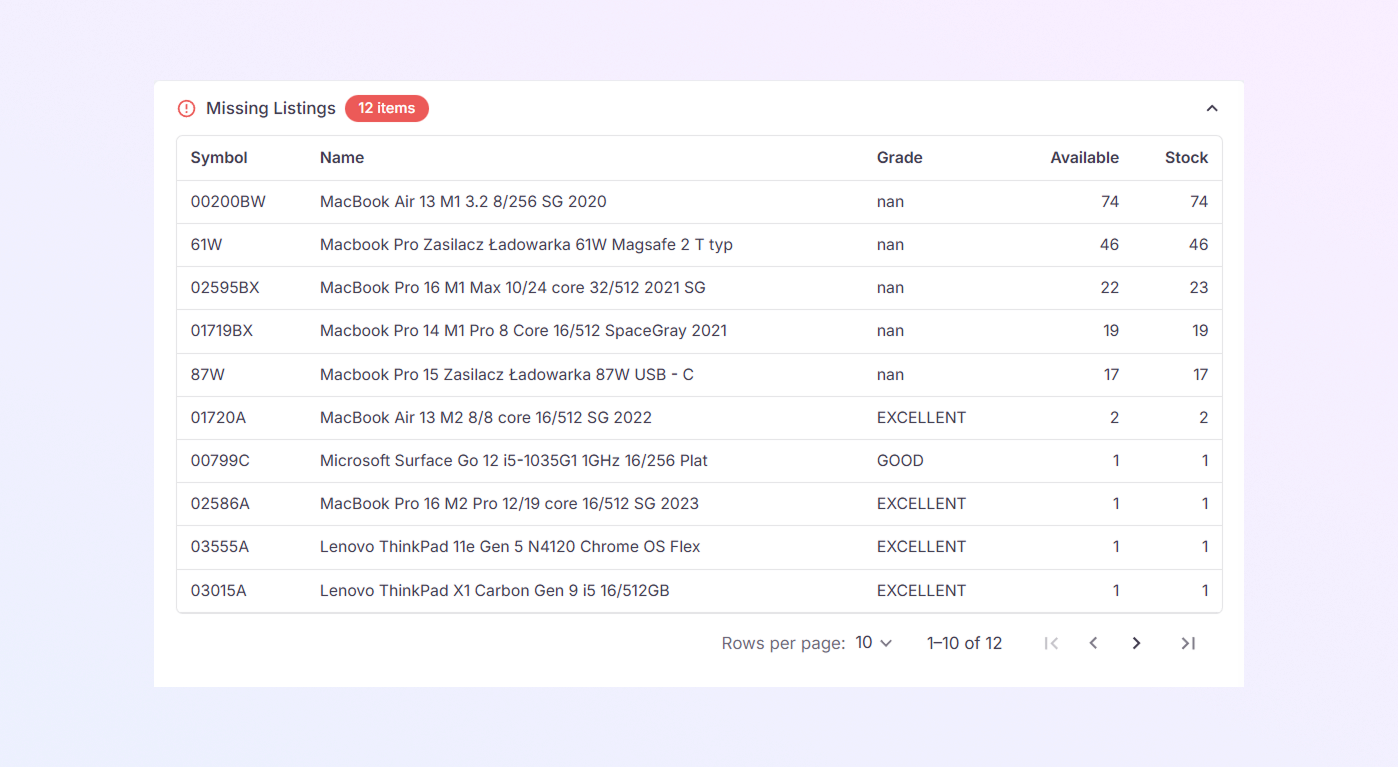
Missing Listings Section
This section displays:
-
Products that are not on the list.
-
Unsold available inventory
-
A symbol
-
Name of product
-
Grade
-
Available quantity
-
Stock count
Details consist of:
To prevent lost sales, these listings require attention.
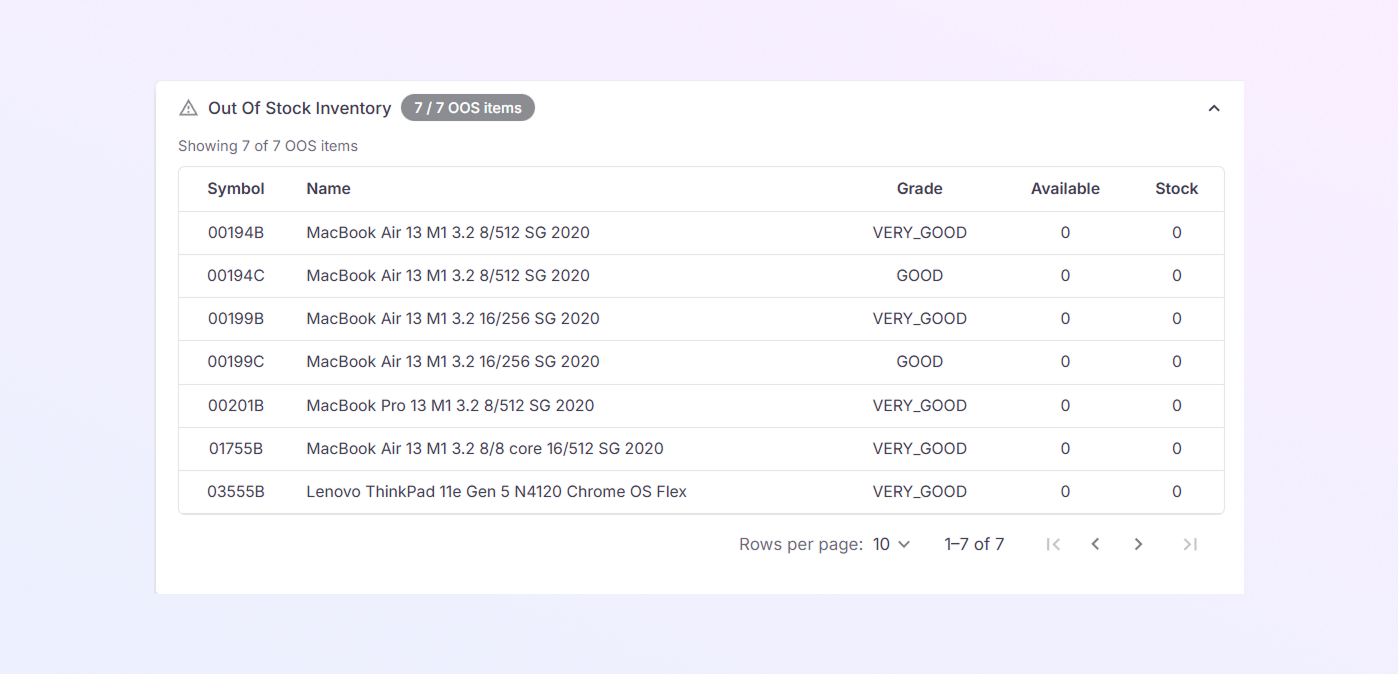
Out of Stock Inventory Section
This section lists:
-
Products that are out of stock
-
Listings that may stop selling
Use this to plan restocking and avoid listing downtime.
Summary
You get the following from the ExactFlow Listing Management Page:
-
Complete visibility of product listings
-
Automatic notifications for sales
-
SKU condition monitoring
-
Tracking marketplaces and categories
-
Early warnings for stock issues and low sales
On this page