ExactFlow Spec Verification Page User Guide
The Spec Verification page helps you make sure your inventory details match what is shown on marketplace listings. When specs don’t match, customers get confused, returns increase, and marketplaces may flag your listings.
This page helps you spot problems fast and fix them easily.
How to Open the Spec Verification Page
Log in to your ExactFlow account
From the left sidebar, click Sales Agent
Select Spec Verification
You’ll now see the Spec Verification dashboard.
Top Summary Section
At the top of the page, you’ll see a quick summary of how healthy your listings are.
-
Total Items Verified: How many products were checked?
-
Match Score (%): Shows how well inventory specs and listing specs match overall. Higher is better.
-
Needs Attention: Number of products with spec problems that need fixing.
This section gives you a fast “health check” of your data.

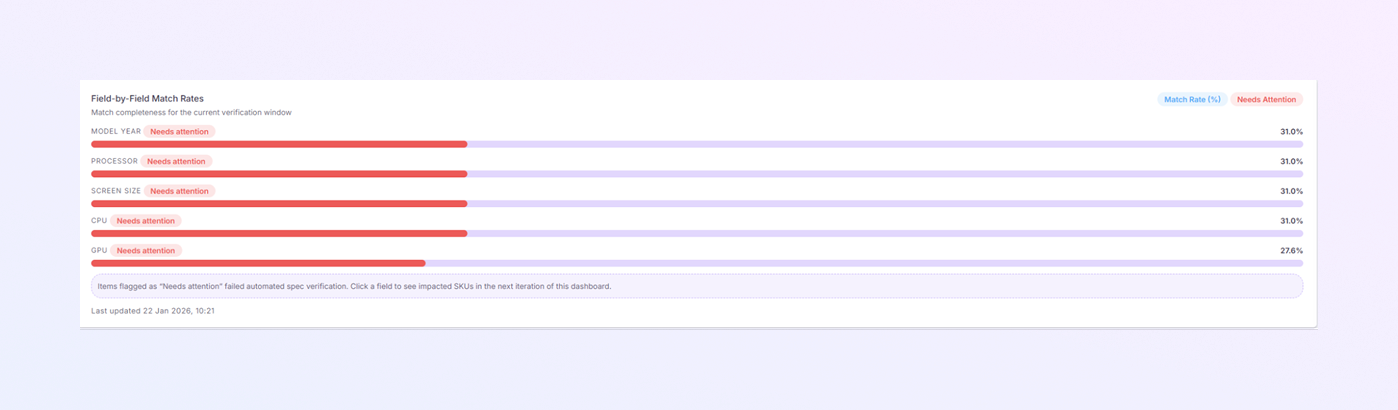
Field-by-Field Match Rate Section
Below the summary, you’ll see bars for each spec field, such as:
-
Model Year
-
Processor
-
Screen Size
-
Resolution
-
CPU
-
GPU
-
Grade
How to read this:
-
Green: mostly correct
-
Red: lots of mismatches
-
Percentages show how often inventory and listing agree
Red bars tell you exactly where things are going wrong, so you know where to focus first.
Needs Attention Items Section
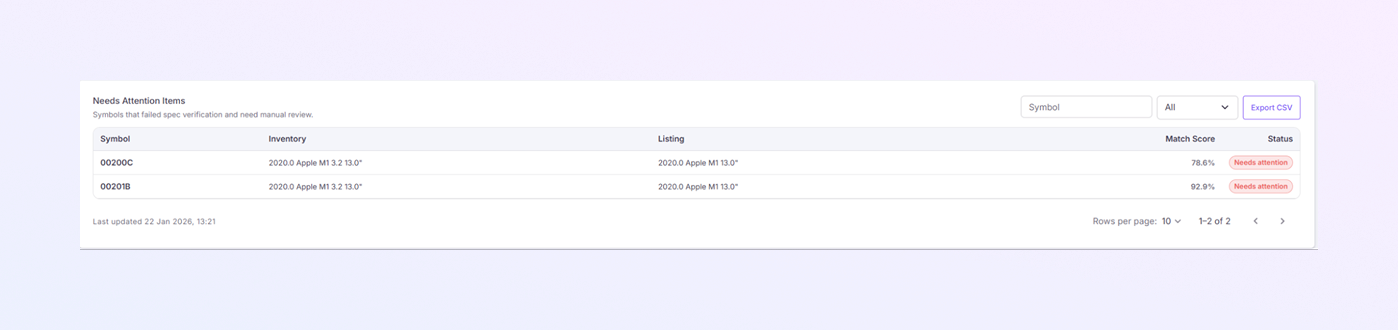
This section shows products that have serious spec mismatches.
-
Symbol: Product SKU
-
Inventory: What ExactFlow says
-
Listing: What the marketplace shows
-
Match Score: How close they are
-
Status: Marked as Needs Attention
These items should be your top priority.
Specification Match Details
-
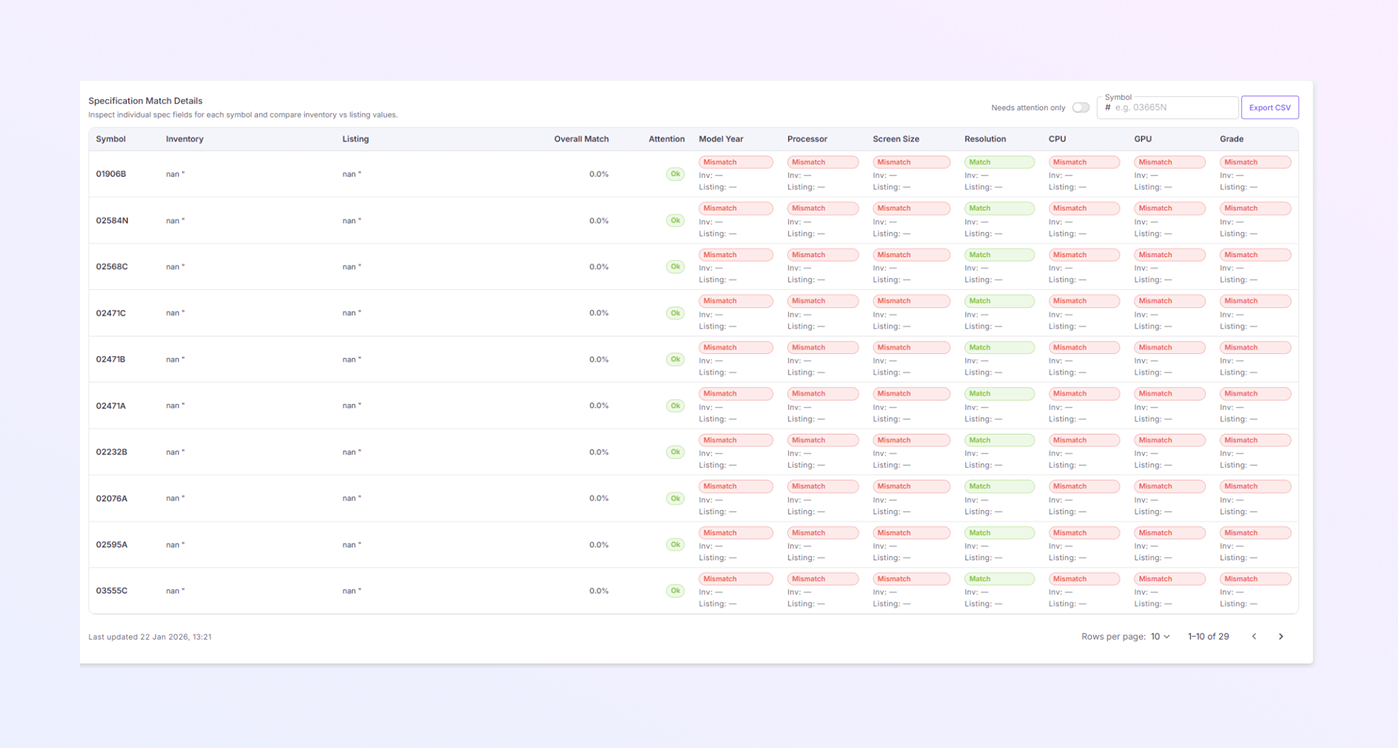
This is the most important part of the page. It compares inventory specs and listing specs side by side, so you can see exactly what’s wrong.
-
Symbol: Product ID
-
Inventory: Internal product data
-
Listing: Marketplace data
-
Overall Match: Total accuracy score
-
Attention: Shows if action is needed
-
-
Spec fields you’ll see:
-
Model Year
-
Processor
-
Screen Size
-
Resolution
-
CPU
-
GPU
-
Grade
-
-
Color meaning:
-
Green: Specs match (all good)
-
Red: Specs don’t match (needs fixing)
-
Blank / Missing: Data is missing
-
-
You can spot mistakes in seconds without reading everything.
-
To work faster, you can search by Symbol to find a product quickly.
-
Also Filter by Status to show only problem items.
-
Export CSV to download data for Bulk fixes, Reporting, and Sharing with other teams.
Category Distribution Section
-
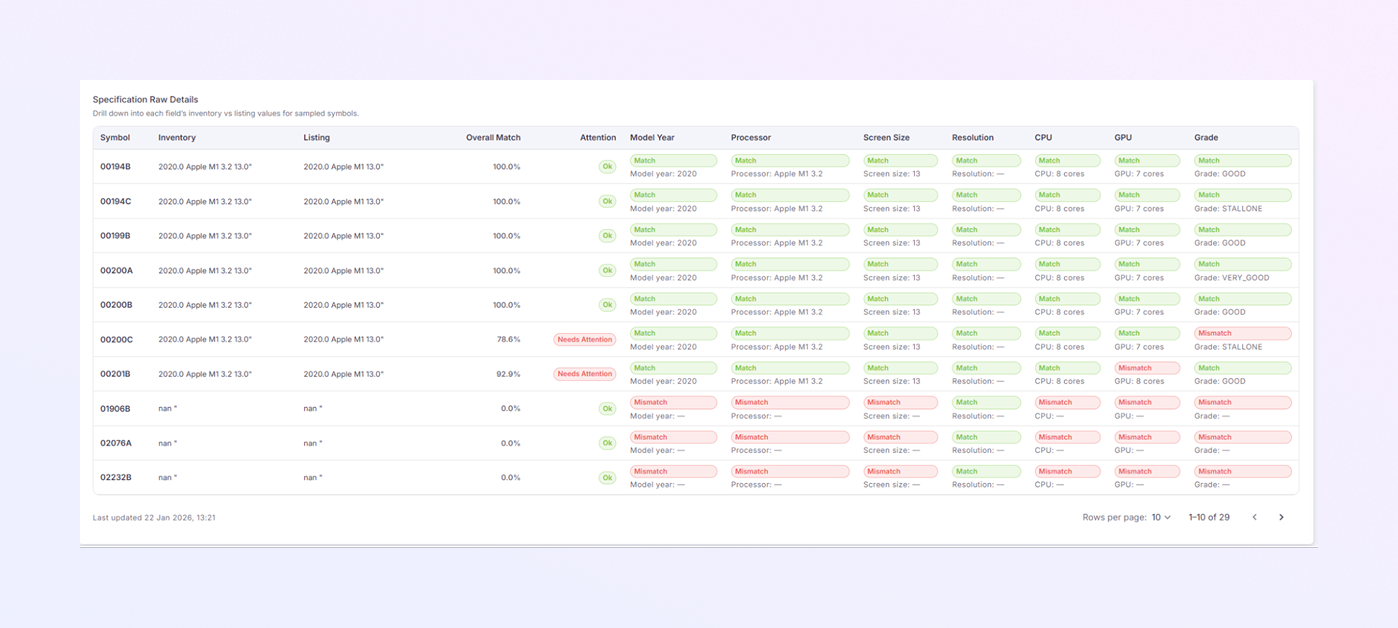
The Specification Raw Details section shows the original, unprocessed data coming from both your inventory system and the marketplace listing.
-
It is useful when you need to understand why a spec is not matching.
-
Sometimes specs look similar but still don’t match. This happens because:
-
Different naming styles are used
-
Extra words are added
-
Values are formatted differently
-
-
Specification Raw Details helps you see the data exactly as it exists, without any cleanup or standardization.
-
For each product, you will see:
-
Symbol: The product SKU or identifier.
-
Inventory (Raw): The original specification values stored in inventory.
-
Listing (Raw): The exact specification values pulled from the marketplace listing.
-
Overall Match %: Shows how closely the raw data matches.
-
Spec Fields: Such as:
-
Model Year
-
Processor
-
Screen Size
-
Resolution
-
CPU
-
GPU
-
Grade
-
-